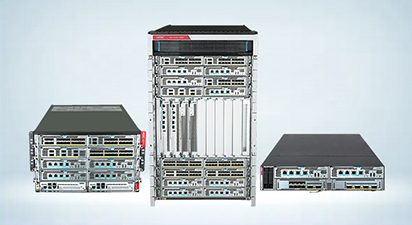
Supported products
H3C UniServer R4900 G7
Restrictions and cautions
Restrictions
Due to Server restart mechanism optimization, the BIOS firmware will not retain configurations when downgrading to a version below 7.00.25. To restore the original configuration after downgrading, you must export the configuration file of the current version through the HDM interface before downgrading, then perform a forced overwrite downgrade using the target lower version. After the downgrade is completed, re-import the previously backed-up configuration file to complete the configuration recovery.
Guidelines
To avoid BIOS boot failures, do not upgrade or reset HDM during BIOS boot.
In BIOS-7.00.11 and later versions, the options for the PCIE Network Configuration menu cannot be properly configured and retained. This issue is resolved in BIOS-7.00.21 and later versions.
Version information
Version number
Version 7.00.26P01
Image file name and MD5 checksum:
BIOS-7.00.26P01-signed.bin: d1ede4a1b3a597f79ee67359a0ca3c5a
You can access the HDM Web interface of the server to identify the BIOS firmware version in the Device information section of the Dashboard page, as shown in Figure 1.
Figure 1 Viewing the BIOS version number from HDM

BIOS built-in software version
Table 1 SP CPU BIOS built-in software version
Item | Version |
Microcode | GNR B* Production MCU: m_95_a06d1_01000423.inc GNR R1S B* Production MCU: m_20_a06d1_0a000142.inc SRF C* Production MCU: m_01_a06f3_030003a3.inc |
Intel BKC version | 2026_WW09 |
Intel RC version | 3545P22+reverts* |
BIOS ACTM | GNR V02.00.406 SRF V02.00.407 |
RSTe PreOS Components | 9.0.0.1240 |
VMD VROC | 9.1.0.1139 |
Production BIOS ACM / Production SINIT ACM Binaries | v1.0.8 |
Seamloader version | 2.0.01.00.316 |
TDX module version | GNR 2.0.16.00.994 SRF 1.5.28.04.989 |
Supported languages
English
Chinese
Supported devices
Hardware series | PUID |
H3C UniServer R4300 G7 | R4300-G7-MAL0 |
H3C UniServer R4700 G7 | R4700-G7-MAL0 R4700-G7-MAS0 R4700-G7-MCL0 R4700-G7-MCS0 |
H3C UniServer R4900 G7 | R4900-G7-MAE0 R4900-G7-MCE0 R4900-G7-MAL0 R4900-G7-MCL0 R4900-G7-MAS0 R4900-G7-MCS0 |
H3C UniServer R6900 G7 | R6900-G7-MAS0 |
Hardware and software compatibility matrixes
| CAUTION: To avoid update failure, verify the hardware and software compatibility before performing an update. |
Table 2 Hardware and software compatibility matrix for H3C UniServer R4300 G7
Item | Specifications |
Product family | H3C UniServer R4300 G7 |
HDM | HDM3-2.13.02 and later |
CPLD | V003 and later |
iMC | N/A |
Table 3 Hardware and software compatibility matrix for H3C UniServer R4700 G7/R4900 G7
Item | Specifications |
Product family | H3C UniServer R4700 G7/R4900 G7 |
HDM | HDM3-2.13.02 and later |
CPLD | V003 and later |
iMC | N/A |
Table 4 Hardware and software compatibility matrix for H3C UniServer R6900 G7
Item | Specifications |
Product family | H3C UniServer R6900 G7 Intel |
HDM | HDM3-3.04.01 and later |
CPLD | V002 and later |
iMC | N/A |
Table 5 Hardware and software compatibility matrix for H3C UniServer R5300 G7
Item | Specifications |
Product family | H3C UniServer R5300 G7 Intel |
HDM | HDM3-3.03.01 and later |
CPLD | V001 and later |
iMC | N/A |
Table 6 Hardware and software compatibility matrix for H3C UniServer R5500 G7 X Intel
Item | Specifications |
Product family | H3C UniServer R5500 G7 X Intel |
HDM | HDM3-3.04.01 and later |
CPLD | V001 and later |
iMC | N/A |
Update suggestions
This version is recommended.
Update restrictions and guidelines
Make sure the software versions are compatible with each other.
To update both HDM and the BIOS, update HDM first.
Make sure the server is running in stable state before the update. That is, the server is powered off or has entered the operating system.
If the server enters the OS before the update, you must power cycle the server for the new firmware to take effect.
If you select the Retain or Restore method to update the BIOS, the update occurs during POST after the server is powered on again. During the update, do not disconnect the power source from the server, or forcedly power off or restart the server.
If you select the Forcedly restore method to update the BIOS, do not disconnect the power source from the server, or power off or restart the server.
Selecting the Restore or Forcedly restore method will restore the default BIOS settings, including restoring the boot mode in the BIOS to the default (UEFI).
During BIOS update with Forcedly restore selected, writing BIOS data, such as restarting the system or saving BIOS configuration from the BIOS setup utility, can cause data write errors. This can lead to BIOS ROM integrity check failures and even system starting failures. If the system prompts Flash Image Broken! System Halt!, forcedly power off the server, and then try to update the BIOS with Forcedly restore selected again.
As a best practice of bulk update, make sure you can update one server successfully before you update the remaining servers.