
- 产品与解决方案
- 行业解决方案
- 服务
- 支持
- 合作伙伴
- 新华三人才研学中心
- 关于我们
-
-
< 返回
-
云与智能
热门推荐
-

- 以数智赋能,构建起技防、数控、网管、智治的综合防疫平台,形成疫情防控数字闭环,助基层政府精准抗疫。
-

- 极致超融合,打造稳定高效全新IT架构;极简云桌面,畅享安全流畅办公全新体验。
-
-
智能联接
热门推荐
-

- 超大带宽、绿色节能、极简部署运维,为中小学、医院、酒店、中小企业及政府等用户打造一张面向未来的全光园区网络。
-

- 新华三IPv6+旨在为新一代互联网,构建超宽低时延、智能、融合可信的网络发展基石,全面使能百行百业向数字化、智能化的转型。
-
-
智慧计算
热门推荐
- HPE Superdome Flex 280服务器
- HPE ProLiant DL380 Gen10服务器
- H3C UniServer B16000 刀片服务器
- H3C UniServer R4900 G3服务器
- H3C UniServer R5500 G5服务器
-

- 想要IT资金投入回报高、想要业务连续不间断、想要IT维护简单省心,新华三计算存储一站式解决方案,全面应对数据库、共享存储、虚拟化等各类业务应用需求。
-
智能存储
热门推荐
-

- 想要IT资金投入回报高、想要业务连续不间断、想要IT维护简单省心,新华三计算存储一站式解决方案,全面应对数据库、共享存储、虚拟化等各类业务应用需求。
-

- 新华三提供业界卓越的数据缩减效率,确保您以传统存储相同的单TB成本构建全闪存数据中心,加速业务创新。让我们一起迈入全闪存时代!
-
-
主动安全
热门推荐
-
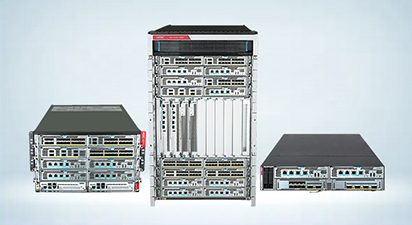
- 新华三结合云计算、IPv6、大数据及高性能计算的发展趋势,针对云计算数据中心、运营商CGN、大型企业及园区网出口等市场推出推出多款高性能多业务安全网关。
-

- 新华三密码应用安全性评估解决方案针对密码应用相关标准规范,基于物理和环境安全、网络和通信安全、设备和计算安全、应用和数据安全、密钥管理安全角度进行统一规划设计。
-
-
-
-
< 返回
-
行业解决方案
热门推荐
-

- 从县域医院数字化转型需求出发,新华三推出与实际应用场景紧密结合的智慧医院解决方案,提升县医院综合能力,助力县域内医疗资源整合共享。
-

- 最新最全的营销资料,千份营销资料,快速获取!
-
-
-
-
< 返回
-
-
< 返回
-
商学管理
热门推荐
-

- 2022新华三技术认证暑期百城计划正在进行中!我们有最优惠的认证价格,最强大的认证支持,更有千元奖金等你领!
-

- “新华三杯”2022全国大学生数字技术大赛火热进行中!笔记本电脑、Switch主机、最高价值10万元团队奖等丰厚奖品,更有考证优惠,就业福利活动等你解锁。
-
-
IT管理
热门推荐
-

- 2022新华三技术认证暑期百城计划正在进行中!我们有最优惠的认证价格,最强大的认证支持,更有千元奖金等你领!
-

- “新华三杯”2022全国大学生数字技术大赛火热进行中!笔记本电脑、Switch主机、最高价值10万元团队奖等丰厚奖品,更有考证优惠,就业福利活动等你解锁。
-
-
生态赋能
热门推荐
-
- 2022新华三技术认证暑期百城计划正在进行中!我们有最优惠的认证价格,最强大的认证支持,更有千元奖金等你领!
-
- “新华三杯”2022全国大学生数字技术大赛火热进行中!笔记本电脑、Switch主机、最高价值10万元团队奖等丰厚奖品,更有考证优惠,就业福利活动等你解锁。
-
-
H3C认证在线
热门推荐
-

- 2022新华三技术认证暑期百城计划正在进行中!我们有最优惠的认证价格,最强大的认证支持,更有千元奖金等你领!
-

- “新华三杯”2022全国大学生数字技术大赛火热进行中!笔记本电脑、Switch主机、最高价值10万元团队奖等丰厚奖品,更有考证优惠,就业福利活动等你解锁。
-
-
ICT技术
热门推荐
-

- 2022新华三技术认证暑期百城计划正在进行中!我们有最优惠的认证价格,最强大的认证支持,更有千元奖金等你领!
-

- “新华三杯”2022全国大学生数字技术大赛火热进行中!笔记本电脑、Switch主机、最高价值10万元团队奖等丰厚奖品,更有考证优惠,就业福利活动等你解锁。
-
-
智能技术
热门推荐
-

- 2022新华三技术认证暑期百城计划正在进行中!我们有最优惠的认证价格,最强大的认证支持,更有千元奖金等你领!
-

- “新华三杯”2022全国大学生数字技术大赛火热进行中!笔记本电脑、Switch主机、最高价值10万元团队奖等丰厚奖品,更有考证优惠,就业福利活动等你解锁。
-
-
安全技术
热门推荐
-

- 2022新华三技术认证暑期百城计划正在进行中!我们有最优惠的认证价格,最强大的认证支持,更有千元奖金等你领!
-

- “新华三杯”2022全国大学生数字技术大赛火热进行中!笔记本电脑、Switch主机、最高价值10万元团队奖等丰厚奖品,更有考证优惠,就业福利活动等你解锁。
-
-
校企合作
热门推荐
-

- 2022新华三技术认证暑期百城计划正在进行中!我们有最优惠的认证价格,最强大的认证支持,更有千元奖金等你领!
-

- “新华三杯”2022全国大学生数字技术大赛火热进行中!笔记本电脑、Switch主机、最高价值10万元团队奖等丰厚奖品,更有考证优惠,就业福利活动等你解锁。
-
-
-
-
< 返回
- 如何购买
- 数字化领航直播间
- 云上展厅
- 新华三商城 New



 支持
支持

 售前咨询
售前咨询


 售后咨询
售后咨询

 人工在线咨询

