Configure CAS
Add the storage volumes configured in "Prepare the storage environment" as shared file systems or block devices on CAS. You only need to add the storage volume on the primary storage server as an FC shared file system to the primary CVM system. CAS will add a shared file system on the backup CVM system automatically after you create a protection group.
Restrictions and guidelines
A shared file system can contain only one storage volume (corresponds to a LUN).
After you attach storage resources to VMs on CAS, synchronize the storage resources at least twice before you perform data recovery. This avoids data loss in a recovery plan test.
3PAR/Primera SRM supports FC shared file systems and FC network storage.
Procedure
Log in to CAS CVM.
On the top navigation bar, click Resources.
From the left navigation pane, select Compute > Host Pool Name.
Click the Shared File Systems tab.
Click Add.
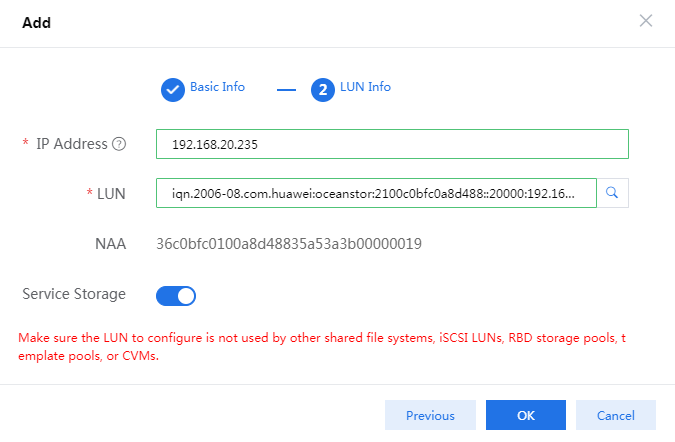
Add the LUN on the primary storage server as a shared file system.
If you add the LUN as network storage, attached it to a host directly.
Figure-1 Configuring basic parameters for the shared file system
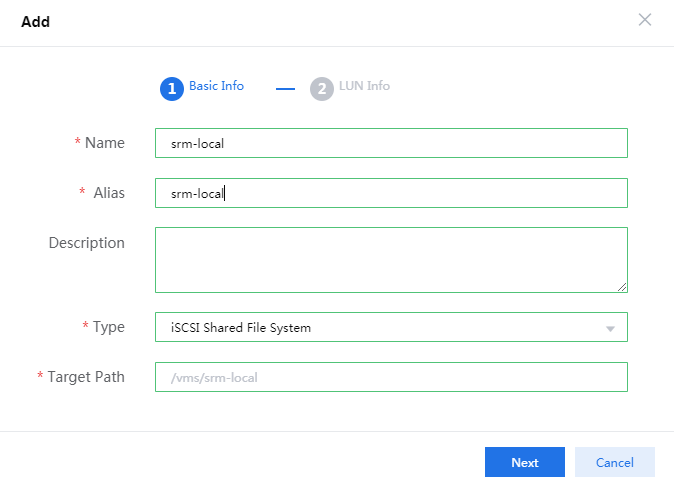
Figure-2 Configuring LUN settings for the shared file system
On the top navigation bar, click Resources.
From the left navigation pane, select Compute > Host Pool Name > Cluster Name.
Click the Storage tab.
Click Add.
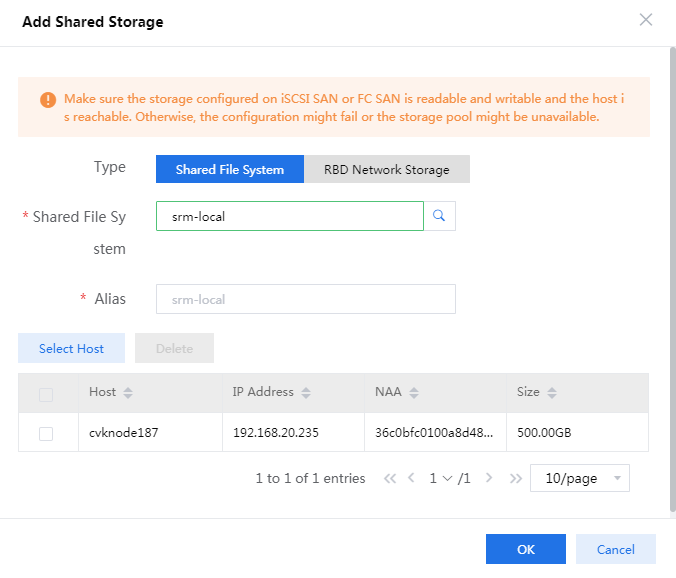
Attach the shared file system to hosts.
Figure-3 Attaching the shared file system to hosts
On the top navigation bar, click Resources.
From the left navigation pane, select Compute > Host Pool Name > Cluster Name > Host Name.
Click Add VM.
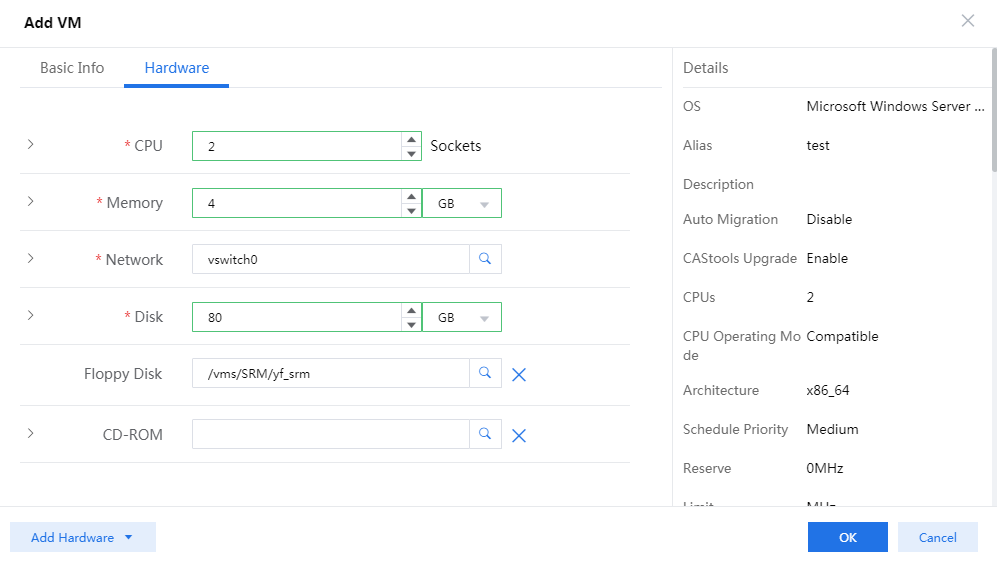
Create a VM and attach the shared file system as a storage pool to the VM.
Figure-4 Configuring basic parameters for the VM
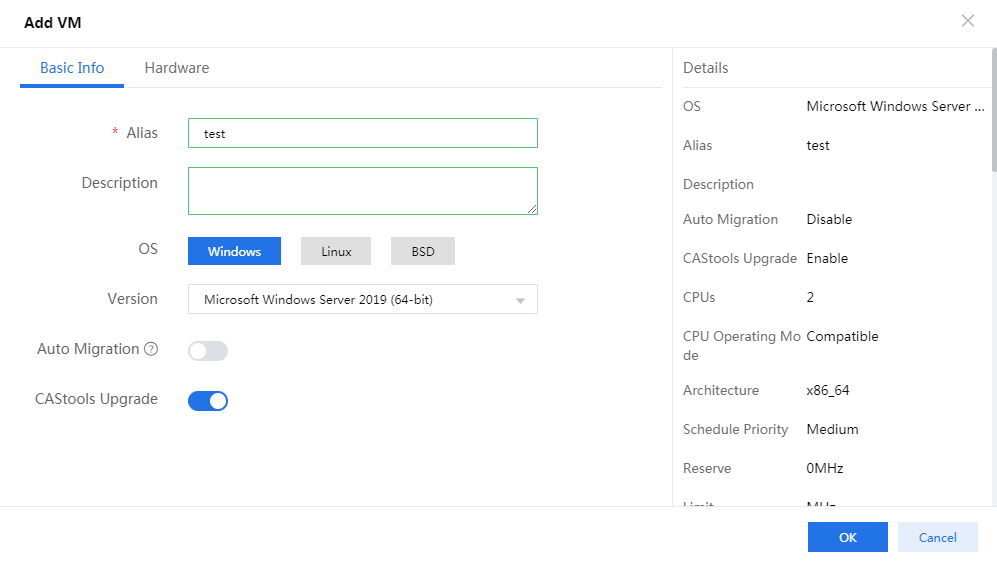
Figure-5 Attaching the shared file system to the VM