Configuring the wireless AC
On the top navigation bar, click
Network . From the left navigation pane, selectWLAN AC .Configure an AP. Create a manual AP.
From the left navigation pane, select
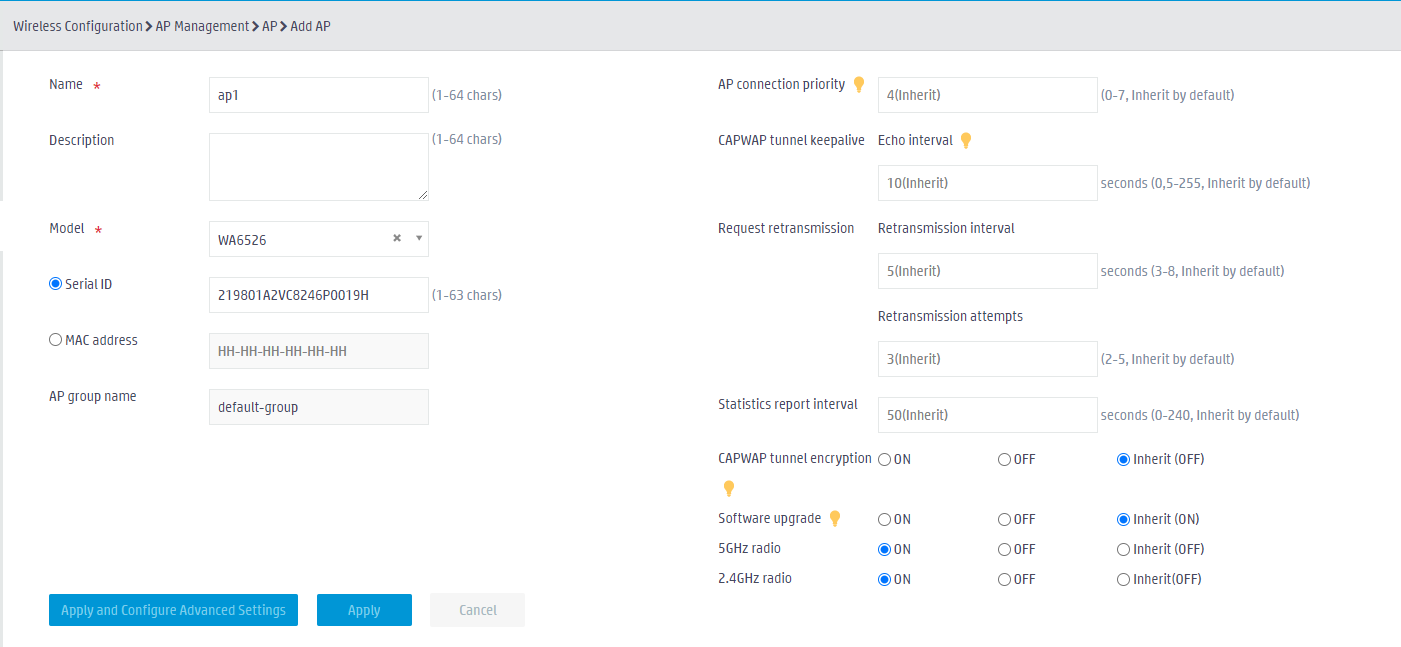
Quick Start >Add New AP >Add New AP . Configure an AP as follows:Name :ap1 .AP connection priority : 4.Model : WA6526.Add the AP by serial ID. You can also add the AP by specifying the AP's MAC address.
Use the default values for other parameters and then click
Apply .
Figure-1 Creating a manual AP
From left navigation pane, select
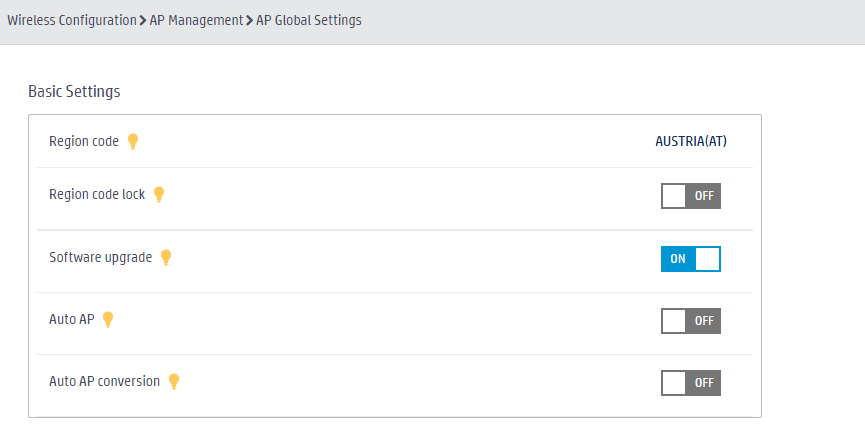
Wireless Configuration >AP Management >AP Global Settings . Verify that the AP region code is correct.Figure-2 Specifying the AP region code
From the left navigation pane, select
Wireless Configuration >Wireless Networks >Wireless Networks >Add Wireless Networks . Then, create a service template as follows:Specify
fangan as the wireless service name.Set the SSID of the service template to
AP6526 .Disable the wireless service.
Set the default VLAN to service VLAN 20.
Select
Static PSK andMAC Authentication as the authentication modes.Select
WPA3-Personal as the security mode, selectRequired for theWPA3-Persona Mode field, selectON andRequired forManagement Frame Protection , and then enter the PSK key.Specify
mac-renzheng as the MAC authentication domain name.Use the default values for other parameters and click
Apply and Configure Advanced Settings to save the configuration.
Figure-3 Adding a wireless network

Click the
Binding tab and bind the wireless service template to the 5GHz and 2.4GHz radios.Figure-4 Binding service template ap1 to radios
