Configuring the internal network interfaces
On the top navigation bar, click
Network . From the left navigation pane, selectLink >VLANs .Click
Create to create VLAN 10 (management VLAN) and VLAN 20 (service VLAN) as follows:Figure-1 Creating VLANs

From the left navigation pane, select
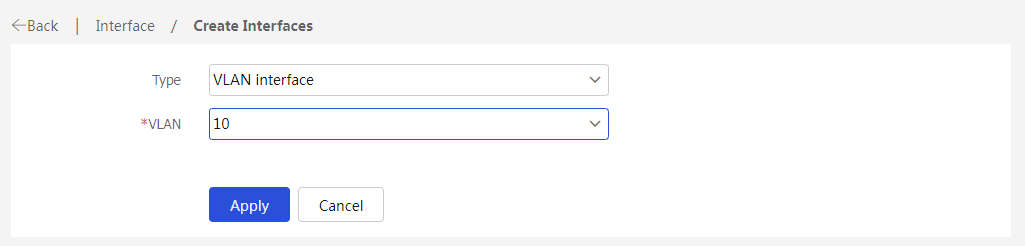
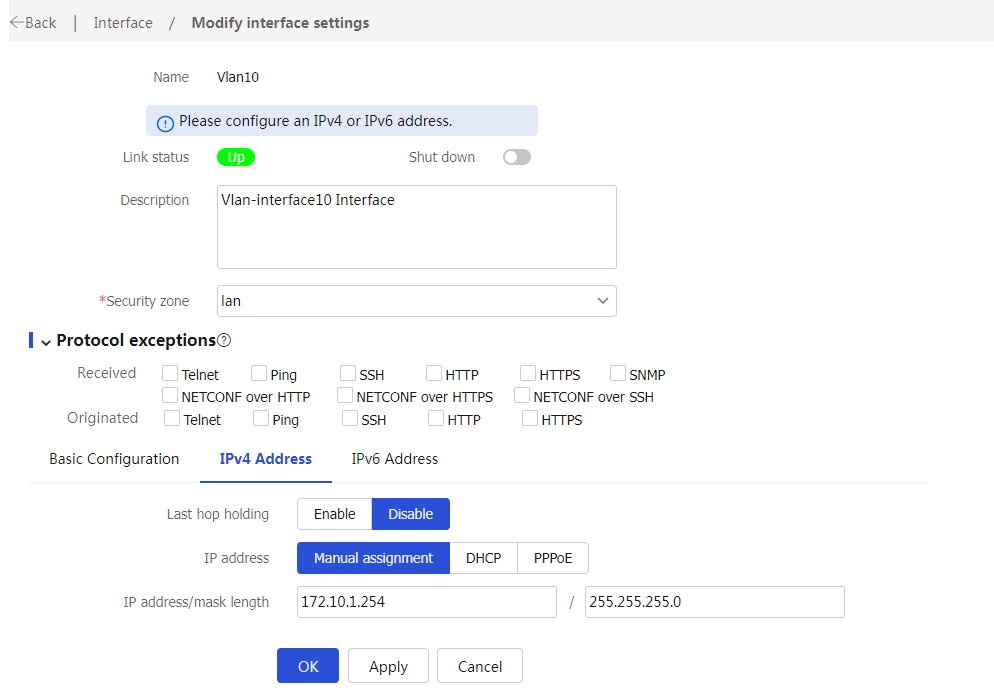
Interface Configuration >Interfaces . ClickCreate interface , and then create a VLAN interface for VLAN 10, the management VLAN. The configuration is as follows:Add the interface to security zone
lan .Configure the IPv4 address/subnet mask as 172.10.1.254/255.255.255.0.
Click
Apply .
Figure-2 Configuring a VLAN 10 interface
On the
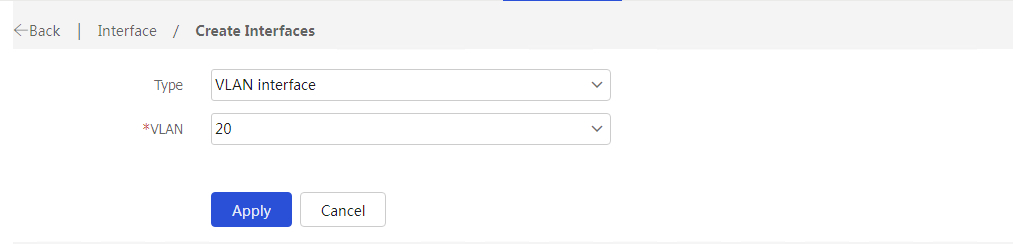
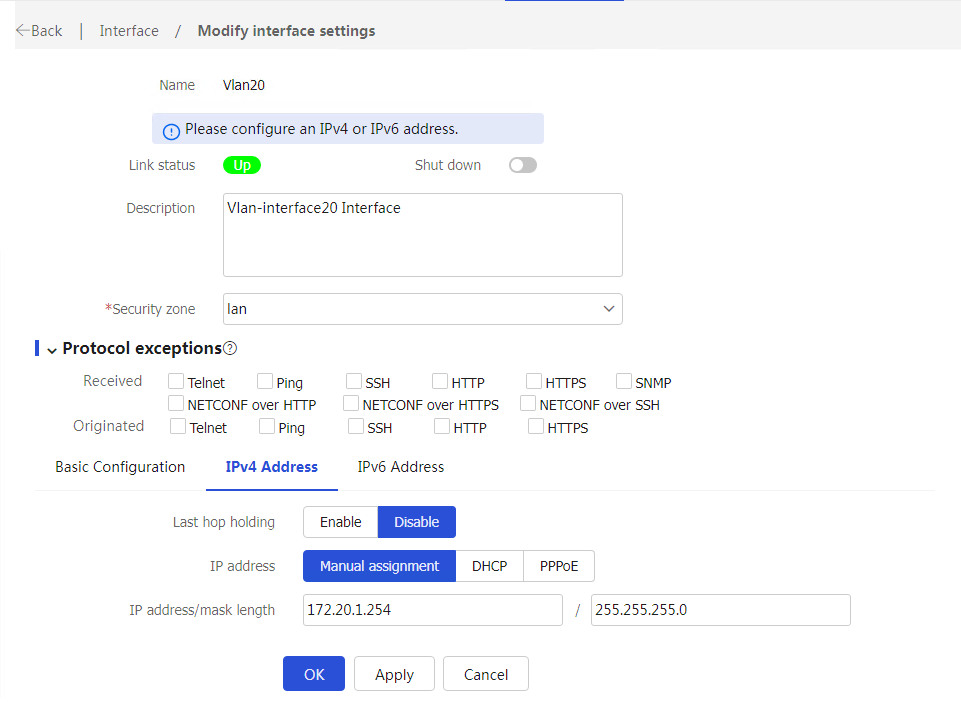
Interfaces page, clickCreate , and then create a VLAN interface for VLAN 20 as follows:Add the interface to security zone
lan .Configure the IPv4 address/subnet mask as 172.20.1.254/255.255.255.0.
Click
Apply .
Figure-3 Configuring a VLAN 20 interface
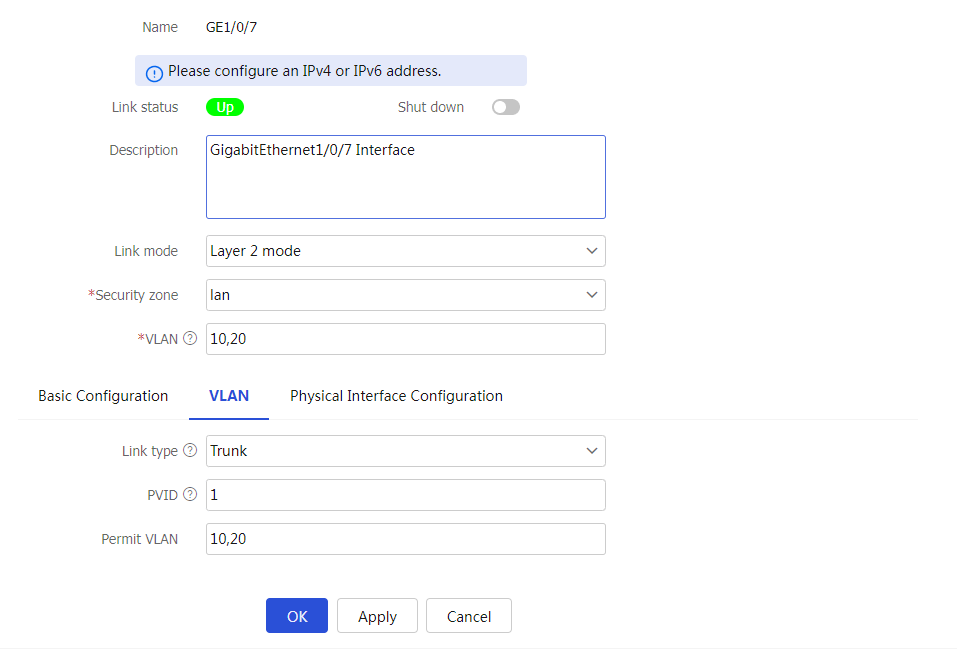
Click the
Edit icon for GE1/0/7, and then configure the interface as follows:Select
Layer 2 mode as the link mode.Add the interface to security zone
lan .Add the interface to VLAN 10 and VLAN 20 (enter
10,20 in theVLAN field).Select
Trunk as the link type.Configure the permit VLANs as VLAN 10 and VLAN 20.
Click
OK .
Figure-4 Editing interface GE1/0/7