Web example: Configuring data filtering
Network configuration
As shown in
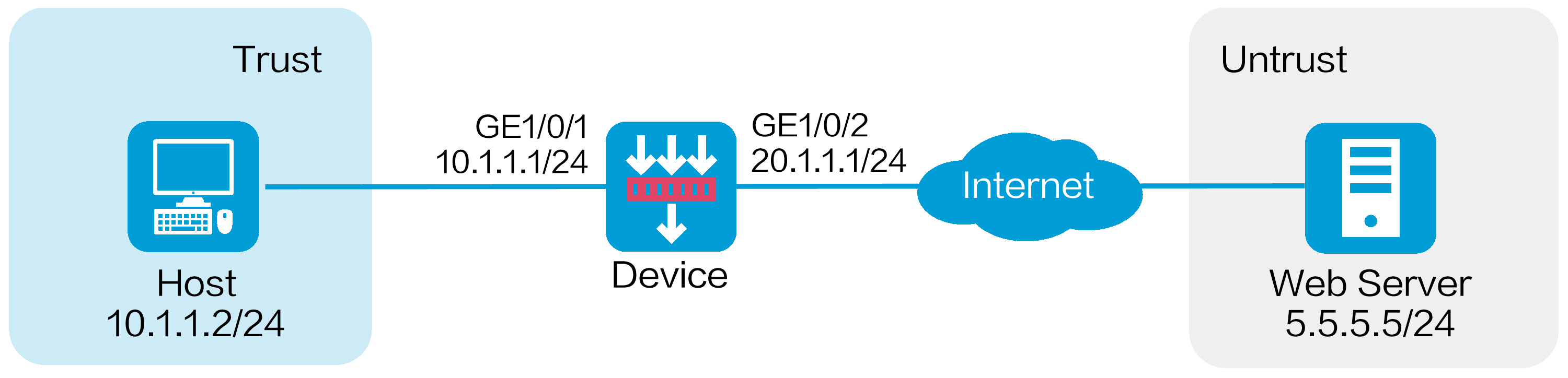
Software versions used
This configuration example was created and verified on R9900P25 of the M9000-X06 device.
Restrictions and guidelines
Data filtering supports filtering packets of the following protocols:
HTTP.
FTP.
SMTP.
IMAP.
NFS.
POP3.
RTMP.
SMB.
For data filtering to inspect HTTPS protocol packets, you must also configure the application proxy feature. To configure the application proxy feature, access the
Procedure
Assign IP addresses to interfaces and add the interfaces to security zones:
# On the top navigation bar, click
Network .# From the navigation pane, select
Interface Configuration >Interfaces .# Click the
Edit icon for GE 1/0/1.# In the dialog box that opens, configure the interface:
Select the
Trust security zone.Click the
IPv4 Address tab, and then enter the IP address and mask length of the interface. In this example, enter10.1.1.1/24 .Click OK.
# Add GE 1/0/2 to the
Untrust security zone and set its IP address to 20.1.1.1./24 in the same way you configure GE 1/0/1.Configure a route:
This example configures a static route. If dynamic routes are required, configure a dynamic routing protocol.
Configure the next hop IP address to reach the external Web server according to the actual network conditions. In this example, the next hop IP address is 20.1.1.2.
To configure a static route:
# On the top navigation bar, click
Network .# From the navigation pane, select
Routing >Static Routing .# On the
IPv4 Static Routing tab, clickCreate .# In the dialog box that opens, create an IPv4 static route:
Enter destination address
5.5.5.0 .Enter mask length
24 .Enter next hop address
20.1.1.2 .# Click
Apply .
Configure keyword groups.
# Create keyword group
keywordgroup1 .On the top navigation bar, click
Objects .From the navigation pane, select
APP Security >Data Filtering >Keyword Groups .Click
Create .In the dialog box that opens, configure the keyword group:
Enter
keywordgroup1 in theName field.In the
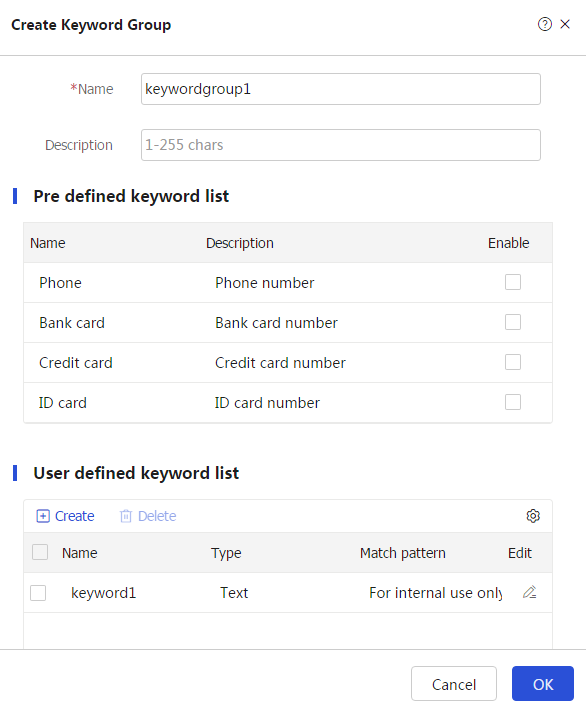
User defined keyword list area, clickCreate .In the
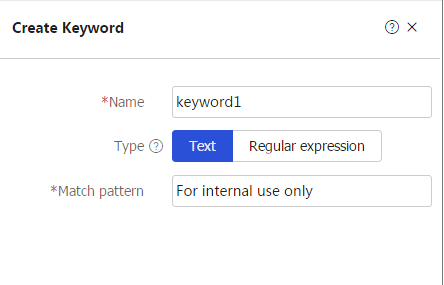
Create Keyword dialog box, enterkeyword1 in theName field, select theText type, and enterfor internal use only in theMatch pattern field.Click
OK .
Figure-2 Creating a keyword
The newly created keyword
keyword1 is displayed in theCreate Keyword Group dialog box.Figure-3 Creating keyword group
Click
OK .
# Create keyword group
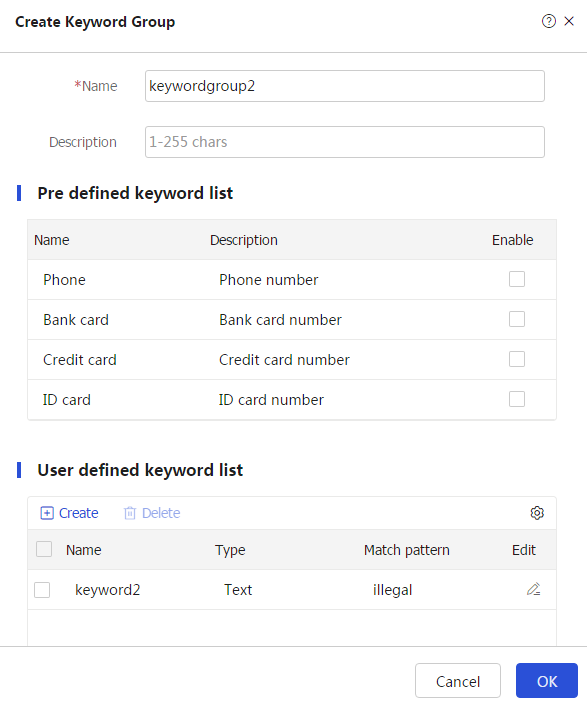
keywordgroup2 .On the
Keyword Group page, clickCreate .In the dialog box that opens, configure the keyword group:
Enter
keywordgroup2 in theName field.In the
User defined keyword list area, clickCreate .In the
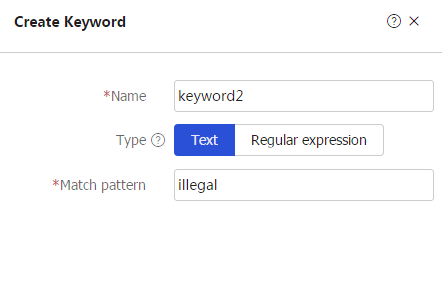
Create Keyword dialog box, enterkeyword2 in theName field, select theText type, and enterillegal in theMatch pattern field.Click
OK .
Figure-4 Creating a keyword
The newly created keyword
keyword2 is displayed in theCreate Keyword Group dialog box.Figure-5 Creating keyword group
Click
OK .
Configure a data filtering profile.
# On the top navigation bar, click
Objects .# From the navigation pane, select
APP Security >Data Filtering >Profiles .# Click
Create .# In the dialog box that opens, configure a data filtering profile.
Enter the name
datafilter .In the
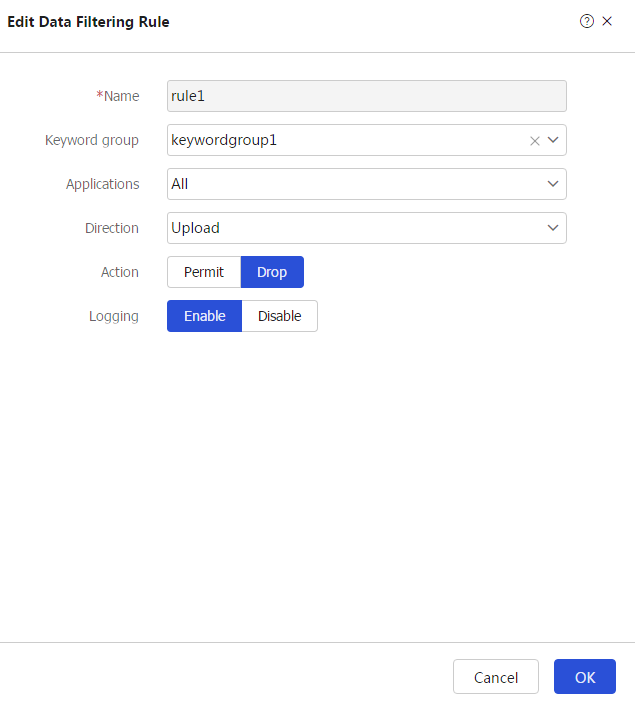
Data filtering rules area, clickCreate .In the dialog box that opens, create data filtering rule
rule1 as shown in Figure-6, and then clickOK .Figure-6 Creating data filtering rule rule1
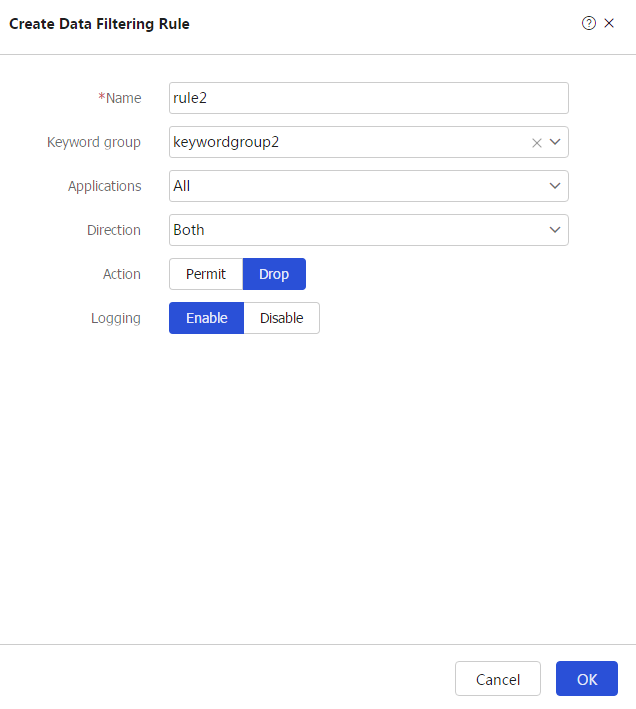
Create data filtering rule
rule2 (as shown inrule1 .Figure-7 Creating data filtering rule rule2
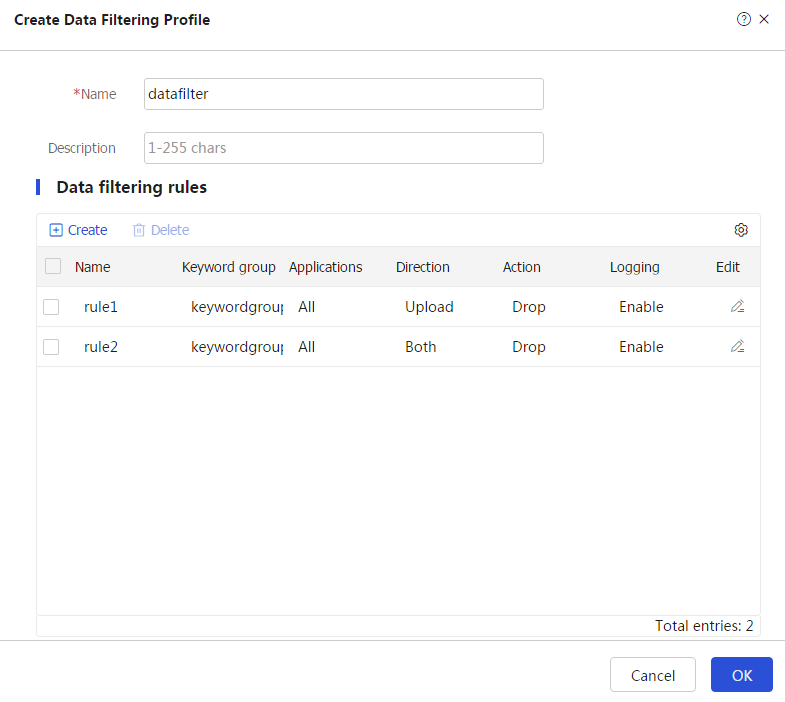
The data filtering rules are displayed in the
Create Data Filtering Profile dialog box, as shown inClick
OK .Figure-8 Creating a data filtering profile
Create a security policy:
# On the top navigation bar, click
Policies .# From the navigation pane, select Security Policies > Security Policies.
# Click Create.
# In the dialog box that opens, configure a security policy:
Enter policy name
datafilter .Select type
IPv4 .Select source zone
Trust .Select destination zone
Untrust .Select source IP address
10.1.1.0/24 .Select action
Permit .Select data filtering profile
datafilter in theContent security area.# Click
OK .
Enable logging:
# On the top navigation bar, click
System .# From the navigation pane, select
Log Settings >Storage Space Settings .# Select
DPI | Data Filter log .
Verifying the configuration
Verify that data filtering can log and block the following Internet access behaviors of internal users:
Browsing, publishing, or downloading information containing the
illegal keyword on the Internet.Transferring files marked as for internal use only on the Internet.
To view the logs generated for these behaviors, perform either of the following tasks:
At the CLI, execute the
display logbuffer module dfilter command to view the data filtering logs.On the Web interface, click
Monitor on the top navigation bar, and then selectSecurity Logs >Data Filtering Logs from the navigation pane to view data filtering logs.