Web example: Entering a peer host public key
Network configuration
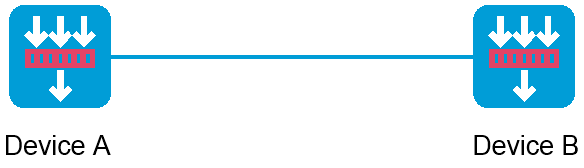
As shown in Figure-1, to prevent illegal access from Device A to Device B, Device B authenticates Device A through a digital signature. Before configuring authentication parameters on Device B, use the following procedure to configure the public key of Device A on Device B:
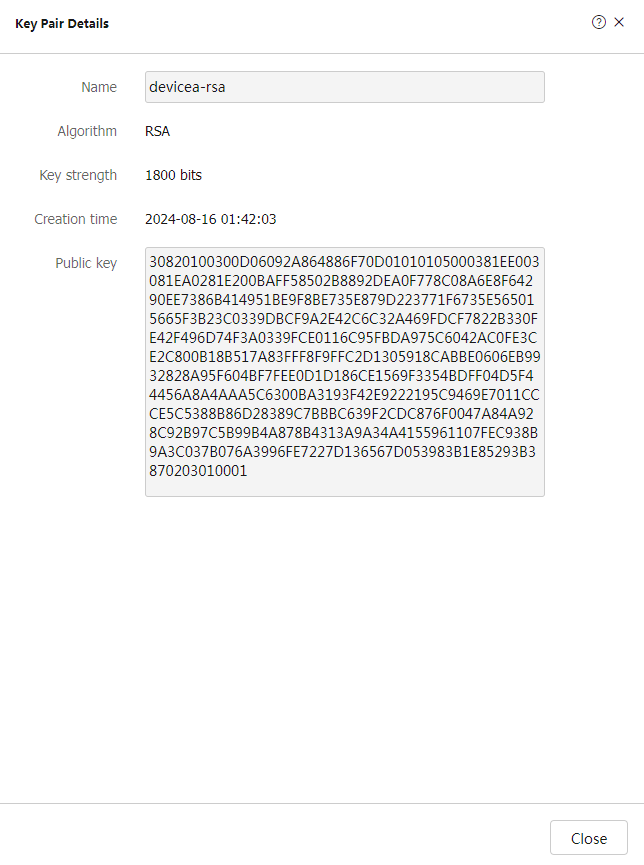
Create RSA key pairs on Device A and display the public keys of the RSA key pairs.
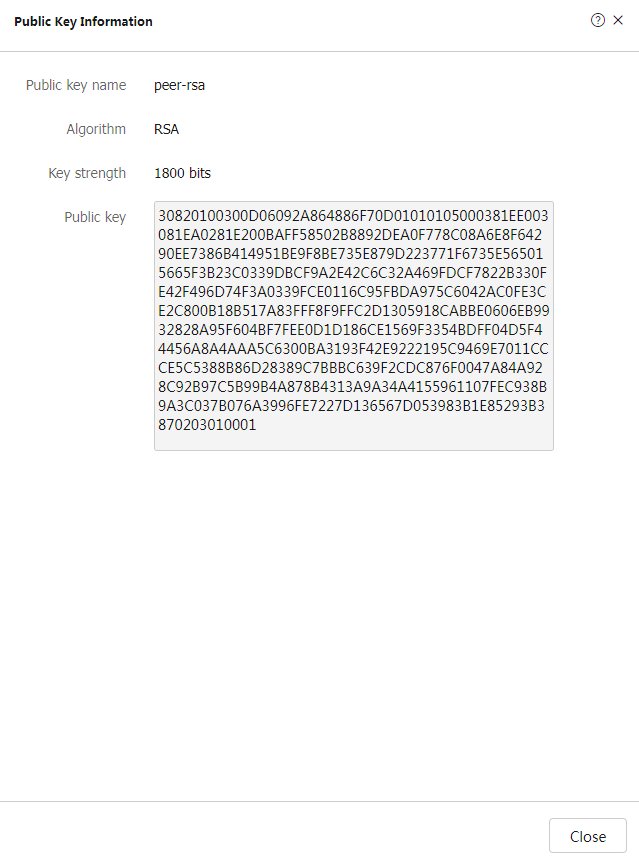
Manually specify the RSA host public key of Device A on Device B.
Software versions used
This configuration example was created and verified on R9900P2705 of the F5000-AI-55-G device.
Restrictions and guidelines
When you manually enter the peer host public key, make sure the entered key is in the correct format. To obtain the peer host public key in the correct format, display the public key on the peer device and record the key. The format of the public key displayed in any other way might be incorrect. If the key is not in the correct format, the system discards the key and displays an error message.
As a best practice, import rather than enter the peer host public key if you are not sure whether the device supports the format of the recorded peer host public key.
Procedures
Configuring Device A
# On the top navigation bar, click
# From the navigation pane, select
# Click
# Create an RSA local key pair as follows:
Enter key pair name
devicea-rsa .Select the
RSA algorithm.Enter key length
1800 .
# Click
# Click key pair name
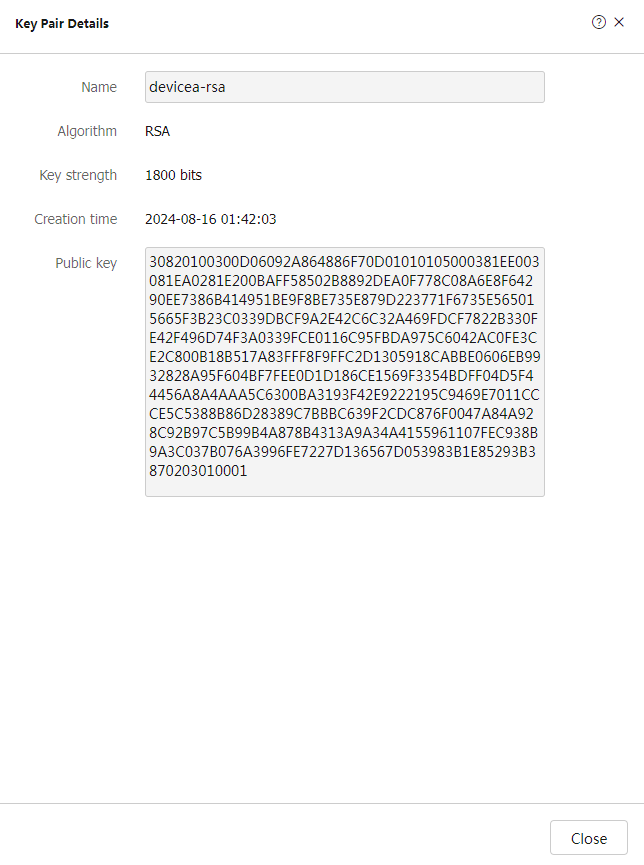
# Record the data displayed in the
Figure-2 Creating a local key pair
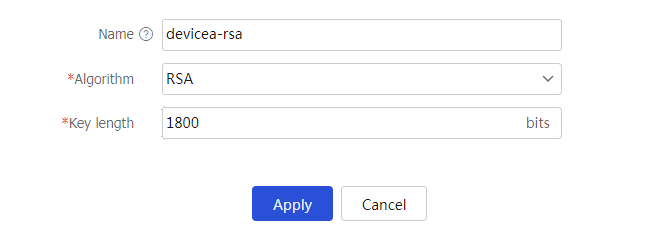
Figure-3 Key details
Configuring Device B
# On the top navigation bar, click
# From the navigation pane, select
# Click
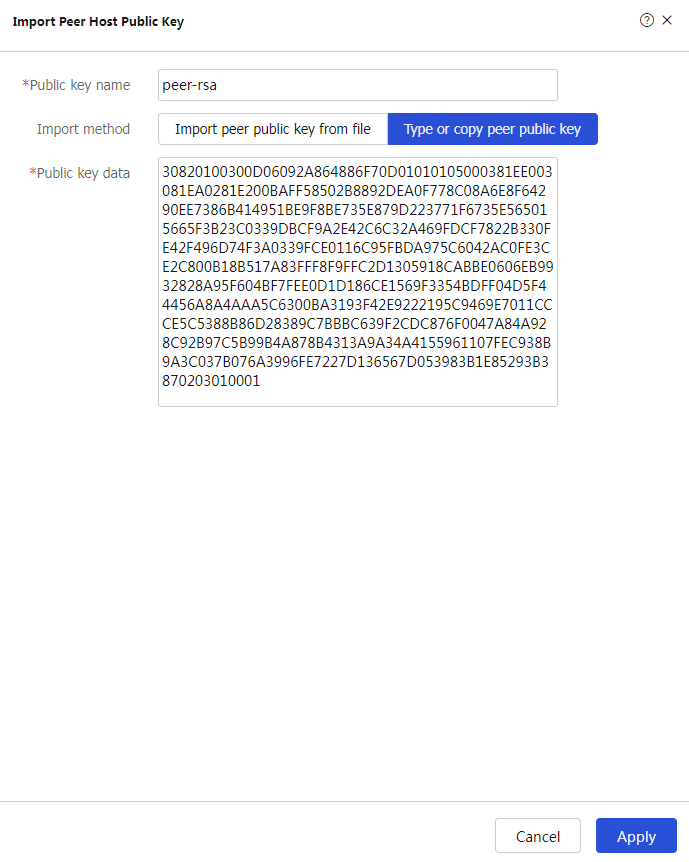
# Configure the peer host public key as follows:
Enter public key name
peer -rsa .Select the
Type or copy peer public key import method.In the
P ublic key data field, type the public key data of Device A, or copy and then paste the public key data of Device A.
# Click
Figure-4 Entering the peer host public key
Verifying the configuration
Display information about the local public key on Device A.
# On the top navigation bar, click
Objects .# From the navigation pane, select
PublicKey Cert >Public Key Management >Local Key Pairs .# Click the name for key pair
devicea-rsa to view its details.Figure-5 Local host public key information
Display information about the peer public key configured on Device B.
# On the top navigation bar, click
Objects .# From the navigation pane, select
PublicKey Cert >Public Key Management >Peer Public Keys .# Click the name for public key
peer -rsa to view its details.Figure-6 Manually configured peer host public key