Web example: Configuring DDNS
Network configuration
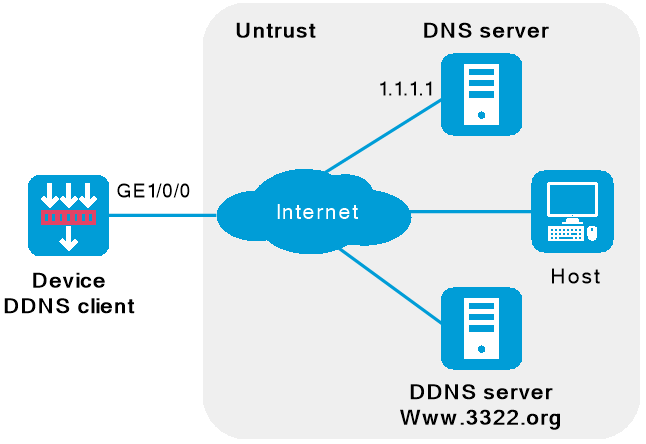
As shown in Figure-1, the device is a Web server with domain name
Configure a DDNS policy to update the device's domain name-to-IP address mapping on the DDNS server. The DDNS server then updates the mapping on the DNS server.
Specify the IP address of the DNS server so that the device can access the DDNS server through domain name.
Software versions used
This configuration example was created and verified on R9900P2705 of the F5000-AI-55-G device.
Restrictions and guidelines
Before configuring DDNS on the device, perform the following tasks:
Register with username
hell and passwordneve at http://www.3322.org/.Create a mapping between the device's FQDN and IP address on the DNS server.
Procedure
Configure security policy
d d ns-a .# On the top navigation bar, click
Policies .# From the navigation pane, select
Security Policies >Security Policies .# Click
Create and clickCreate a policy .# In the dialog box that opens, configure policy parameters as follows:
Specify the policy name. In this example, the name is
d d ns-a .Select
IPv4 as the type.Select the source zone. In this example, the source zone is Local.
Select the destination zone. In this example, the destination zone is Untrust.
Select
Permit as the action.Click
Apply .
Configure security policy
d d ns- b .# On the top navigation bar, click
Policies .# From the navigation pane, select
Security Policies >Security Policies .# Click
Create and clickCreate a policy .# In the dialog box that opens, configure policy parameters as follows:
Specify the policy name. In this example, the name is
d d ns- b .Select
IPv4 as the type.Select the source zone. In this example, the source zone is Untrust.
Select the destination zone. In this example, the destination zone is Local.
Select
Permit as the action.Click
Apply .
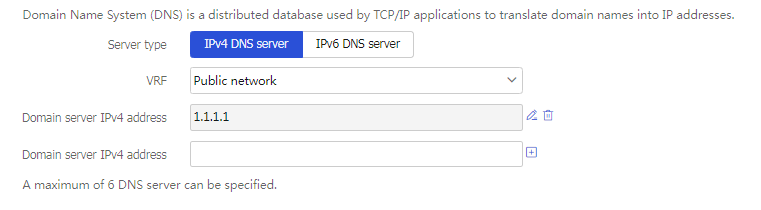
Specify the IP address of the DNS server.
# On the top navigation bar, click
Network .# From the navigation pane, select
DNS >DNS Client .# Add the IP address of the DNS server, as shown in Figure-2.
Figure-2 Specifying the DNS server
Configure a DDNS policy.
# From the navigation pane, select
DNS >D D NS Policies .# Click
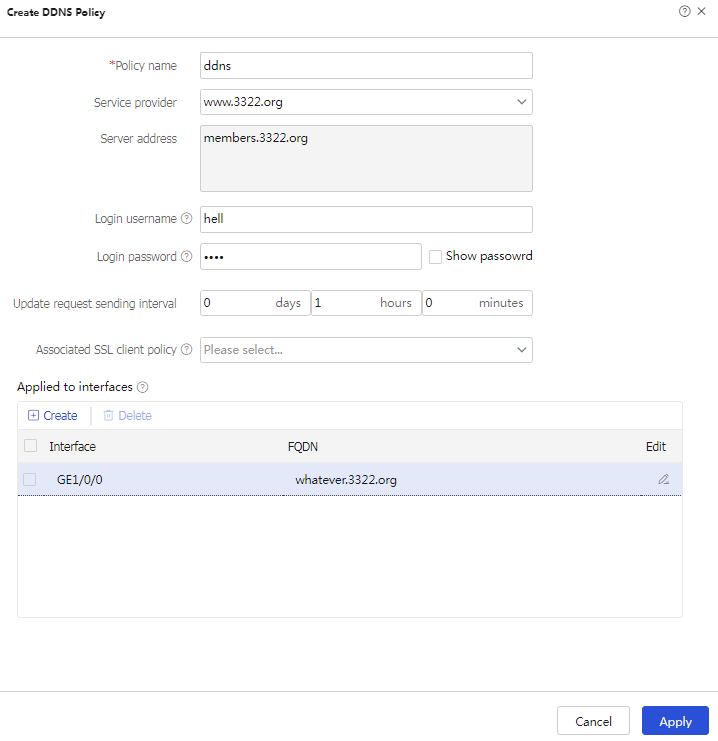
Create .# In the dialog box that opens, create a DDNS policy, as shown in Figure-3.
Figure-3 Creating a DDNS policy
# Click
Apply .
Verifying the configuration
Verify that the device can update its domain name-IP mapping through the DDNS provider www.3322.org when its IP address changes. The Internet users can resolve the correct IP address through the domain name