WAF
This help contains the following topics:
Introduction
The Web application firewall (WAF) feature enables devices to monitor HTTP and HTTPS traffic to and from Web applications for malicious activity and to proactively take prevention actions.
WAF profiles
WAF is implemented based on WAF profiles. A WAF profile contains a set of WAF signatures to match packets and the actions for the matching packets.
WAF signatures
The device compares packets with WAF signatures to detect, classify, and prevent network attacks.
Each WAF signature contains multiple attributes, including attack category, action, protected target, severity level, and direction. You can set criteria to filter WAF signatures that a WAF profile uses based on the signature attributes.
Signature exceptions
WAF signatures have default signature actions and enabling status.
To change the enabling status or action for a WAF signature in a WAF profile, specify the WAF signature as a signature exception in the WAF profile. The action specified for the signature exception takes precedence over the global signature action.
Semantic analysis
Semantic analysis analyzes the semantics of SQL statements to detect SQL injection attacks.
By default, the system uses only signatures in the signature library to detect SQL injection attacks. You can enable the device to use semantic analysis in addition to the signature-based method to improve the detection rate of SQL injection attacks.
WAF profile actions
When the device detects an attack packet through WAF signature matching or semantic analysis, it takes the corresponding action on the packet.
You can specify the following actions to take on the WAF-detected attack packet in a WAF profile:
Blacklist—Drops the packet and adds the source of the packet to the IP blacklist. If the IP blacklist feature is enabled, packets from the blacklisted sources will be blocked for the blacklist period. If the IP blacklist feature is not enabled, packets from the blacklisted sources are not blocked.
For more information about the IP blacklist feature, see the manual for attack defense.
Permit—Permits the packet to pass.
Reset—Closes the TCP or UDP connection for the packet by sending TCP reset messages or ICMP port unreachable messages.
Redirect—Redirects the packet to a webpage.
Default—Takes the default signature action on the packet matching a signature or send a WAF log to the fast log output server for an attack packet detected by semantic analysis.
Capture—Captures the packet.
Logging—Logs the packet.
WAF mechanism
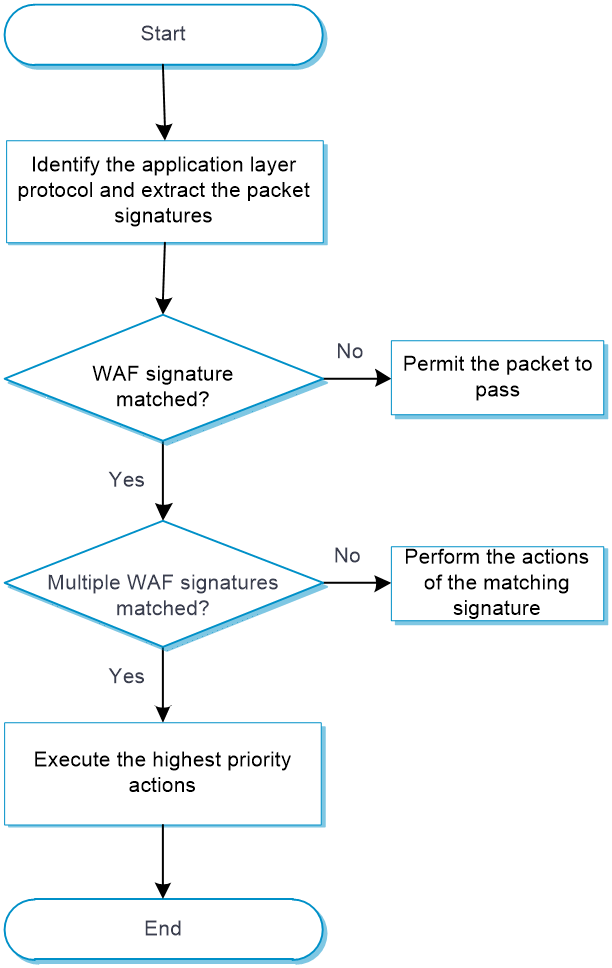
As shown in Figure-1, upon receiving a packet, the device performs the following operations:
The device compares the packet with the security policies.
If the packet matches a security policy that is associated with a WAF profile, the device identifies the packet application layer protocol and extracts the packet signatures. If semantic analysis is enabled in the WAF profile, the device also extracts the SQL statements in the packet for semantic analysis.
The device determines the actions for the packet by comparing the extracted packet signatures with the WAF signatures in the WAF profile:
If the packet matches only one WAF signature, the device takes the signature actions.
If the packet matches multiple WAF signatures, the device uses the following rules to select the actions:
If the matching WAF signatures have two or more actions, including redirect, drop, permit, and reset, the device takes the action of the highest priority. The actions in descending order of priority are reset, redirect, drop, and permit.
The device will execute the blacklist, capture, and logging actions if they are in the matching WAF signatures.
If semantic analysis is enabled in the WAF profile, the device performs semantic analysis on the SQL statements extracted from the packet to determine if the packet is an attack packet. If the packet is an attack packet, the device determines the action for the packet as follows:
If an action other than Default is specified in the WAF profile, the device takes the specified action.
If Default is selected for Action in the WAF profile, the device sends a WAF log for the packet to the fast log output server.
If the packet is identified as an attack packet by both signature matching and semantic analysis, the device takes the higher-severity action of the two methods. If logging is enabled for either method, the device will send a log for the packet.
If the packet does not match any WAF signature and is not identified as an attack packet by semantic analysis, the device permits the packet to pass through.
Tamper proof
The tamper proof feature detects whether the webpages to be visited by clients are tampered with and repairs tampered webpages before sending webpage contents to clients.
CC defense
The Challenge Collapsar (CC) defense feature blocks malicious HTTP and HTTPS traffic from Web applications by performing content inspection, rule matching, and statistics collection.
The CC defense feature is implemented in a WAF profile that is associated with a security policy.
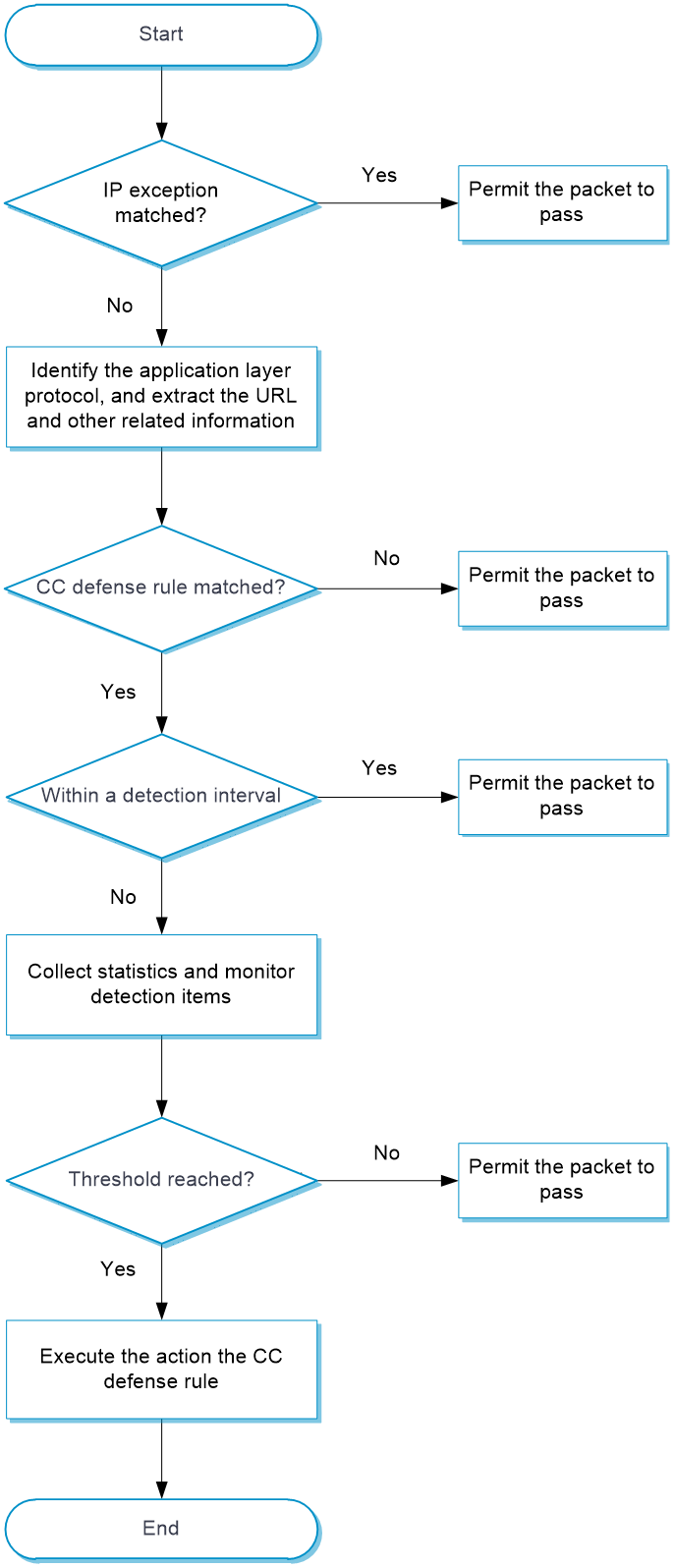
As shown in Figure-2, upon receiving a packet, the device performs the following operations:
The device compares the packet with IP exceptions.
If an IP exception is found, the device permits the packet to pass through.
If no IP exception is found, the device goes to step 2.
The device identifies the packet application layer protocol, and extracts the URL and other related information.
The device compares the extracted packet information with the CC defense rules and determines the action for the packet.
If the packet does not match any CC defense rules, the device permits the packet to pass through.
If the packet matches one CC defense rule, the device stops the matching process and goes to step 4.
The device determines the actions for the packet based on the detection interval:
For a packet within the detection interval, the device performs the following actions after collecting statistics from the packet and compares the statistics with the thresholds of detection items:
The device executes the permit, blacklist, and logging actions as needed if a threshold is reached.
The device permits the packet to pass through if no threshold is reached.
For a packet out of the detection interval, the device does not collect statistics from the packet and permits the packet to pass through.
vSystem support information
Support of non-default vSystems for this feature depends on the device model. This feature is available on the Web interface only if it is supported.
Licensing requirements
To use WAF functions, you must purchase and install the required license correctly. If the license expires, the existing WAF signature library is still available but you cannot upgrade the WAF signature library to the version released after the expiration time. For more information about licensing, see the license management help.
Restrictions and guidelines
Activating configuration causes transient DPI service interruption. DPI-based services might also be interrupted. For example, security policies cannot control access to applications.
After you submit the configuration, the system prompts Configuration succeeded. However, the configuration might not have been activated completely. The device cannot recognize packets as expected before the activation completes.
A user-defined signature of the number type supports only one detection item.
Modifications to the semantic analysis and CC defense settings in a WAF profile take effect immediately and do not require manual activation.
When you create a whitelist entry, at least one of the signature ID, URL, and IP address fields must be configured.
The signature ID for attacks detected by semantic analysis is fixed at 4294967295. To add this ID to a whitelist entry, you must first configure the source IP address or URL.
If you specify a real source IP address in the IP address field for a whitelist entry, you must enable client IP identification. For more information about client IP identification, see the manual for advanced settings.
When the server sends HTTP response messages using chunked transfer, the device cannot learn static Web resources properly due to failure to obtain the start and end positions of message body data. Then, the device cannot perform Web tamper proof.
Configure WAF
Analysis
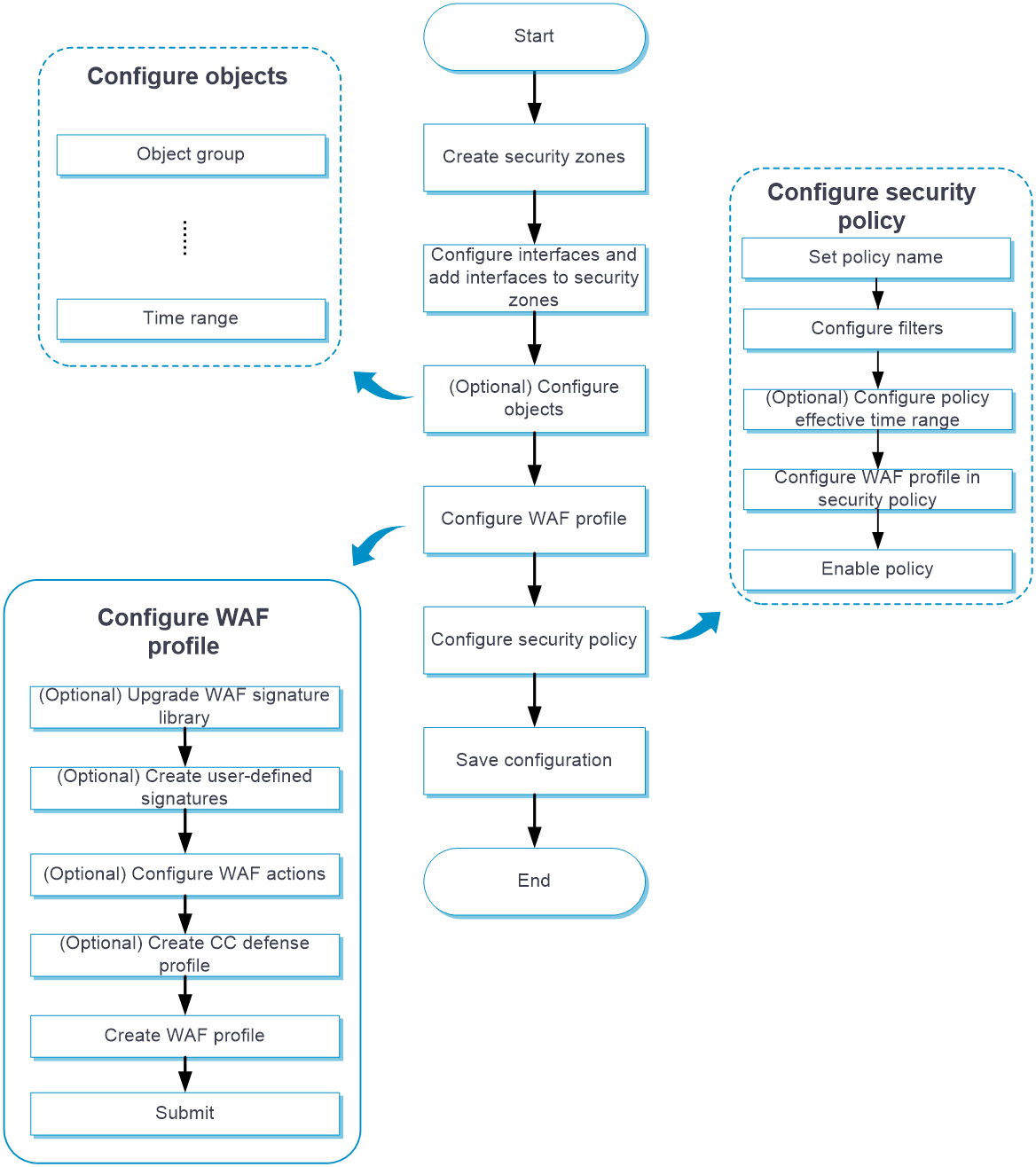
Configure WAF as shown in Figure-3.
Figure-3 WAF configuration procedure
Prerequisites
Complete the following tasks before you configure this feature:
Assign IP addresses to interfaces on the Network > Interface Configuration > Interfaces page.
Configure routes on the Network > Routing page. Make sure the routes are available.
Create security zones on the Network > Security Zones page.
Add interfaces to security zones. You can add interfaces to a security zone on the Security Zones page or select a security zone for an interface on the Interfaces page.
Configure security policies to permit the target traffic on the Policies > Security Policies page.
Apply the default WAF profile
The device provides a predefined WAF profile named default. The default WAF profile uses all enabled WAF signatures on the device and cannot be modified or deleted.
To detect all WAF signatures in the system, you can apply the default WAF profile to saving time.
To apply the default WAF profile:
Click the Objects tab.
In the navigation pane, select APP Security > WAF > Profiles.
The WAF Profiles page opens.
The WAF profile named default cannot be edited.
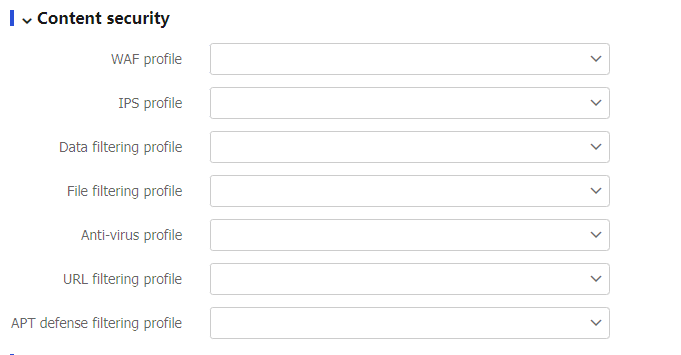
Apply the WAF profile in the Content security section for a security policy. For more information about security policies, see the security policy manual.
Figure-4 Applying the WAF profile in a securty policy
Apply a custom WAF profile
If the default WAF profile cannot meet user requirements, you can create WAF profiles as needed. You can flexibly adjust the relevant attributes of signature exceptions in custom WAF profiles based on business environment and security needs, including the status, action, logging, and packet capture.
To apply a custom WAF profile:
Click the Objects tab.
In the navigation pane, select APP Security > WAF > Profiles.
The WAF Profiles page opens.
Click Create.
The Create WAF Profile page opens.
Configure basic settings for the WAF profile.
Figure-5 Configuring basic settings for the WAF profile
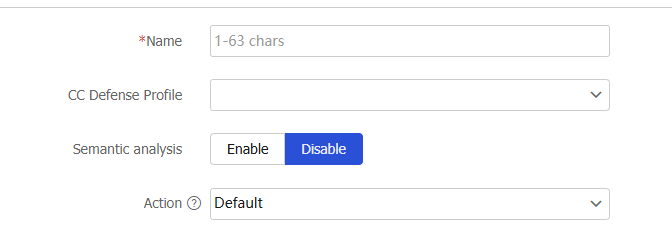
Table-1 Basic configuration items for WAF profile
Item
Description
Name
Specify a WAF profile name.
CC Defense Profile
Select a CC defense profile for the WAF module.
Semantic analysis
Select whether to enable semantic analysis.
Action
Select the action to take on attack packets detected by signature matching and semantic analysis. If you select Default, the device processes the packet as follows:
If the packet matches a WAF signature, the device takes the default signature action.
If the packet is identified as an attack packet by semantic analysis, the device sends a WAF log for the packet to the fast log output server.
Logging
Select whether to log the attack packets detected by WAF.
Capture
Select whether to capture the attack packets detected by WAF.
The capture action enables the device to capture packets and export the captured packets to the specified URL at the scheduled export time. For more information about configuring the capture action, see the manual for security actions.
To hide server information contained in a specific protocol or field to avoid information leakage, configure the settings in the Server info hiding area.
Figure-6 Hiding server information
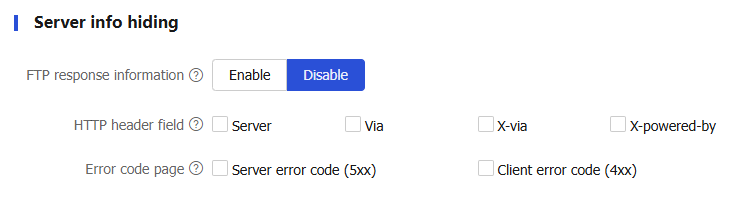
Table-2 Configuration items for server info hiding
Item
Description
FTP response information
An FTP response contains server information, including the server version. You can select Enable for this field to hide the server information in an FTP response to avoid server information leakage.
HTTP header field
Some headers in HTTP responses might contain server information. You can select the HTTP header fields for the system to hide the server information in the selected fields to prevent clients from obtaining server information.
Error code page
An error code page returned to a client might contain server information, including the server version. You can configure this field to hide the server information on a specific error code page to prevent the client from obtaining server information through that page.
In the Signature filtering criteria area, set the criteria to filter the WAF signatures used in the WAF profile based signature attributes including the protected target, attack category, and direction.
By default, no signature filtering criteria are set and a WAF profile uses all enabled WAF signatures on the device.
A WAF profile uses a WAF signature only if the signature matches all the configured criteria.
For each attribute-based criterion, you can specify multiple attribute values. A WAF signature matches the criterion if it matches any of the specified attribute values.
To view the signatures filtered out by using the criteria, click View matching signatures.
Figure-7 Filtering signatures
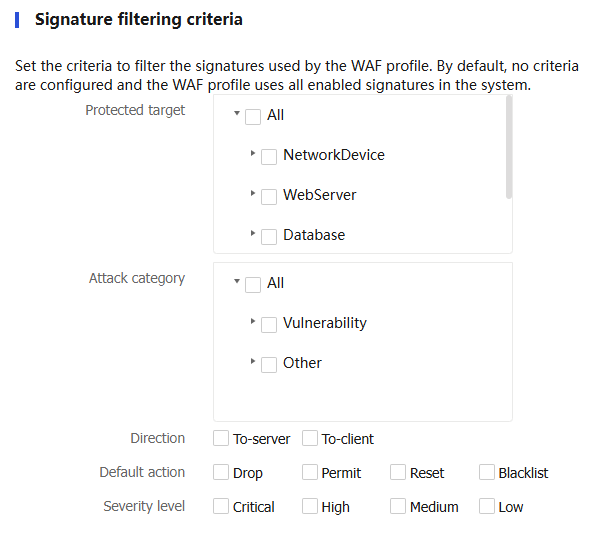
Table-3 Configuration items for signature filtering criteria
Item
Description
Protected target
Select the protected targets for the protected target criterion.
Attack category
Select the attack categories for the attack category criterion.
Direction
Select the traffic directions for the direction criterion. Options are:
To-server—Client to server direction.
To-client—Server to client direction.
Default action
Select the actions for the default signature action criterion.
Options are Drop, Permit, Reset, and Blacklist.
Severity level
Select the severity levels for the severity levels criterion.
Options are Critical, High, Medium, and Low.
In the Signature exceptions area, to specify WAF signatures as signature exceptions in a WAF profile, use either of the following methods:
Enter the ID of a WAF signature and click Add.
Click View matching signatures. On the View Signatures page that opens, select the signatures you want to specify as signature exceptions, and then click Add to signature exception list. The Edit Exception Rule window opens. Configure the following settings as needed, and then click OK.
Select the action for the signatures.
Enable or disable the signatures.
Select whether to enable packet capture and logging for packets matching the signatures.
On the signature exception list, click the Edit icon
 for a signature exception. On the Edit Signature Exception window that opens, configure the following settings, and then click OK.
Select the action for the signature.
Enable or disable the signature.
Select whether to enable packet capture and logging for packets matching the signature.
Figure-8 Configuring signature exceptions
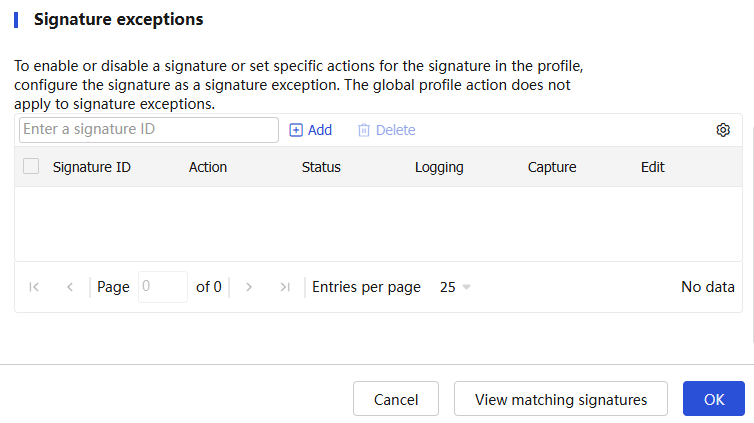
Click OK.
The WAF profile is displayed on the WAF Profiles page.
Use the WAF profile in a security policy. For more information, see "Apply the default WAF profile."
To have the configuration take effect, click Submit.
This operation can cause temporary DPI service outage. As a best practice, perform the operation after all DPI service configurations are complete.
Configure tamper proof
The tamper proof feature has a learning phase and a working phase. After you enable webpage auto learning, the tamper proof feature enters the learning phase. In this phase, the device learns the webpages visited by clients and save the webpage contents as baseline files. You can determine whether the device has finished learning by viewing the auto learned URL list. If learning has finished, disable Webpage auto learning. Tamper proof then enters the working phase. In this phase, the device caches the webpage files in the responses sent from the server and compares the webpage files with the baseline files. If they are the same, the webpage files are not tampered with. If they are different, the webpage files have been tampered with.
To configure tamper proof:
Click the Objects tab.
In the navigation pane, select APP Security > WAF > Profiles.
The WAF Profiles page opens.
Create a WAF profile or edit an existing WAF profile. Then, configure tamper proof.
Figure-9 Configuring tamper proof settings
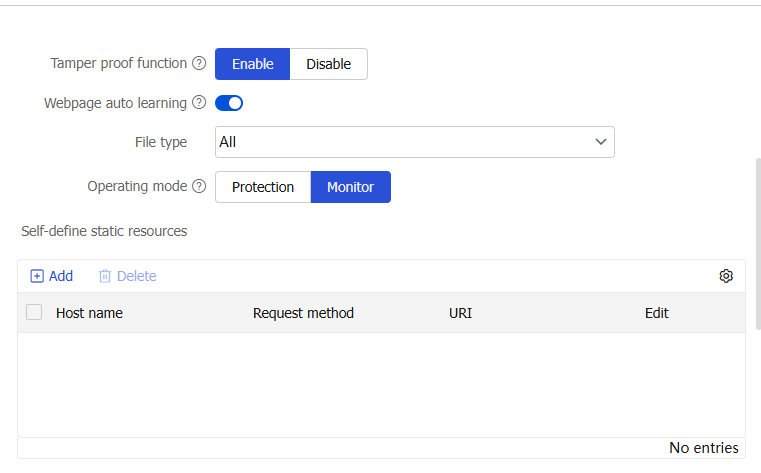
Table-4 Temper proof configuration items
Item
Description
Tamper proof function
This function allows the device to detect whether the webpages to be visited by clients are tampered with and to repair tampered webpages before sending webpage contents to clients.
Webpage auto learning
This function allows the device to learn the webpages visited by clients and save the webpage contents as baseline files. If the device is not installed with a hard disk, baseline files are stored in memory and are deleted after a device reboot. If the device is installed with a hard disk, baseline files are stored in the hard disk and can survive device reboots.
To view the learned URLs, navigate to WAF > Profiles > Auto Learned URL List. The contents after the Path field will not be learned.
File type
Tamper proof detects the following types of files:
XLS (supports files with the xl or xla extension).
HLP (supports files with the hlp or chm extension).
PPT (supports files with the ppt, ppz, pps, pot, or pptx extension).
DOC (supports files with the doc or dot extension).
PE (supports files with the bin, exe, com, or dll extension).
PDF (supports files with the pdf extension).
SWF (supports files with the swf or cab extension).
ZIP (supports files with the zip extension).
GIF (supports files with the gif extension).
JPEG (supports files with the jpeg, jpg, or jpe extension).
CSS (supports files with the css extension).
HTML (supports files with the html or htm extension).
TXT (supports files with the txt extension).
Operating mode
The operating modes include:
Monitor—The device only generates a log message when it detects that webpages to be visited by clients are tampered with.
Protection—When the device detects tampered webpages, it replaces the webpage content in the response with the auto learned webpage baseline content before sending the response to clients. The device also generates a log message for the tempered webpages. This mode takes effect only if the TCP proxy is configured. For more information about TCP proxy, see the application proxy manual.
Self-define static resources
Add paths of static webpage resources detected by the tamper proof feature.
Click Add.
Configure the host name, request method, and URI. The URI must start with a forward slash (/).
Click OK.
Click OK.
Configure a CC defense profile
A CC defense profile takes effect only after it is specified in the WAF module. The device processes HTTP attack packets based on CC defense profiles.
You can configure filtering criteria and detection items as needed.
Procedure
Click the Objects tab.
In the navigation pane, select APP Security > WAF > CC Defense Profiles.
On the page that opens, click Create.
Configure basic settings for the CC defense profile.
Figure-10 Configuring basic settings for the CC defense profile
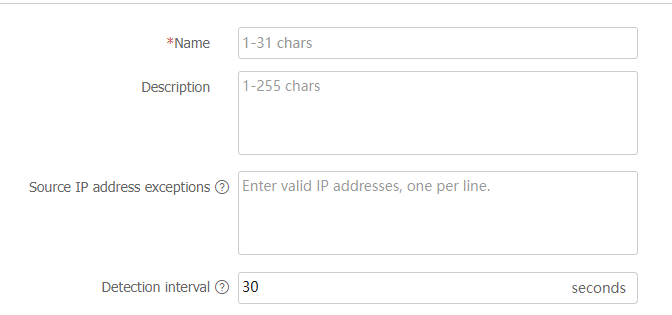
Table-5 Basic configuration items for CC defense profile
Item
Description
Name
Specify a CC defense profile name.
Description
Enter a description for easy identification.
Source IP address exceptions
Specify exceptional source IP addresses. The device permits an HTTP packet to pass through if the source IP address of the HTTP packet matches an IP address exception. If no match is found, the device continues the CC attack detection.
Detection interval
Set the detection timer for CC attack detection. The timer starts when a CC defense rule is first matched.
In the CC defense rules area, click Create.
Create a CC defense rule.
Figure-11 Creating a CC defense rule
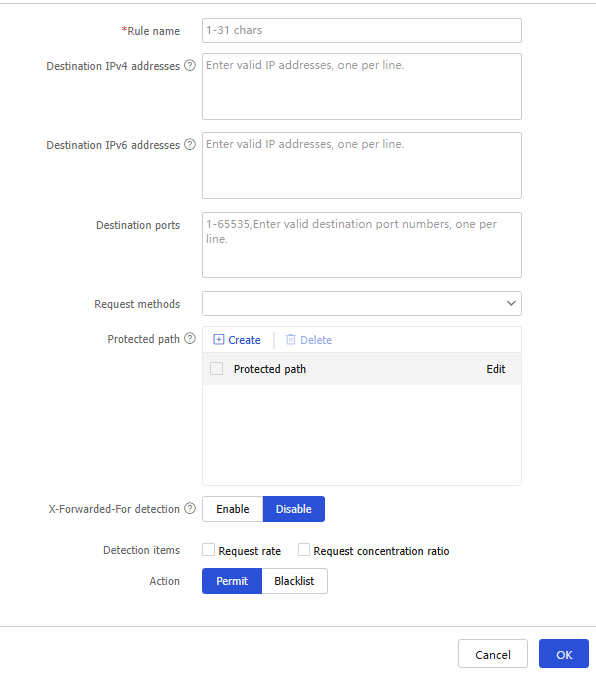
Table-6 CC defense rule configuration items
Item
Description
Rule name
Specify a CC defense rule name.
Destination IPv4 addresses
Specify destination IPv4 addresses as filtering criteria in the CC defense rule.
Destination IPv6 addresses
Specify destination IPv4 addresses as filtering criteria in the CC defense rule.
Destination ports
Specify destination ports as filtering criteria in the CC defense rule.
Request methods
Select request methods as filtering criteria in the CC defense rule.
Protected path
Specify the protected paths to the website resources.
X-Forwarded-For detection
Select whether to enable X-Forwarded-For detection for the device to obtain the true source IP address from HTTP packets. Options are Enable and Disable.
This field is applicable to scenarios where a client uses a proxy to access the server.
Detection items
Select detection items to determine whether CC attacks are present. Options include Request rate and Request concentration ratio.
Request rate—Identifies whether a client is accessing a website too frequently. Set Request rate threshold to define the maximum number of requests allowed to access a protected path within the detection interval.
Request concentration ratio—Identifies whether a website is most frequently visited.
Min requests—Defines the number of requests to protected paths within the detection interval for triggering the request concentration detection.
Request concentration ratio threshold—Defines the request concentration ratio threshold (percentage of the requests to the most frequently visited protected path to total requests to all protected paths) to determine that a CC attack occurs.
Action
Select the action for the CC defense rule. Options are Permit and Blacklist.
If you select Blacklist, you must set the blacklist period.
Logging
Select whether to enable logging when CC attacks are detected. Options are Enable and Disable.
Click OK.
The CC defense rule is displayed on the CC defense rules list.
Click OK.
The CC defense profile is displayed on the CC Defense Profiles page.
Click the Objects tab.
In the navigation pane, select APP Security > WAF > Profiles.
Use the CC defense profile in a WAF profile. For more information about WAF profiles, see "Apply a custom WAF profile."
To have the configuration take effect, click Submit.
Manage user-defined WAF signatures
You can create user-defined signatures that do not exist in the current signature library.
A user-defined signature contains basic settings and rules.
A user-defined signature can contain multiple rules. The logical operators between rules are as follows:
Logical AND—A packet matches a signature when it matches all rules in the signature.
Logical OR—A packet matches a signature when the packet matches any rule in the signature.
In a user-defined signature rule, you can configure the match criteria of source IPv4 address, destination IPv4 address, source port, destination port, and request method, the detection items, and the detection trigger items.
A user-defined signature can be one of the following types:
Keyword—A keyword type requires configuring both the detection items and detection trigger conditions. The device continues to compare a packet with detection items only after the packet matches all detection trigger conditions. A packet matches a rule only when the packet matches all detection items in the rule.
Number—A number type requires configuring the detection items. A packet matches a rule only when the packet matches all detection items in the rule.
Create a user-defined signature
Click the Objects tab.
In the navigation pane, select APP Security > WAF > Signatures.
Click Create user-defined signature.
On the page that opens, configure basic settings for a user-defined signature.
Figure-12 Creating a user-defined signature
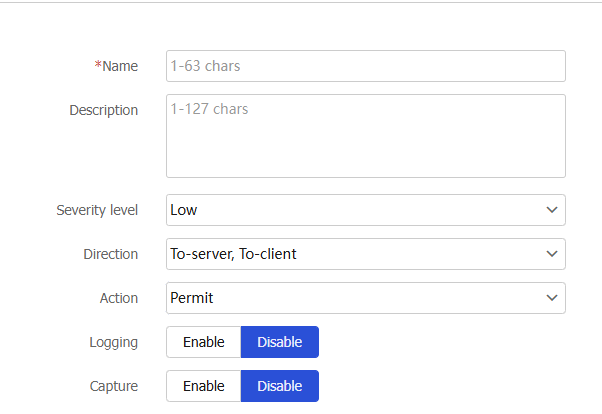
Table-7 Basic configuration items for a user-defined signature
Item
Description
Name
Enter the name of the user-defined signature.
Description
Enter a description for easy identification.
Severity level
Select the severity level of the risk impacts that the matching packets might bring to the network.
Options are Critical, High, Medium, and Low.
Direction
Select the traffic direction for the direction criterion. Options are:
To-server—Client to server direction.
To-client—Server to client direction.
To-client, To-server—Both client-to-server and server-to-client directions.
Action
Select the action for packets matching the signature.
Options are Blacklist, Drop, Permit, and Reset.
Logging
Select whether to enable logging for matching packets. Options are Enable and Disable.
Capture
Select whether to enable capture matching packets. Options are Enable and Disable.
The capture action enables the device to capture packets and export the captured packets to the specified URL at the scheduled export time. For more information about configuring the capture action, see the manual for security actions.
In the Rules area, select a logical operator before you configure rules for the signature. Then, click Create. On the page that opens, configure basic settings for the rule.
Figure-13 Configuring basic settings for the rule
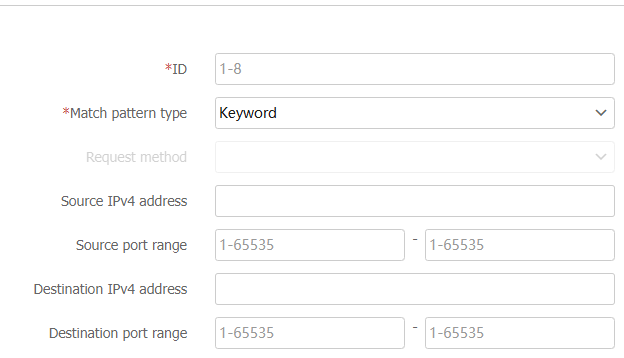
Table-8 Basic configuration items for a user-defined signature rule
Item
Description
ID
Enter the rule ID.
Match pattern type
Select the type of the match pattern. Options are Keyword and Number.
Request methods
Select an HTTP request method, such as GET and POST.
Source IPv4 address
Enter a source IPv4 address as the match criterion.
Source port range
Enter a source port range as the match criterion.
Destination IPv4 address
Enter a destination IPv4 address as the match criterion.
Destination port range
Enter a destination port range as the match criterion.
In the Detection trigger conditions area, click Create.
This area is available only when Keyword has been selected as the match pattern type.
Figure-14 Creating a detection trigger condition
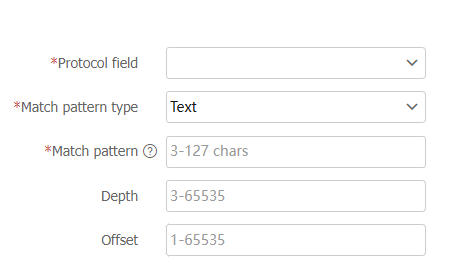
Table-9 Detection trigger condition configuration items
Item
Description
Protocol filed
Select a protocol field to inspect.
Match pattern type
Select the type of the match pattern. Options are Text and Hex.
Match pattern
Enter the content of the match pattern.
Depth
Specify the number of bytes to be inspected after an offset.
Offset
Enter an offset in bytes after which the inspection starts. The offset is counted from the beginning of the protocol filed.
Click OK.
The detection trigger condition is displayed on the Detection trigger conditions list.
In the Detection items area, click Create to create a detection item.
Figure-15 Creating a detection item
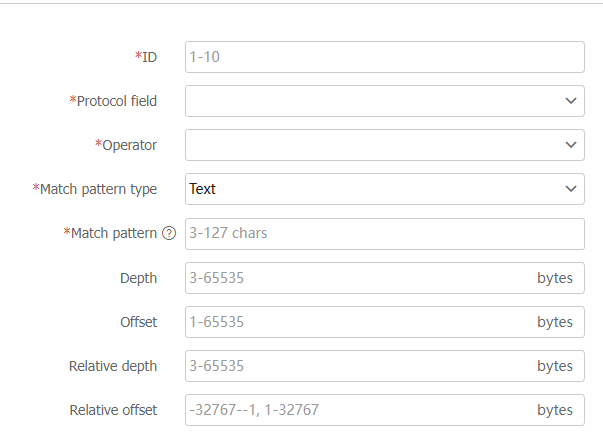
Table-10 Detection item configuration items
Item
Description
ID
Enter a detection item ID.
Protocol field
Select a protocol field.
Operator
Select an operator to define the match operation in the detection item.
Options vary by the match pattern type selected in the Create Rule page:
If Keyword has been selected, the options are Contain and Not contain.
If Number has been selected, the options are Greater than, Equal to, Not equal to, Less than, Greater than or equal to, and Less than or equal to.
Match pattern type
Select the type of the match pattern. Options are Text, Regular expression, and Hex.
Match pattern
Enter the content of the match pattern.
Depth
Specify the number of bytes to be inspected.
Offset
Enter an offset in bytes after which the inspection starts. The offset is counted from the beginning of the protocol filed.
Relative depth
Specify the number of bytes to be inspected.
Relative offset
Enter an offset after which the inspection starts. The offset is counted from the end of the previous detection item.
Click OK.
The detection item is displayed on the Detection items list.
Click OK.
The rule is displayed on the Rules list.
Click OK.
The signature is displayed on the WAF Signatures page.
To have the configuration take effect, click Submit.
Create a WAF profile. Configure basic settings and filtering criteria, and then apply the WAF profile to a security policy. For more information, see "Apply a custom WAF profile."
Delete user-defined signatures
Click the Objects tab.
In the navigation pane, select APP Security > WAF > Signatures.
On the page that opens, select the user-defined signatures that you want to delete.
Click Delete.
Figure-16 Deleting user-defined signatures

Configure the WAF whitelist
When you find a false WAF log, you can add the signature ID, URL, or IP address in the log to the WAF whitelist to permit the matching traffic.
The device will collect statistics about traffic matching the WAF whitelist. You can view the Hit count field on the Whitelist page.
To configure the WAF whitelist:
Click the Objects tab.
In the navigation pane, select APP Security > WAF > Whitelist.
Click Create to create a whitelist entry.
Figure-17 Creating a whitelist entry
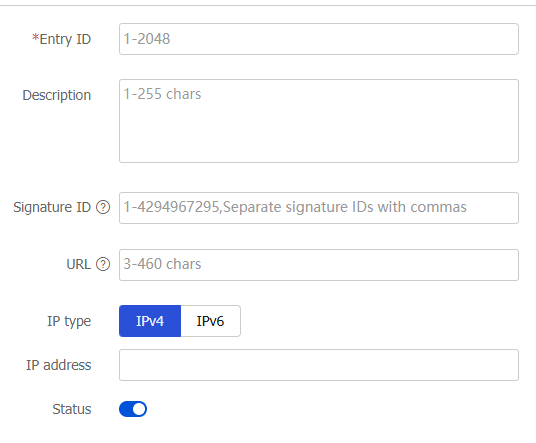
Table-11 Whitelist entry configuration items
Item
Description
Entry ID
Enter an ID for the whitelist entry.
Description
Enter a description for easy identification.
Signature ID
Enter the signature ID in the false WAF log.
URL
Enter the URL in the false WAF log.
IP type
IP type: IPv4 or IPv6.
IP address
Enter the source IP address or real source IP address in the false WAF log.
If you enter the real source IP address, you must first enable client IP identification from the APP Security > Advanced Settings page. For more information about client IP identification, see the manual for advanced settings.
Status
Select Enable to make the entry take effect. If you do not select Enable, the entry does not take effect.
Click OK.
Click Enable whitelist.
Figure-18 Enabling the whitelist
