Data filtering
This help contains the following topics:
Introduction
Data filtering filters packets based on application layer information. You can use data filtering to effectively prevent leakage of internal information, distribution of illegal information, and unauthorized access to the Internet.
Data filtering supports filtering packets of the following protocols:
HTTP.
FTP.
SMTP.
IMAP.
NFS.
POP3.
RTMP.
SMB.
Basic concepts
Keyword
The device provides a list of predefined keywords and allows you to create user-defined keywords in a keyword group.
Predefined keyword —IncludesPhone ,Bank card ,Credit card , andID card . These keywords can be used to identify packets that contain phone numbers, bank card numbers, credit card numbers, and ID card numbers.User-defined keyword —A text- or regular expression-based string to identify patterns in the application layer data of packets.
Keyword group
A keyword group is a group of up to 32 keywords. A packet matches a keyword group if it matches a keyword in the group. You can enable or disable predefined keywords and create new keywords in a keyword group.
Data filtering rule
A data filtering rule contains a set of packet filtering criteria and the actions for matching packets. The packet filtering criteria include keyword group, direction (
Data filtering mechanism
Upon receiving a packet of a protocol that data filtering supports, the device performs the following operations:
Compares the packet with the security policies.
If the packet matches a security policy that is associated with a data filtering profile, the device extracts the application layer information from the packet.
Determines the actions to take on the packet by comparing the extracted application layer information with the data filtering rules in the data filtering policy:
If the packet does not match any data filtering rules in the policy, the device permits the packet to pass.
If the packet matches only one rule, the device takes the actions specified for the rule.
If the packet matches multiple rules, the device determines the actions as follows:
If the matching rules have both the permit and drop actions, the device takes the drop action.
If the logging action is specified for any of the matching rules, the device logs the packet.
vSystem support information
Support of non-default vSystems for this feature depends on the device model. This feature is available on the Web interface only if it is supported.
Restrictions and guidelines
Restrictions and guidelines: Configuration submission
Clicking
Submit to submit configuration causes transient DPI service interruption. DPI-based services might also be interrupted. For example, security policies cannot control access to applications.After you submit the configuration, the system prompts
Configuration succeeded . However, the configuration might not have been activated completely. The device cannot recognize packets as expected before the activation completes.
Restrictions and guidelines: Regular expression-based keyword match pattern configuration
The regular expression pattern can contain a maximum of four branches. For example,
'abc(c|d|e|\x3D)' is valid, and'abc(c|onreset|onselect|onchange|style\x3D)' is invalid.Nested braces are not allowed. For example,
'ab((abcs*?))' is invalid.A branch cannot be specified after another branch. For example,
'ab(a|b)(c|d)^\\r\\n]+?' is invalid.A minimum of four non-wildcard characters must exist before an asterisk (
* ) or question mark (?). For example,'abc*' is invalid and'abcd*DoS\x2d\d{5}\x20\x2bxi\\r\\nJOIN' is valid.
Configure data filtering
Analysis
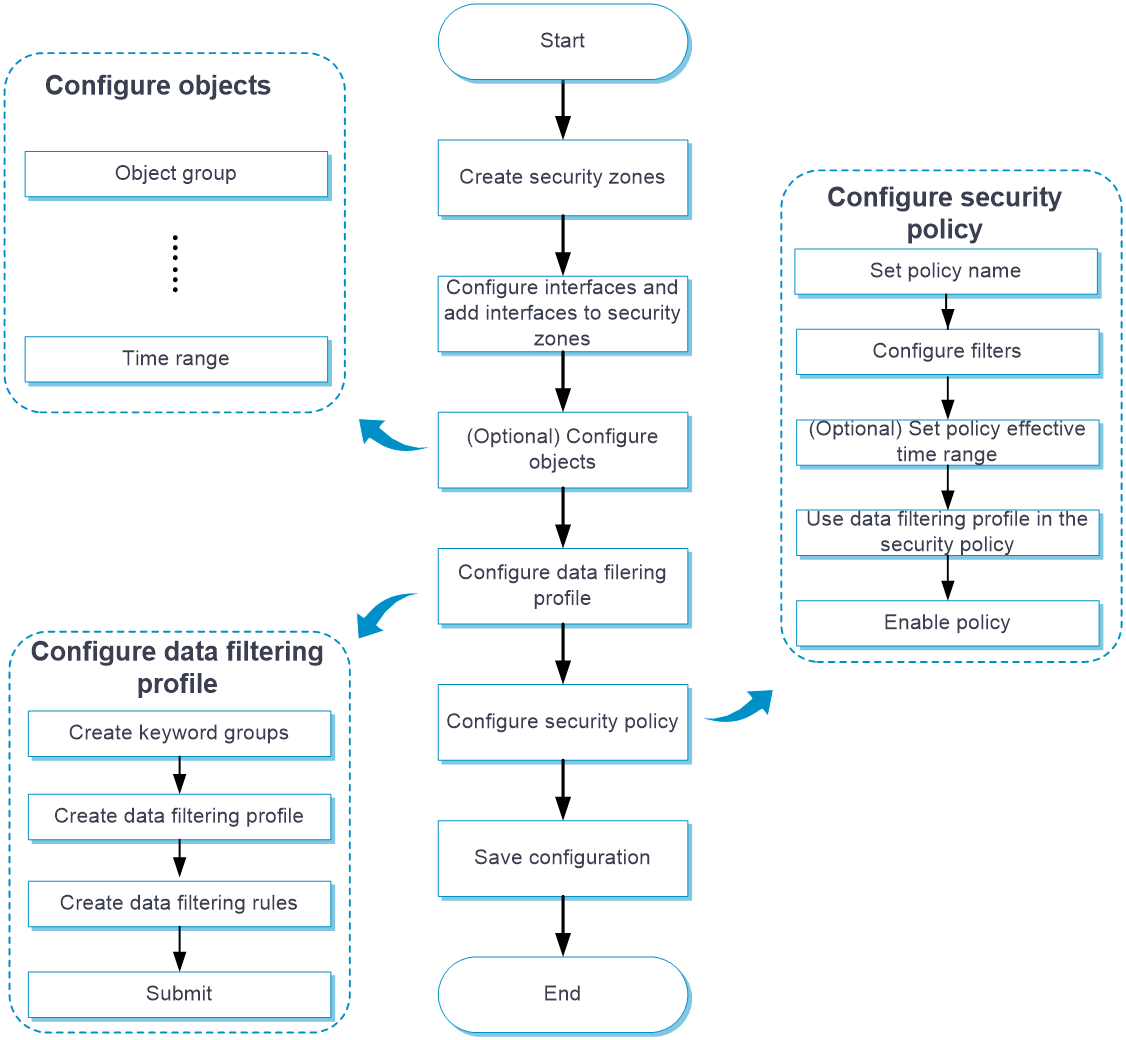
Configure data filtering as shown in Figure-1.
Figure-1 Data filtering configuration procedure
Prerequisites
Complete the following tasks before you configure this feature:
Assign IP addresses to interfaces on the
Network >Interface Configuration >Interfaces page.Configure routes on the
Network >Routing page. Make sure the routes are available.Create security zones on the
Network >Security Zones page.Add interfaces to security zones. You can add interfaces to a security zone on the
Security Zones page or select a security zone for an interface on theInterfaces page.Configure security policies to permit the target traffic on the
Policies >Security Policies page.
Manage the default data filtering profile
The device has a default data filtering profile named
Procedure
Click the
Object tab.In the navigation pane, select
APP Security >Data Filtering >Profiles .The
default data filtering profile is displayed on the profile list and cannot be edited.Figure-2 Viewing the default data filtering profile

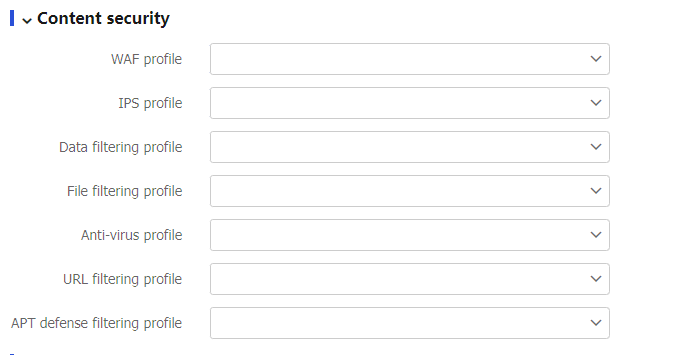
Specify the default data filtering profile in a security policy. For more information, see the security policy online help.
Figure-3 Specifying the default data filtering profile in a security policy
Configure custom data filtering settings
When the default data filtering profile does not meet user requirements, you can flexibly adjust the settings (including keyword groups) in custom profiles to better suit the service environment and security requirements.
Configure a keyword group
To create a keyword group and configure keywords in the keyword group:
Click the
Object tab.In the navigation pane, select
APP Security >Data Filtering >Keyword Groups .On the page that appears, click
Create .Create a keyword group.
Figure-4 Creating a keyword group
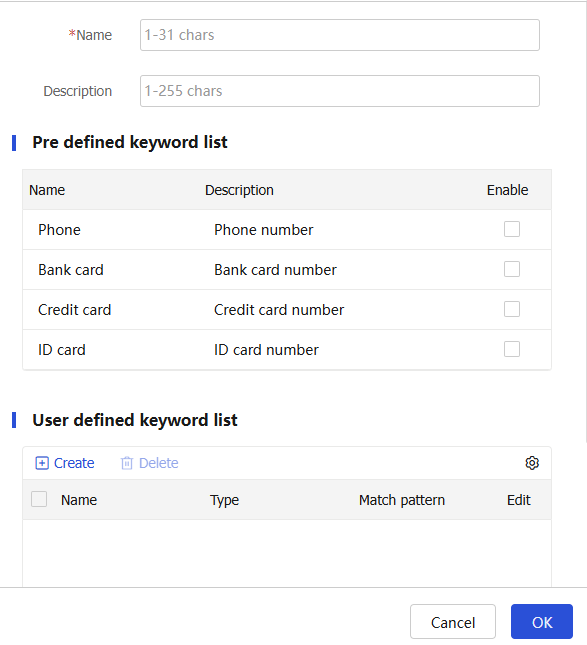
Table-1 Keyword group configuration items
Item
Description
Name
Enter a name for the keyword group.
Description
Enter a description for the keyword group.
In the
Predefined keyword list Enable for a predefined keyword. For example, to identify packets that contain phone numbers, select Enable for Phone.In the
User defined keyword list area, clickCreate .Create a keyword.
Figure-5 Creating a keyword
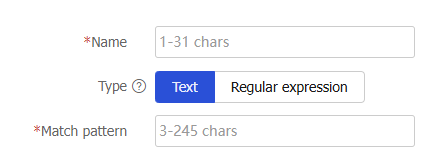
Table-2 Keyword configuration items
Item
Description
Name
Enter a name for the keyword.
Type
Select the type of the keyword match pattern. Options are:
Text —Select this option to configure a text-based match pattern for exact match.Regular expression —Select this option to configure a regular expression-based match pattern for fuzzy match.
Match pattern
Enter the content of the keyword match pattern.
Click
OK .The keyword is displayed on the user-defined keyword list.
You can add a maximum of 32 more keywords to the keyword group.
Click
OK .The keyword group is displayed on the
Keyword Groups page.
Configure a data filtering profile
To create a data filtering profile and configure data filtering rules in the profile:
Click the
Object tab.In the navigation pane, select
APP Security >Data Filtering >Profiles .On the page that appears, click
Create .Create a data filtering profile.
Figure-6 Creating a data filtering profile
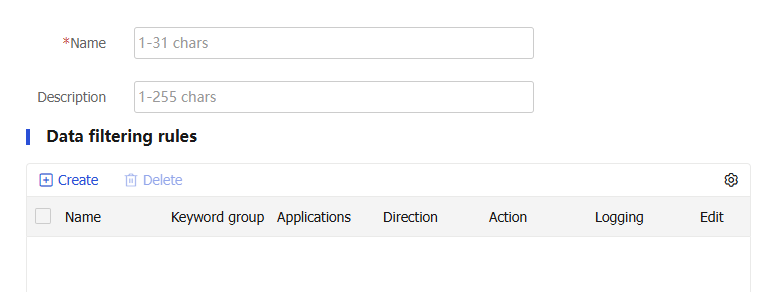
Table-3 Data filtering profile configuration items
Item
Description
Name
Enter a name for the data filtering profile.
Description
Enter a description for the data filtering profile.
In the
Data filtering rules area, clickCreate .Create a data filtering rule.
Figure-7 Creating a data filtering rule
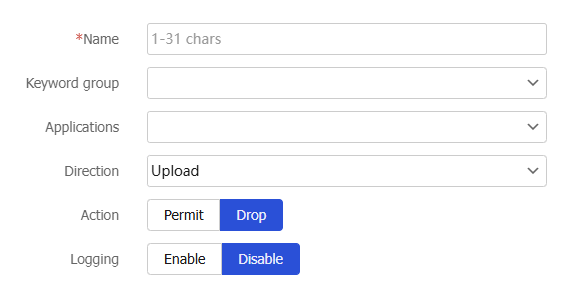
Table-4 Data filtering rule configuration items
Item
Description
Name
Enter a name for the data filtering rule.
Keyword group
Select an existing keyword group or create a keyword group.
Applications
Select the application layer protocols of the applications to which the rule applies. Supported application layer protocols are FTP, HTTP, IMAP, NFS, POP3, RTMP, SMB, and SMTP.
Direction
Select the traffic direction to which the rule applies. Options are
Upload ,Download , andBoth .Action
Select the action for matching packets. Options are
Permit andDrop .Logging
Select whether to enable logging for matching packets. Options are
Enable andDisable .Click
OK .The data filtering rule is displayed on the data filtering rule list of the data filtering profile.
Click
OK .The data filtering profile is displayed on the
Data Filtering Profiles page.Use the data filtering profile in a security policy. For more information, see "
Manage the default data filtering profile ."To have the configuration activated, click
Submit .This operation can cause temporary DPI service outage. As a best practice, perform the operation after all DPI service configurations are complete.