Terminal identification
This help contains the following topics:
Introduction
Identifying IoT terminals, such as cameras and sensors, is fundamental to establish secure Internet of Things (IoT) connections.
When the terminal traffic passes through a device, the device performs the following tasks:
Analyzes and extracts the terminal information, such as the vendor, model, and MAC address of the terminal.
Generates a log when a terminal is identified for the first time or the terminal information changes.
Basic concepts
Terminal
You can predefine terminals in the device characteristics library to identify the terminal characteristics.
To enable terminal identification, select Objects > APP Security > Terminal Identification > Terminals, and then click Enable terminal identification logging.
Terminal group
You can add terminals sharing similar characteristics to a terminal group. The device can provide the same DPI service for packets of the same terminal group.
Object group for terminal identification
You can configure object groups for accurate terminal address identification. The device supports the following address object groups:
Terminal address object group—A set of terminal IP addresses. If the packet source or destination IP address matches this group, the source or destination IP address is the terminal IP address.
Manager address object group—A set of terminal manager IP addresses. If the packet source or destination IP address matches this group, the destination or source IP address is the terminal IP address.
Terminal identification whitelist
The device permits the traffic of a terminal if the IP address of the terminal is in the terminal identification whitelist. Otherwise, the device drops the traffic of a terminal. The terminal identification whitelist supports the following actions:
Permit—Permits the traffic of a terminal all the time.
Block—Drops the traffic of a terminal all the time only after the terminal information changes.
Operating mode
Terminal identification supports the following operating modes:
Alarm—In this mode, the system permits traffic of all terminals. When the system identifies a terminal for the first time or detects a terminal information change, it sends a log message to the user. This mode is applicable to scenarios that do not have strict security requirements.
Whitelist—In this mode, the system permits traffic of only terminals in the whitelist. When the system detects a terminal information change, it sends a log message to the user. This mode is applicable to scenarios that have strict security requirements.
To set an operating mode, select Objects > APP Security > Terminal Identification > Terminals, click Operating mode, and select an operating mode.
Workflow
Figure-1 Terminal identification workflow
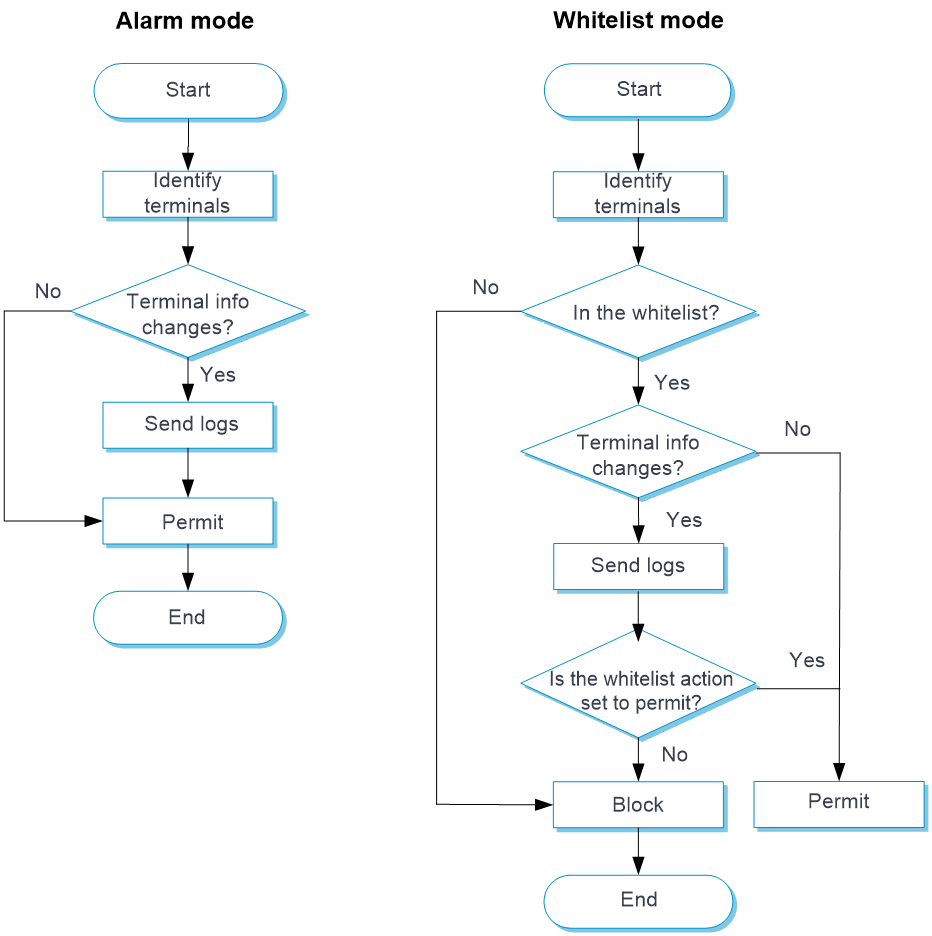
Terminal identification works as follows:
Alarm mode—The system identifies each terminal and permits traffic of all terminals. When the system detects a terminal for the first time or detects that the information about an existing terminal changes, the system sends a log message.
Whitelist mode
The system identifies each terminal and checks whether the IP address of each terminal (including terminals classified as other category) is in the whitelist. An unidentifiable terminal is classified as other category.
If the IP address of a terminal is not in the whitelist, the system drops the traffic of the terminal. If the IP address of a terminal is in the whitelist, the system checks whether the terminal information changes. If the terminal information does not change, the system permits the traffic.
If the terminal information changes, the system sends a log message and check whether the whitelist action is permit.
If the whitelist action is permit, the system permits the traffic. Otherwise, the system drops the traffic.
vSystem support information
Support of non-default vSystems for this feature depends on the device model. This feature is available on the Web interface only if it is supported.
Licensing requirements
To use terminal identification, you must purchase and install the required license. After the license expires, terminal identification can still use the existing APR signature library but cannot update the signature library. For more information about licensing, see the license management help.
Restrictions and guidelines
In whitelist mode with the block action, the system drops traffic of a terminal in the whitelist when the terminal comes online for the first time. To permits the traffic of the terminal, click Approve for the terminal.
If you configure both a manager address object group or a terminal address object group, the manager address object group has higher priority.
Configure terminal identification
Configure a terminal group
Click the Objects tab.
In the navigation pane, select APP Security > Terminal Identification > Terminal Groups.
Click Add.
Select terminals from the Available Terminals pane and click Select to add them to the terminal group.
Configure an object group for terminal identification
Click the Objects tab.
In the navigation pane, select APP Security > Terminal Identification > Terminals.
Click Configure object groups for terminal identification.
Configure a manager address object group or a terminal address object group, or configure both of them.
Configure the terminal identification whitelist
Click the Objects tab.
In the navigation pane, select APP Security > Terminal Identification > Terminals.
Click Operating mode.
Select Whitelist, and specify an action.
Click OK.
Click Configure object groups for terminal identification.
Configure a terminal address object group.