IPv4 ACLs
This helps contains the following topics:
Introduction
An access control list (ACL) is a set of rules for identifying traffic based on criteria such as source IP address, destination IP address, and port number. The rules are also called permit or deny statements.
ACLs are primarily used for packet filtering. You can also use ACLs in QoS, security, routing, and other modules for identifying traffic. The packet drop or forwarding decisions depend on the modules that use ACLs.
IPv4 ACLs can be divided into:
Basic IPv4 ACL—Matches the source address, address object group, port object group, and time range of IPv4 packets. The value range for the basic IPv4 ACL number is 2000 to 2999.
Advanced IPv4 ACL—Matches match protocol information such as GRE, TCP, UDP, ICMP, and OSPF carried by IPv4 packets. It can also match the source and destination addresses, object groups, port object groups, time range, and other information. The value range for the basic IPv4 ACL number is 3000 to 3999.
Restrictions and guidelines
The rules in an ACL are sorted in a specific order. When a packet matches a rule, the device stops the match process and performs the action defined in the rule. If an ACL contains overlapping or conflicting rules, the matching result and action to take depend on the rule order.
The following ACL match orders are available:
Rule ID-based—Sorts ACL rules in ascending order of rule ID. A rule with a lower ID is matched before a rule with a higher ID. If you use this method, check the rules and their order carefully.
Auto—Sorts ACL rules in depth-first order. Depth-first ordering makes sure any subset of a rule is always matched before the rule. Table 1 lists the sequence of tie breakers that depth-first ordering uses to sort rules for each type of ACL.
Table-1 Sort ACL rules in depth-first order
ACL type
Sequence of tie breakers
IPv4 basic ACL
VPN instance.
More 0s in the source IPv4 address wildcard (more 0s means a narrower IPv4 address range).
Rule configured earlier.
IPv4 advanced ACL
VPN instance.
Specific protocol number.
More 0s in the source IPv4 address wildcard mask.
More 0s in the destination IPv4 address wildcard.
Narrower TCP/UDP service port number range.
Rule configured earlier.
A wildcard mask, also called an inverse mask, is a 32-bit binary number represented in dotted decimal notation. In contrast to a network mask, the 0 bits in a wildcard mask represent "do care" bits, and the 1 bits represent "don't care" bits. If the "do care" bits in an IP address are identical to the "do care" bits in an IP address criterion, the IP address matches the criterion. All "don't care" bits are ignored. The 0s and 1s in a wildcard mask can be noncontiguous. For example, 0.255.0.255 is a valid wildcard mask.
Configuration guide
Analysis
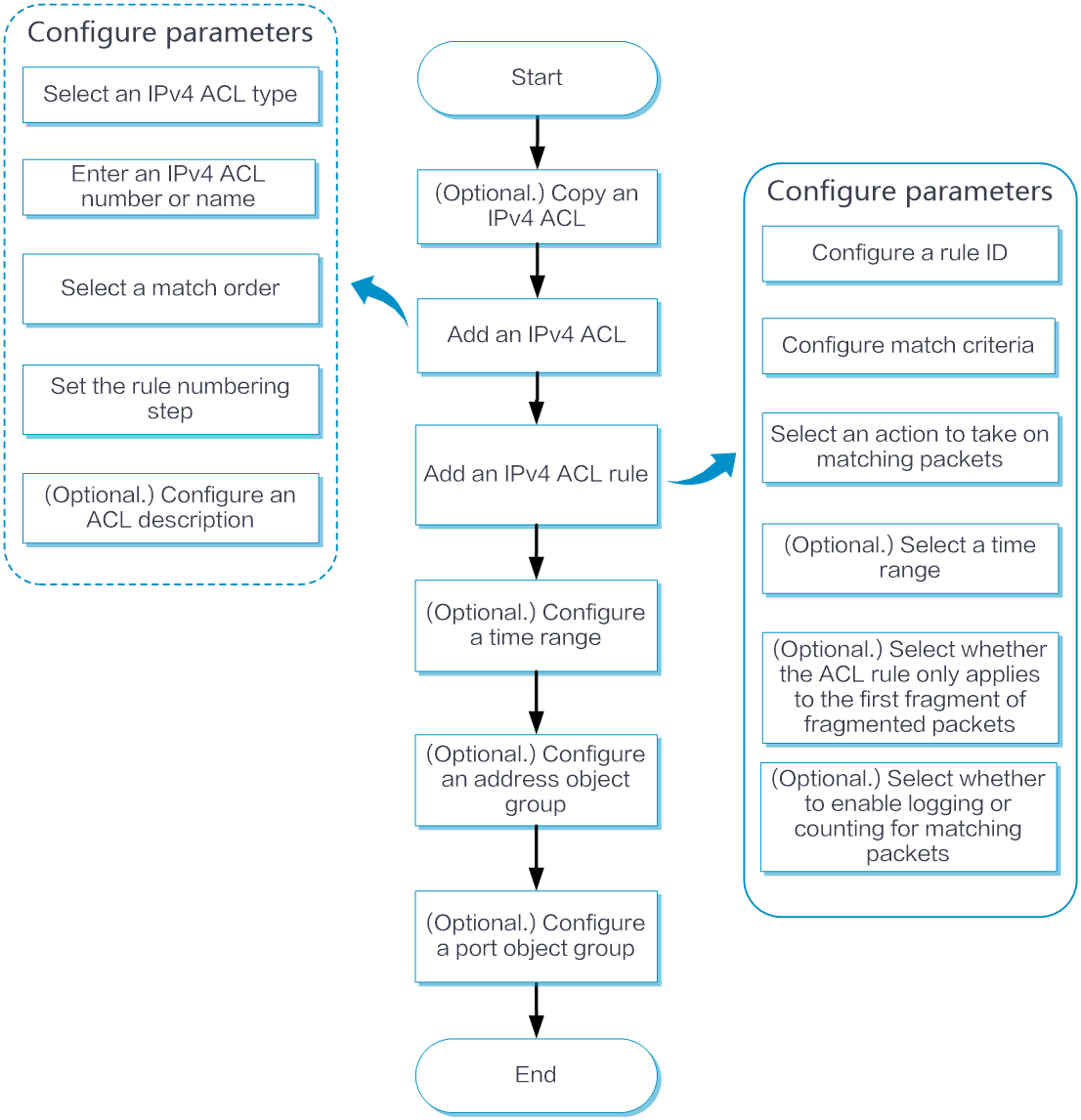
Create an IPv4 ACL as shown in the following figure:
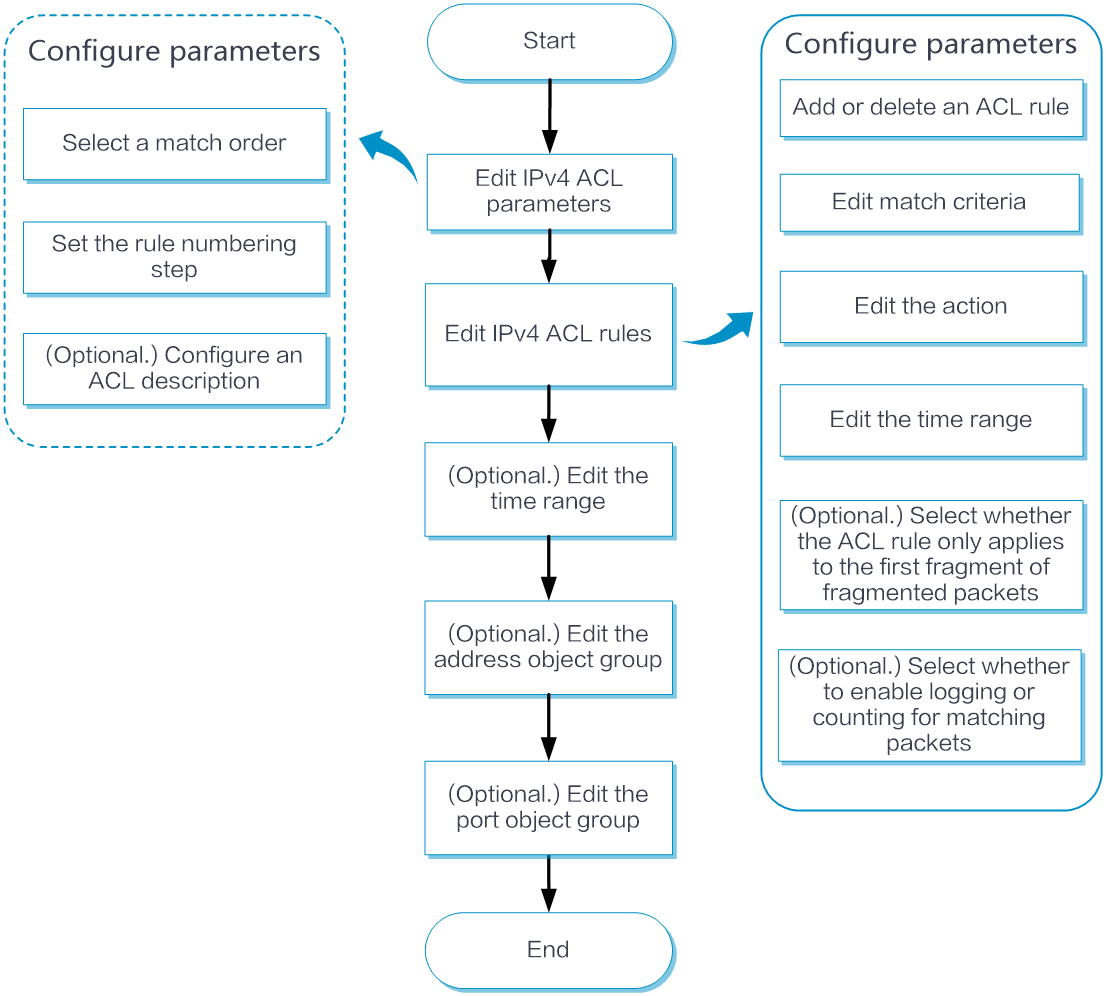
Edit an IPv4 ACL as shown in the following figure:
Create an IPv4 ACL
Select Configure > Network Policy > ACLs.
On the IPv4 ACLs tab, click Add.
(Optional.) Select an ACL to be copied from the Select Clone Source list, and click Next. If you do not want to copy any ACL, directly click Skip. Copying an ACL can quickly create a new ACL with a different number and a different name than the existing ACL. All other parameters of the new ACL are the same as the existing ACL.
Add an IPv4 ACL, and configure the following parameters:
Select an ACL category.
Enter an IPv4 ACL number. You can also enter a unique name for the newly created IPv4 ACL.
(Optional.) Enter a description for the ACL.
Select a match order.
Specify a rule numbering step.
Add an IPv4 ACL rule:
Click Add. The Add Rule page opens.
Select Automatic or Manual for the Rule ID field. If you select Manual, enter a rule ID.
(Optional.) Enter a description for the rule.
Configure match criteria. For example, you can select Match Source IP/Wildcard, and enter the source IP address and mask that the rule uses to match packets.
Select an action to take on matching packets.
(Optional.) Select an existing time range from the Effective Time list. You can also click the Add button to configure a new time range.
(Optional.) Select whether the ACL rule only applies to the first fragment of fragmented packets.
(Optional.) Select whether to enable logging for matching packets.
(Optional.) Select whether to enable counting for matching packets.
Click OK to complete the creation of the IPv4 ACL rule.
Edit an IPv4 ACL
Select Configure > Network Policy > ACLs.
On the IPv4 ACLs tab, click the Edit icon for the ACL you want to edit.
Edit an IPv4 ACL:
Edit the match order.
Edit the rule numbering step.
Edit the description.
Edit an IPv4 ACL rule:
Click the Edit icon for the rule you want to edit.
Edit match criteria. For example, you can select Match Source IP/Wildcard, and edit the source IP address and mask that the rule uses to match packets.
Edit the action to take on matching packets.
(Optional.) Edit the time range from the Effective Time list. You can also click the Add button to configure a new time range.
(Optional.) Select whether the ACL rule only applies to the first fragment of fragmented packets.
(Optional.) Select whether to enable logging for matching packets.
(Optional.) Select whether to enable counting for matching packets.
Click OK to complete the editing of the IPv4 ACL rule.
Example: Create an IPv4 ACL
Network configuration
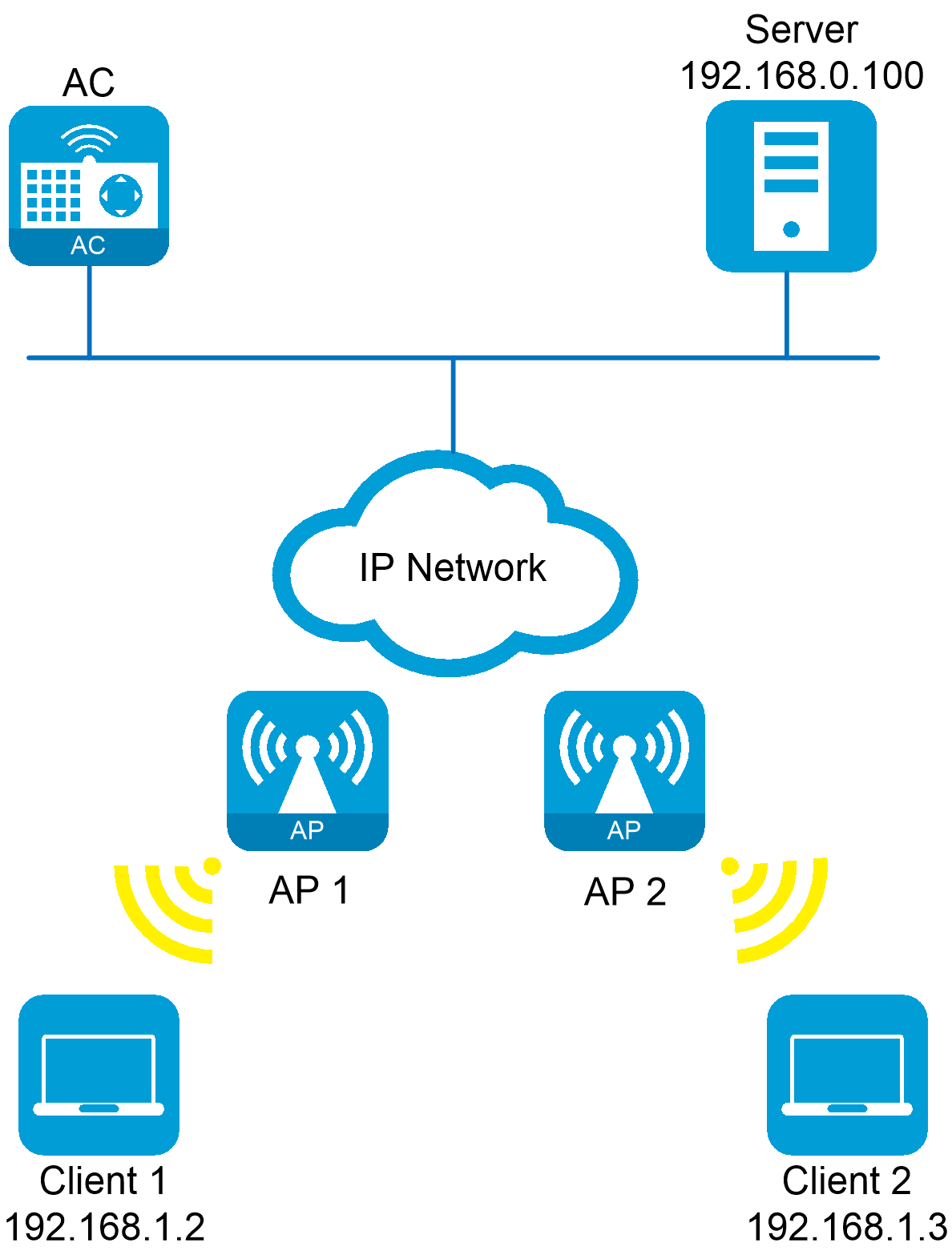
As shown in Figure-1, configure an IPv4 ACL on the AC to allow only Client 1 to access the server from 8:00 to 18:00 on weekdays between April 2023 and June 2023.
Procedure
Create a time range named work, from 8:00 to 18:00 on weekdays between April 2023 and June 2023. (Details not shown.)
Create IPv4 basic ACL 2001, and configure rules to allow packets from 192.168.1.2/32 to pass through during time range work and deny packets from all other IP addresses.
Select Configure > Network Policy > ACLs.
On the IPv4 ACLs tab, click Add.
Create IPv4 ACL 2001, including the following steps:
Select Basic for the ACL Category field.
Enter ACL number 2001.
Select Based on Rule Number Order for the Match Order field.
Set the rule numbering step to 5.
Add an IPv4 ACL rule to allow only packets from 192.168.1.2/32 to pass through during time range work:
Click Add. The Add Rule page opens.
Select Automatic for the Rule ID field.
Select Match Source IP/Wildcard for the Match Criteria field, and enter the source IP address and mask as 192.168.1.2/0.0.0.0.
Select Permit for the Action field.
Select time range work from the Effective Time list.
Select On for the Match Packet Logs field.
Select On for the Match Packet Statistics field.
Click OK to complete the creation of the IPv4 ACL rule.
Add an IPv4 ACL rule to deny packets from any other IPv4 addresses during time range work:
Click Add. The Add Rule page opens.
Select Automatic for the Rule ID field.
Select Deny for the Action field.
Select time range work from the Effective Time list.
Select On for the Match Packet Logs field.
Select On for the Match Packet Statistics field.
Click OK to complete the creation of the IPv4 ACL rule.
Apply the ACL to the inbound direction of the interface filter the packets. (Details not shown.)
Verify the configuration
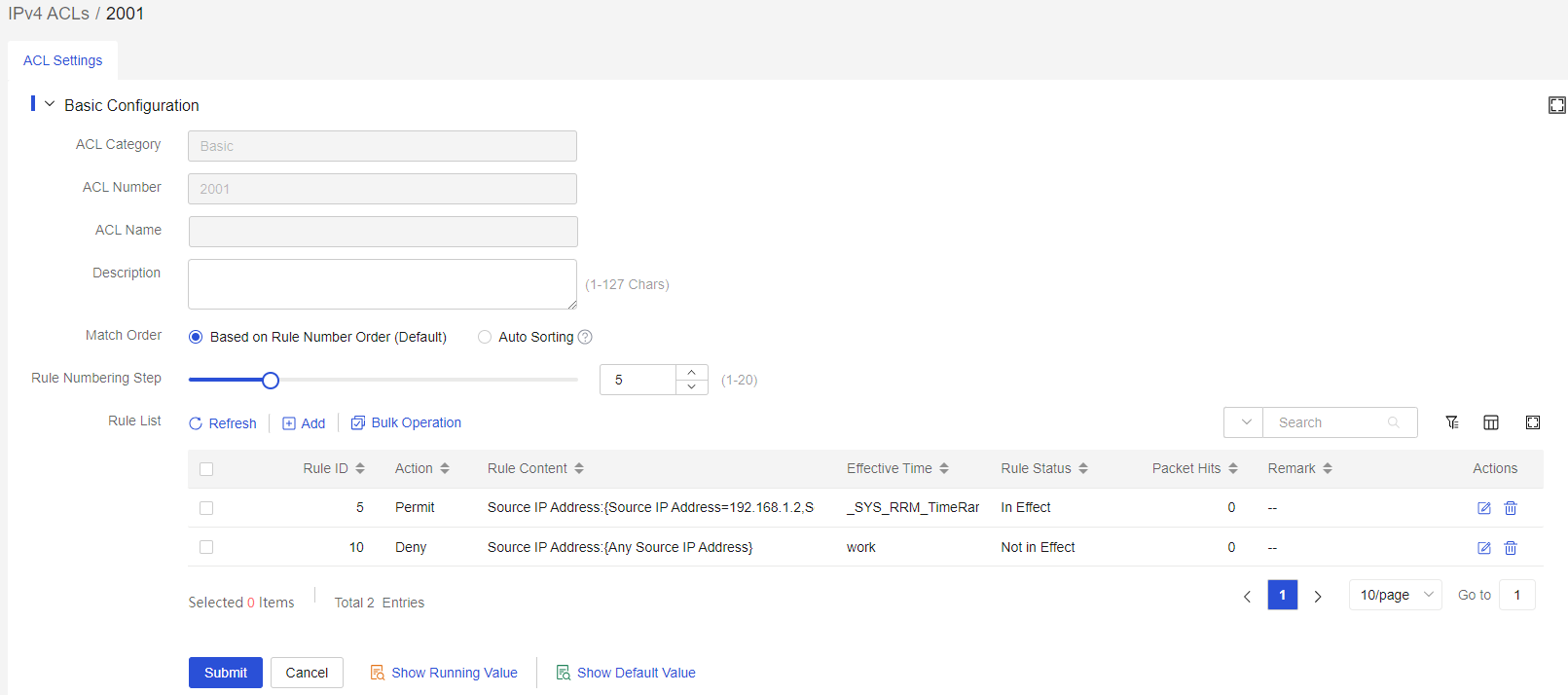
Select Configure > Network Policy > ACLs. On the IPv4 ACLs tab, you can view detailed information about IPv4 basic ACL 2001.
Figure-2 IPv4 ACL configuration