MAC authentication
This help contains the following topics:
Introduction
MAC authentication controls network access by authenticating source MAC addresses on a port. The feature does not require client software, and users do not have to enter a username and password for network access. The device initiates a MAC authentication process when it detects an unknown source MAC address on a MAC authentication-enabled port. If the MAC address passes authentication, the user can access authorized network resources. If the authentication fails, the device marks the MAC address as a silent MAC address, drops the packet, and starts a quiet timer. The device drops all subsequent packets from the MAC address within the quiet time. The quiet mechanism avoids repeated authentication during a short time.
MAC authentication user account format
MAC authentication supports the following user account formats:
MAC-based user account—The device uses the MAC address of each user as the username and password for MAC authentication, or uses the MAC address as the username and a configured password for MAC authentication.
Shared user account—You can specify one username and password to be shared by all MAC authentication users on the device. The username and password can be any valid strings, including MAC addresses. Since multiple users can authenticate on the same port, all MAC authentication users on the port use the same fixed username for authentication. The server only needs to configure one user account to meet the authentication requirements of all users. This is suitable for network environments where client access is relatively trustworthy.
MAC authentication methods
The access device uses Password Authentication Protocol (PAP) or Challenge Handshake Authentication Protocol (CHAP) to perform MAC authentication with the authentication server.
The PAP authentication method authenticates a user by using their username and password. However, PAP transmits the username and password in plain text, making it suitable for environments with relatively low network security requirements.
The CHAP authentication method verifies user identity by exchanging challenge information between the client and the server. It sends the username in plaintext and the password in cipher text over the network. Compared to PAP, CHAP authentication offers better privacy and is more secure and reliable.
MAC authentication features
Offline detection interval
If the device receives no traffic from a user within the specified offline detection interval, it logs off that user and requests the accounting server to stop accounting for the user.
Quiet interval
If the authentication for a user fails, the device marks the MAC address of the user as a silent MAC address and starts a quiet timer. The device drops all subsequent packets from the MAC address within the quiet time. The quiet mechanism avoids repeated authentication during a short time. Packets from the user will be processed when the quiet timer expires.
Configuration guide
Analysis
Configure MAC authentication as shown in the following figure:
Figure-1 MAC authentication configuration procedure

Basic configuration
Configure MAC authentication
From the left navigation pane, select Configure > Authentication > Authentication Global Settings > MAC Authentication.
In the Basic Configuration area, configure the MAC authentication method, ISP domain, user account format, and MAC address format.
Click Submit.
Advanced configuration
Configure advanced MAC authentication parameters
From the left navigation pane, select Configure > Authentication > Authentication Global Settings > MAC Authentication.
In the Advanced Configuration area, configure the following parameters as needed:
Table-1 Parameters for configuring MAC authentication
Parameter
Description
Offline Detection Interval
Sets the user idle timeout timer. If the device has not received traffic from a user before the timer expires, the device logs off that user and requests the accounting server to stop accounting for the user.
Quiet Interval
Sets the interval that the device must wait before the device can perform MAC authentication for a user that has failed MAC authentication. All packets from the MAC address are dropped during the quiet time. Packets from the user will be processed when the quiet timer expires.
Server Timeout Interval
Sets the interval that the device must wait for a response from a RADIUS server before it determines that the RADIUS server is unavailable. If the timer expires during MAC authentication, the user cannot access the network.
Click Submit.
Example: Configure RADIUS-based MAC authentication
Network configuration
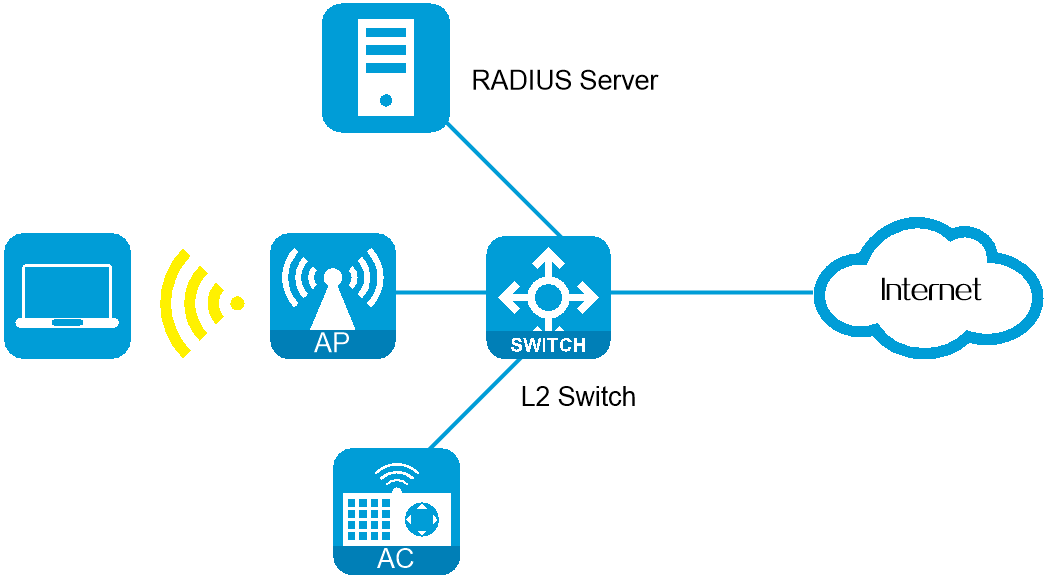
Configure the AC to perform MAC authentication on wireless users for Internet access control. This example uses the following settings:
Use the RADIUS server at IP address 10.1.1.1/24 to provide authentication, authorization, and accounting services.
Use the RADIUS server to authenticate the MAC authentication user in the maca ISP domain.
Configure the AC and the RADIUS server to use the shared key name for secure RADIUS communication. The RADIUS server provides authentication and authorization service at port 1812 and provides accounting service at 1813. Configure the AC to exclude the domain name from the usernames sent to the RADIUS server.
Use user MAC address as username and password for authentication.
Figure-2 Network diagram
Procedure
Configure a RADIUS scheme
From the left navigation pane, select Configure > Authentication > AAA Settings > RADIUS Settings. The RADIUS Schemes page is displayed.
Click Add. On the page that opens, add a RADIUS scheme:
Configure the RADIUS scheme name as maca.
Configure the primary authentication server. Set its IP address to 10.1.1.1, port number to 1812, and shared key to name.
Configure the primary accounting server. Set its IP address to 10.1.1.1, port number to 1813, and shared key to name.
Click Submit.
Figure-3 RADIUS scheme basic configuration

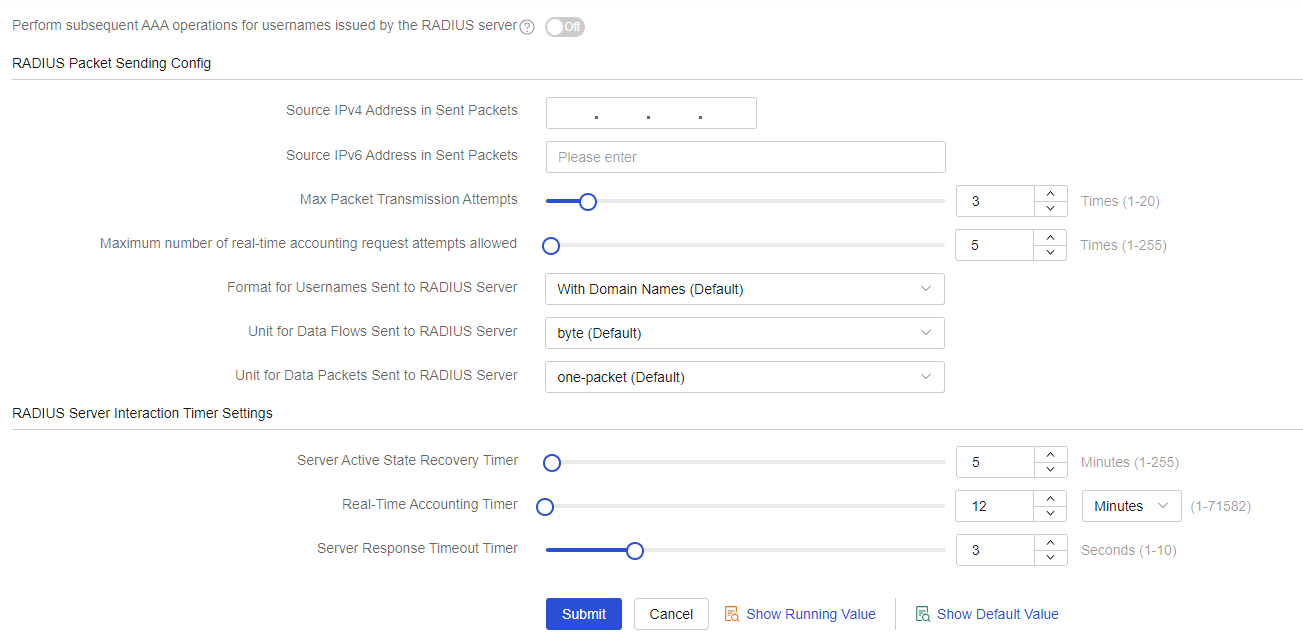
In RADIUS scheme named maca, configure the AC to exclude domain names in usernames sent to the RADIUS server.
Click Submit.
Figure-4 RADIUS scheme advanced configuration
Configure an ISP domain:
From the left navigation pane, select Configure > Authentication > AAA Settings > ISP Domains. The ISP Domain Settings page is displayed.
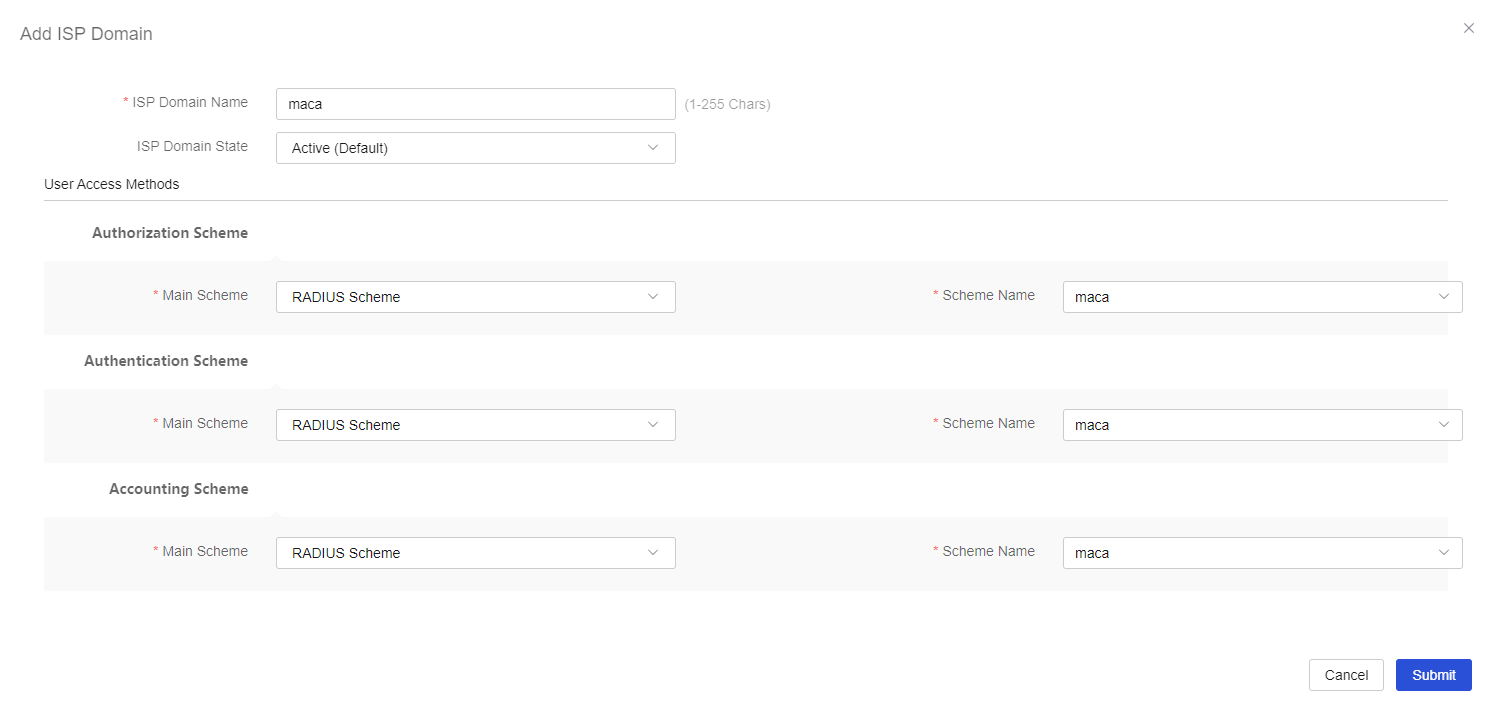
Click Add. On the page that opens, add an ISP domain:
Configure the ISP domain name as maca.
Select RADIUS Scheme for authentication, authorization, and accounting and select maca as the scheme for each of them.
Click Submit.
Figure-5 Configuring an ISP domain
Configure MAC authentication
From the left navigation pane, select Configure > Authentication > Authentication Global Settings > MAC Authentication.
In the Basic Configuration area, configure the MAC authentication method as PAP and ISP domain as maca., set the user account format to User MAC as Username and Password, and then select the default MAC address format.
Click Submit.
Figure-6 Configure MAC authentication

Configure the RADIUS server
Add user accounts on the RADIUS server and make sure it can provide authentication, authorization, and accounting services. (Details not shown.)
Verify the configuration
After the traffic from a MAC authentication user triggers an authentication, the user can pass the authentication and comes online.