Manage cloud host images
Host images record only system disk data. To back up data in an attached disk of a cloud host, you can create a disk image or back up the disk. For more information, see "About cloud disks."
Tasks at a glance
Create a host image
|
|
· You cannot create an image of a cloud host in abnormal state. · For specific CAS versions, you can directly create a cloud host upon creating an image for a host that is created by using ISO. For other CAS versions, you need to convert the host image into an image before use. |

On the top navigation bar, click Cloud Services, and then select Cloud Hosts from the Compute menu.
Click More for the target cloud host, and then click Create Host Image.
Specify the image name and description, and then click OK.
To view the created images, select Host Images from the left navigation pane.
Table-1 Creating a snapshot
|
Parameter |
Description |
|
Name |
Enter a name, a string of 1 to 64 characters that can contain only letters, digits, Chinese characters, and hyphens (-), and must start with a letter or Chinese character. If the host is created through the cloud disk method, the image name cannot contain Chinese characters. |
|
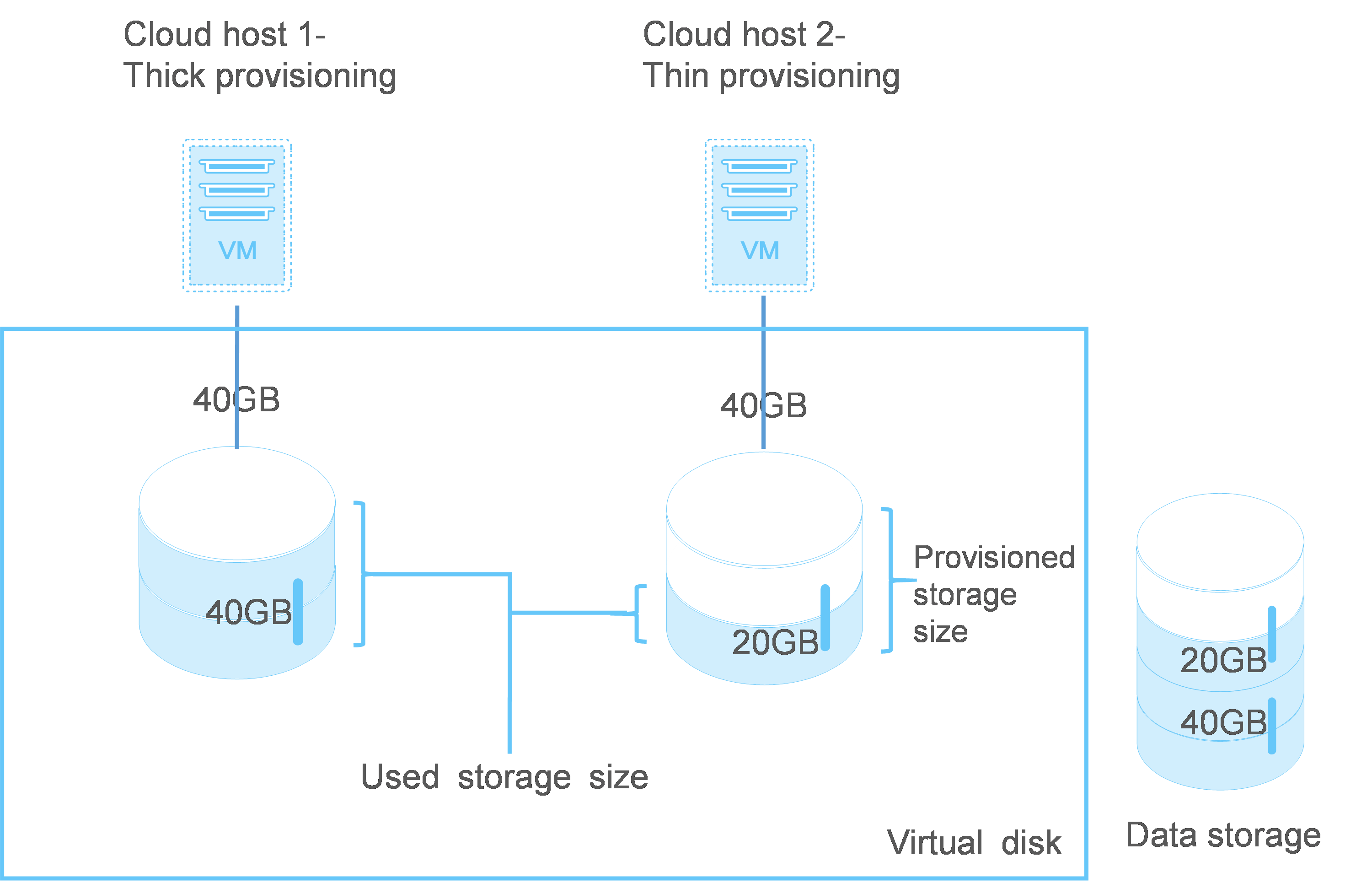
Disk Provisioning Mode |
This field is available only for VMware cloud hosts. Specify the provisioning mode of the system disk.
|
Figure-1 Disk provisioning modes
Edit a host image
You can perform this task to edit the name or description of a host image.
To edit a host image:
On the top navigation bar, click Cloud Services, and then select Cloud Hosts from the Compute menu.
From the left navigation pane, select Host Images.
Click Edit for the target image.
Edit the name or description of the image and then click OK.
Convert host images to images
Host images created by an organization administrator or system administrator are unavailable for users. For users to use these host images, you can covert the images to images.
An organization administrator can convert only images of its organization to private images. A system administrator can convert images to public or private images.
|
|
After the conversion, the system deletes the host image. |

To convert host images to images:
On the top navigation bar, click Cloud Services, and then select Cloud Hosts from the Compute menu.
From the left navigation pane, select Host Images.
Perform either of the following tasks as needed:
To convert a single image, click Convert to Image for the target image.
To convert multiple images, select the target images, and then click Convert to Image.
Specify the image name and image type.
Click OK.
Delete host images
On the top navigation bar, click Cloud Services, and then select Cloud Hosts from the Compute menu.
From the left navigation pane, select Host Images.
Perform either of the following tasks as needed:
To delete a single image, click Delete for the target image.
To delete multiple images, select the target images, and then click Delete.