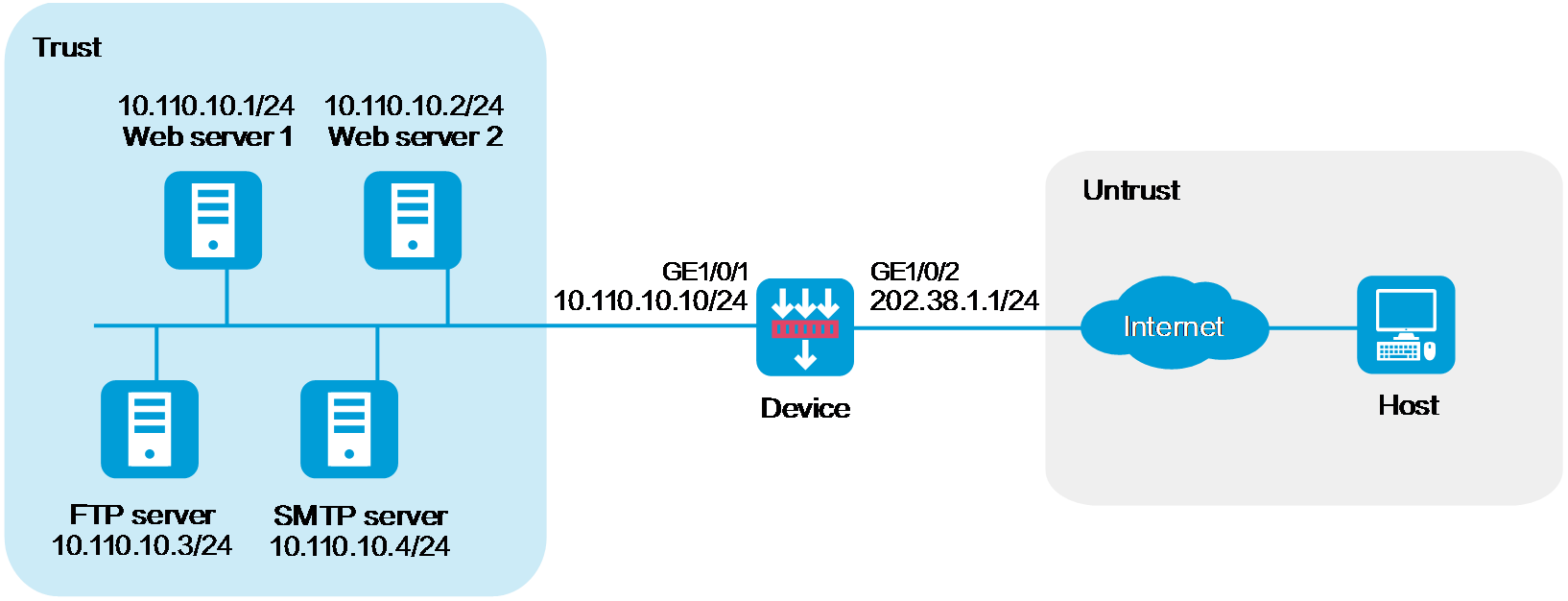
As shown in Figure 1, a company has four servers on the internal network at 10.110.10.0/24 and three public addresses from 202.38.1.1/24 to 202.38.1.3/24. Configure policy-based destination address translation to allow the external host to access the servers by using public address 202.38.1.1 with different ports. The external host uses the following ports to access different servers:
Uses port 80 to access Web server 1.
Uses port 8080 to access Web server 2.
Uses port 21 to access FTP server.
Uses port 25 to access SMTP server.
This configuration example was created and verified on R9071 of the M9000-AI-E8 device.
Do not configure both policy-based NAT and interface-based NAT.
Assign IP addresses to interfaces and add the interfaces to security zones.
# On the top navigation bar, click Network.
# From the navigation pane, select Interface Configuration > Interfaces.
# Click the Edit icon for GE 1/0/2.
# In the dialog box that opens, configure the interface:
Select the Untrust security zone.
On the IPv4 Address tab, enter the IP address and mask of the interface. In this example, enter 202.38.1.1/24.
Click OK.
# Add GE 1/0/1 to the Trust security zone and set its IP address to 10.110.10.10/24 in the same way you configure GE 1/0/2.
Configure a security policy.
# On the top navigation bar, click Policies.
# From the navigation pane, select Security Policies > Security Policies.
# Click Create and click Create a policy.
# In the dialog box that opens, configure policy parameters as follows:
Enter a policy name. In this example, the name is Secpolicy.
Select the source zone. In this example, the source zone is Untrust.
Select the destination zone. In this example, the destination zone is Trust.
Select IPv4 as the type.
Select Permit as the action.
Specify the IP addresses of the servers as the destination IPv4 addresses. In this example, the addresses are 10.110.10.1, 10.110.10.2, 10.110.10.3, and 10.110.10.4.
Click OK.
Configure a policy-based NAT rule.
This example configures a policy-based NAT rule for Web server 1.
# On the top navigation bar, click Policies.
# From the navigation pane, select Policy-based NAT.
# Click Create.
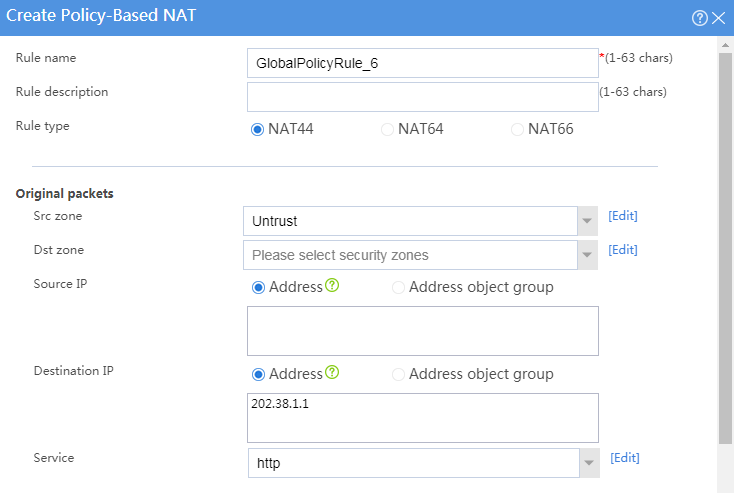
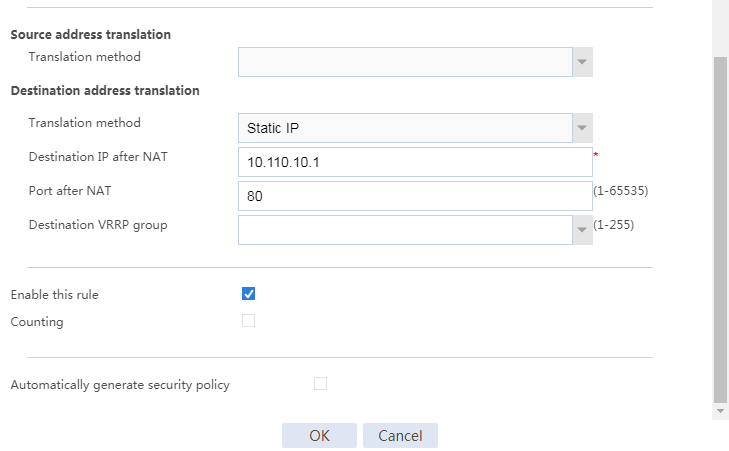
# Create a policy-based NAT rule, as shown in Figure 2.
Figure 2 Creating a policy-based NAT rule
# Click OK.
Verify that the external host can successfully ping the Web server on the internal network.