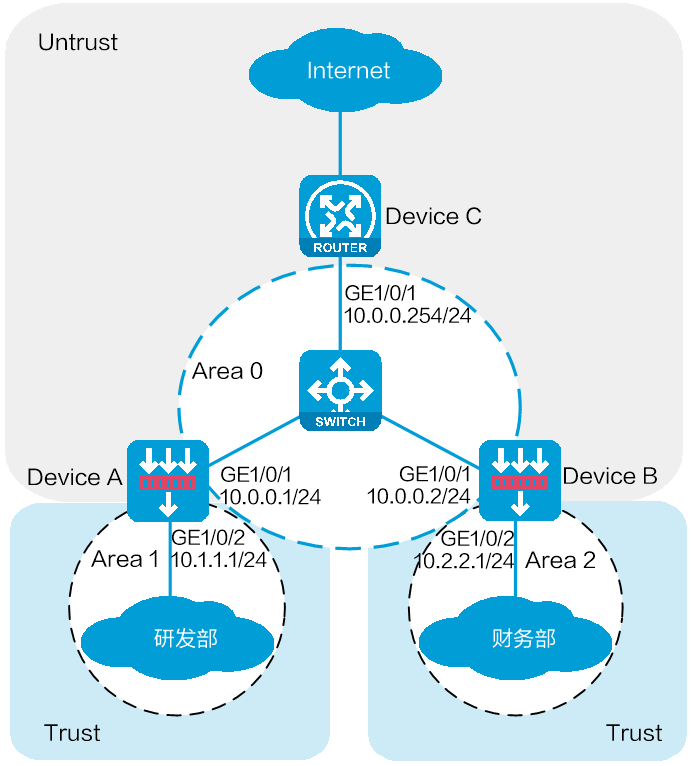
As shown in Figure 1, Device A and Device B are connected to R&D and finance departments, respectively. Device C is a router that acts as the gateway to the Internet.
Configure OSPF on the devices to enable the R&D and finance departments to learn routing information from each other. Configure a default route with the next hop being the gateway address 200.2.2.254 on Device C, and redistribute the default route to OSPF.
This configuration example was created and verified on E9671 of the M9000-X06 device.
OSPF uses multicast addresses 224.0.0.5 and 224.0.0.6 to establish neighbor relationships. You must configure a security policy to permit the traffic between the local security zone and the security zones that contain the OSPF interfaces. For more information, see the configuration procedure.
Assign IP addresses to interfaces and add the interfaces to security zones.
# On the top navigation bar, click Network.
# From the navigation pane, select Interface Configuration > Interfaces.
# Click the Edit icon for GE 1/0/1.
# In the dialog box that opens, configure the interface:
Select the Untrust security zone.
On the IPv4 Address tab, enter the IP address and mask of the interface. In this example, enter 10.0.0.1/24.
Retain the default configuration for the rest of parameters.
Click OK.
# Add GE 1/0/2 to the Trust security zone and set its IP address to 10.1.1.1/24 in the same way you configure GE 1/0/1.
Create security policies.
# On the top navigation bar, click the Policies tab.
# From the navigation pane, select Security Policies > Security Policies.
# Select Create > Create a policy.
# Create security policy ospf-a:
Enter policy name ospf-a.
Select source zone Trust.
Select destination zone Untrust.
Select type IPv4.
Select action Permit.
Enter 10.1.1.0/24 as the source address.
Retain the default configuration for the rest of parameters.
# Click OK.
# Create security policy ospf-b:
Enter policy name ospf-b.
Select source zone Local.
Select destination zone Unrust.
Select type IPv4.
Select service object group ospf.
Select action Permit.
Retain the default configuration for the rest of parameters.
# Click OK.
# Create security policy ospf-c:
Enter policy name ospf-c.
Select source zone Unrust.
Select destination zone Local.
Select type IPv4.
Select service object group ospf.
Select action Permit.
Retain the default configuration for the rest of parameters.
# Click OK.
Configure OSPF.
# On the top navigation bar, click Network.
# From the navigation pane, select Routing > OSPF.
Figure 2 Configuring OSPF

# Click Create.
# In the dialog box that opens, configure an OSPF instance.
Figure 3 Creating an OSPF instance
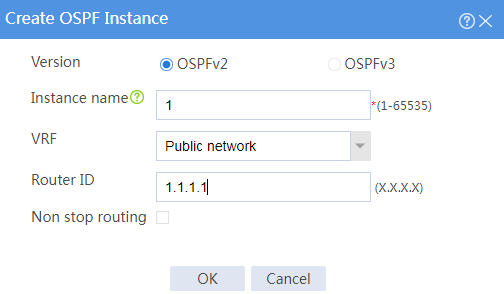
# Click OK.
Figure 4 OSPF instance

# Click 0 in the Number of OSPF areas column for the created OSPF instance.
Figure 5 OSPF areas

# On the OSPF area configuration page that opens, click Create.
# In the dialog box that opens, configure Area 0.
Figure 6 Creating Area 0
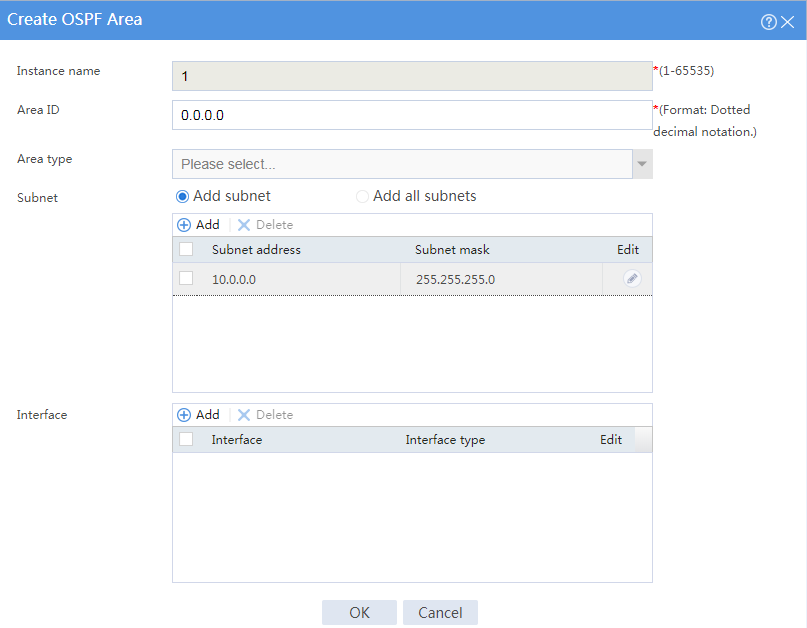
# Click OK.
# On the OSPF area configuration page, click Create.
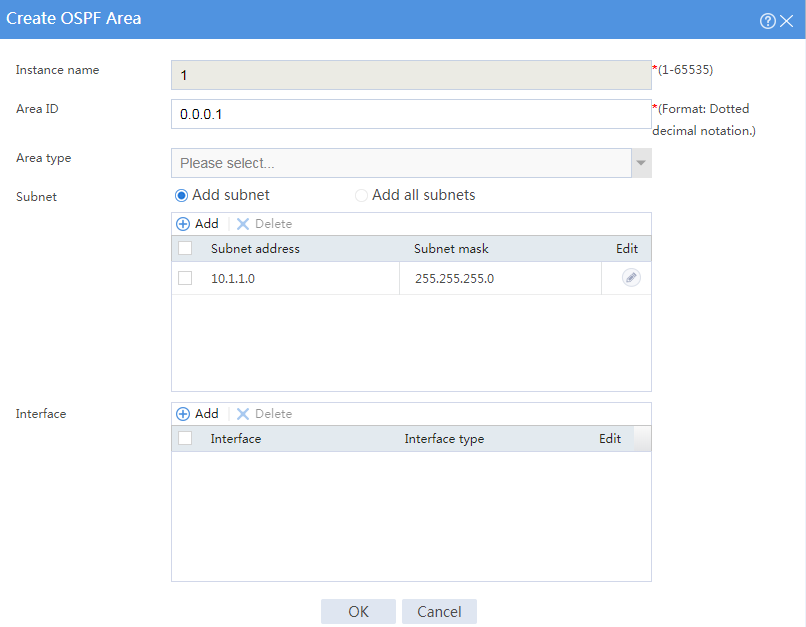
# In the dialog box that opens, configure Area 1.
Figure 7 Creating Area 1
Assign IP addresses to interfaces and add the interfaces to security zones.
# On the top navigation bar, click Network.
# From the navigation pane, select Interface Configuration > Interfaces.
# Click the Edit icon for GE 1/0/1.
# In the dialog box that opens, configure the interface:
Select the Untrust security zone.
On the IPv4 Address tab, enter the IP address and mask of the interface. In this example, enter 10.0.0.2/24.
Retain the default configuration for the rest of parameters.
Click OK.
# Add GE 1/0/2 to the Trust security zone and set its IP address to 10.2.2.1/24 in the same way you configure GE 1/0/1.
Create security policies.
# On the top navigation bar, click the Policies tab.
# From the navigation pane, select Security Policies > Security Policies.
# Select Create > Create a policy.
# Create security policy ospf-a:
Enter policy name ospf-a.
Select source zone Trust.
Select destination zone Untrust.
Select action Permit.
Select type IPv4.
Enter 10.2.2.0/24 as the source address.
Retain the default configuration for the rest of parameters.
# Click OK.
# Create security policy ospf-b:
Enter policy name ospf-b.
Select source zone Local.
Select destination zone Untrust.
Select type IPv4.
Select action Permit.
Select service object group ospf.
Retain the default configuration for the rest of parameters.
# Click OK.
# Create security policy ospf-c:
Enter policy name ospf-b.
Select source zone Untrust.
Select destination zone Local.
Select type IPv4.
Select action Permit.
Select service object group ospf.
Retain the default configuration for the rest of parameters.
# Click OK.
Configure OSPF.
# On the top navigation bar, click Network.
# From the navigation pane, select Routing > OSPF.
Figure 8 Configuring OSPF

# Click Create.
# In the dialog box that opens, configure an OSPF instance.
Figure 9 Creating an OSPF instance
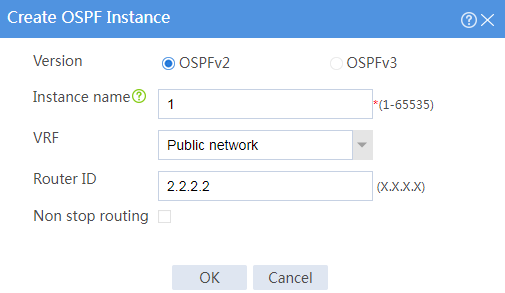
# Click OK.
Figure 10 OSPF instance

# Click 0 in the Number of OSPF areas column for the created OSPF instance.
Figure 11 OSPF areas

# On the OSPF area configuration page that opens, click Create.
# In the dialog box that opens, configure Area 0.
Figure 12 Creating Area 0
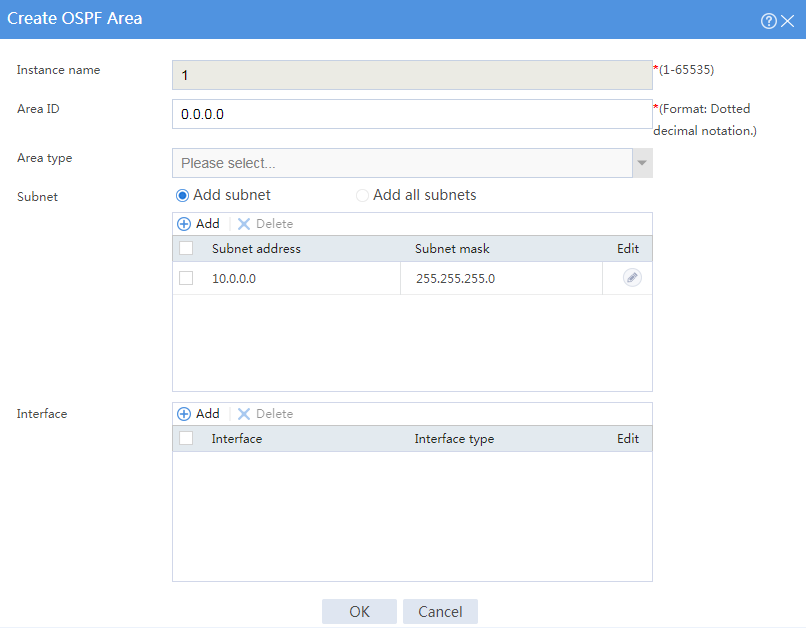
# Click OK.
# On the OSPF area configuration page, click Create.
# In the dialog box that opens, configure Area 2.
Figure 13 Creating Area 2
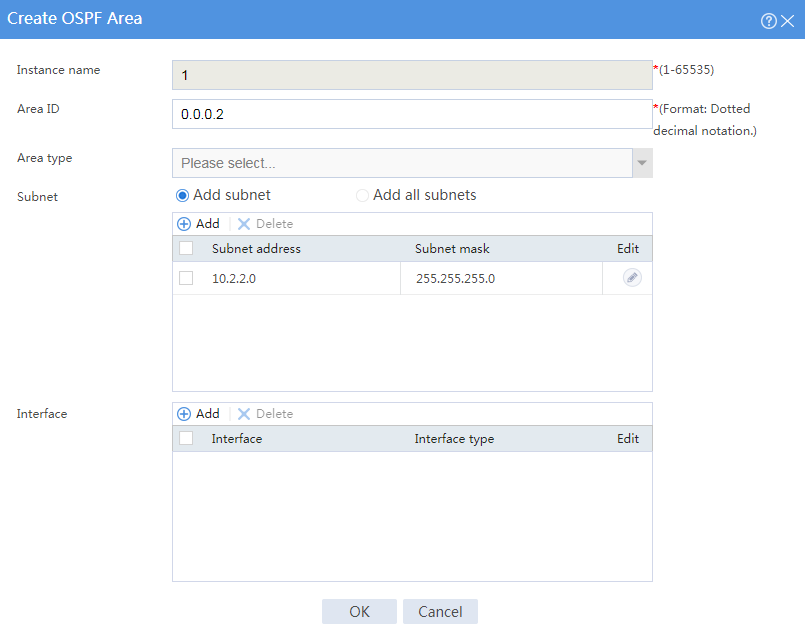
# Click OK.
Assign IP addresses to interfaces. (Details not shown.)
Configure OSPF.
# Enable OSPF process 1, and specify the router ID as 3.3.3.3.
<Device C> system-view
[Device C] ospf 1 router-id 3.3.3.3
# Create Area 0 and enter Area 0 view.
[Device C-ospf-1] area 0.0.0.0
# Advertise network 10.0.0.0/24.
[Device C-ospf-1-area-0.0.0.0] network 10.0.0.0 0.0.0.255
[Device C-ospf-1-area-0.0.0.0] quit
# Redistribute the default route into the OSPF routing table.
<Sysname> system-view
[Device C-ospf-1] default-route-advertise always
[Device C-ospf-1] quit
# Configure the default route to the ISP.
[Device C] ip route-static 0.0.0.0 0 200.2.2.254
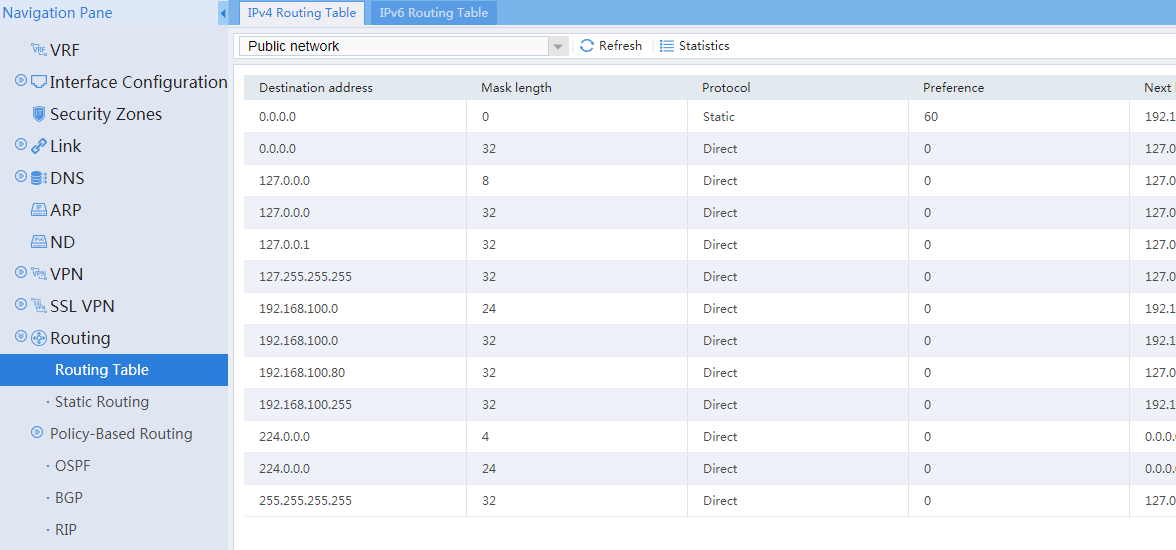
View information about the OSPF routing table of Device A.
# On the top navigation bar, click Network.
# From the navigation pane, select Routing > Routing Table.
# On the IPv4 Routing Table tab, view the OSPF routing table information.
Figure 14 OSPF routing table of Device A
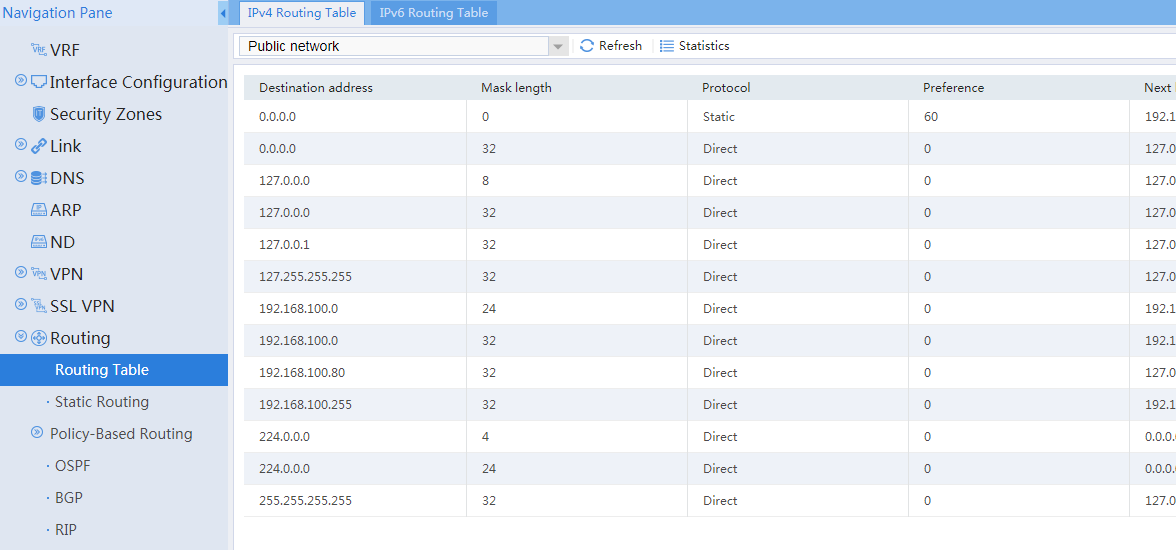
View information about the OSPF routing table of Device B.
# On the top navigation bar, click Network.
# From the navigation pane, select Routing > Routing Table.
# On the IPv4 Routing Table tab, view the OSPF routing table information.
Figure 15 OSPF routing table of Device B
Verify that Device A can ping the ISP.
<Device A> ping -a 10.1.1.1 200.2.2.254
Ping 200.2.2.254 (200.2.2.254) from 10.1.1.1: 56 data bytes, press CTRL_C to break
56 bytes from 200.2.2.254: icmp_seq=0 ttl=254 time=0.423 ms
56 bytes from 200.2.2.254: icmp_seq=1 ttl=254 time=0.222 ms
56 bytes from 200.2.2.254: icmp_seq=2 ttl=254 time=0.173 ms
56 bytes from 200.2.2.254: icmp_seq=3 ttl=254 time=0.170 ms
56 bytes from 200.2.2.254: icmp_seq=4 ttl=254 time=0.167 ms
--- Ping statistics for 200.2.2.254 ---
5 packet(s) transmitted, 5 packet(s) received, 0.0% packet loss
round-trip min/avg/max/std-dev = 0.167/0.231/0.423/0.098 ms
The output shows that the ISP can be pinged.
Verify that Device B can ping the ISP.
<Device B> ping -a 10.0.0.2 200.2.2.254
Ping 200.2.2.254 (200.2.2.254) from 10.0.0.2: 56 data bytes, press CTRL_C to break
56 bytes from 200.2.2.254: icmp_seq=0 ttl=254 time=0.437 ms
56 bytes from 200.2.2.254: icmp_seq=1 ttl=254 time=0.209 ms
56 bytes from 200.2.2.254: icmp_seq=2 ttl=254 time=0.194 ms
56 bytes from 200.2.2.254: icmp_seq=3 ttl=254 time=0.174 ms
56 bytes from 200.2.2.254: icmp_seq=4 ttl=254 time=0.179 ms
--- Ping statistics for 200.2.2.254 ---
5 packet(s) transmitted, 5 packet(s) received, 0.0% packet loss
round-trip min/avg/max/std-dev = 0.174/0.239/0.437/0.100 ms
The output shows that the ISP can be pinged.