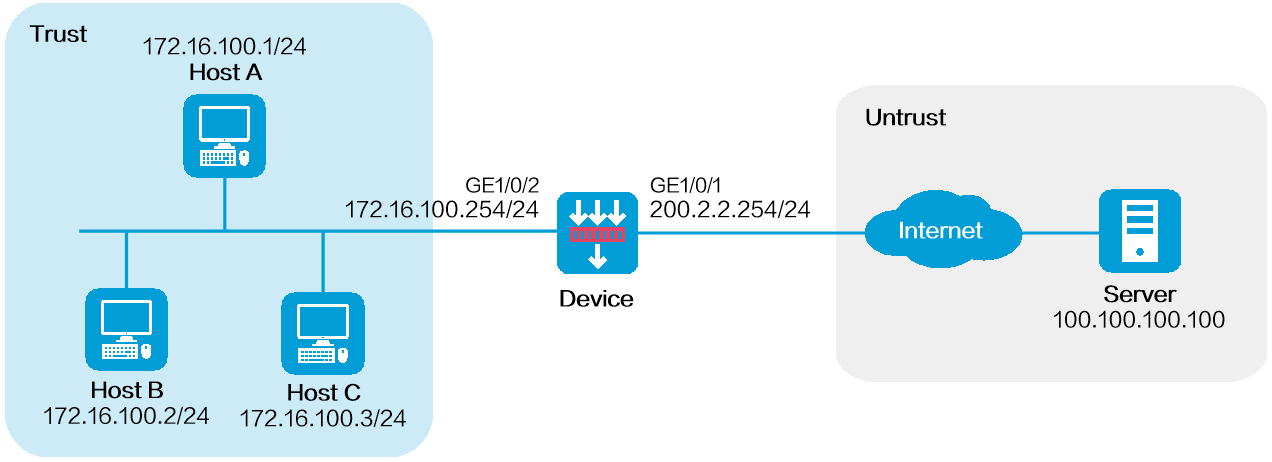
As shown in Figure 1, a company has public IP addresses 200.2.2.1/24 to 200.2.2.3/24. Configure NAT444 dynamic port block mapping to meet the following requirements:
The internal network users can use public IP addresses to access the Internet.
The port range for the public IP addresses is 1024 to 65535.
The port block size is 500.
If the ports in the assigned port block are all used, extend another port block for users.
This configuration example was created and verified on E8371 of the F5000-AI160 device.
Do not configure both the NAT translation methods and a global NAT policy.
Assign IP addresses to interfaces and add the interfaces to security zones.
# On the top navigation bar, click Network.
# From the navigation pane, select Interface Configuration > Interfaces.
# Click the Edit icon for GE 1/0/1.
# In the dialog box that opens, configure the interface:
Select the Untrust security zone.
On the IPv4 Address tab, enter the IP address and mask of the interface. In this example, enter 200.2.2.254/24.
Click OK.
# Add GE 1/0/2 to the Trust security zone and set its IP address to 172.16.100.254/24 in the same way you configure GE 1/0/1.
Configure settings for routing.
This example configures a static route. If dynamic routes are required, configure a dynamic routing protocol.
# On the top navigation bar, click Network.
# From the navigation pane, select Routing > Static Routing.
# On the IPv4 Static Routing tab, click Create.
# In the dialog box that opens, configure a static route to permit packets from the hosts to the server:
Specify the IP address of the server as the destination IP. In this example, the address is 100.100.100.100.
Enter the mask length. In this example, enter 24.
Specify the public address as the next-hop address as 200.2.2.253.
Click OK.
Configure a security policy.
# On the top navigation bar, click Policies.
# From the navigation pane, select Security Policies > Security Policies.
# Click Create and click Create a policy.
# In the dialog box that opens, configure policy parameters as follows:
Specify the policy name. In this example, the name is Secpolicy.
Select the source zone. In this example, the source zone is Trust.
Select the destination zone. In this example, the destination zone is Untrust.
Select IPv4 as the type.
Select Permit as the action.
Specify the IP addresses of the host as the source IPv4 addresses. In this example, the address is 172.16.100.1, 172.16.100.2, and 172.16.100.3.
Specify the IP address of the server as the destination IPv4 address. In this example, the address is 100.100.100.100.
Click OK.
Configure a NAT address group.
# On the top navigation bar, click Objects.
# From the navigation pane, select Object Groups > NAT Address Groups.
# Click Create.
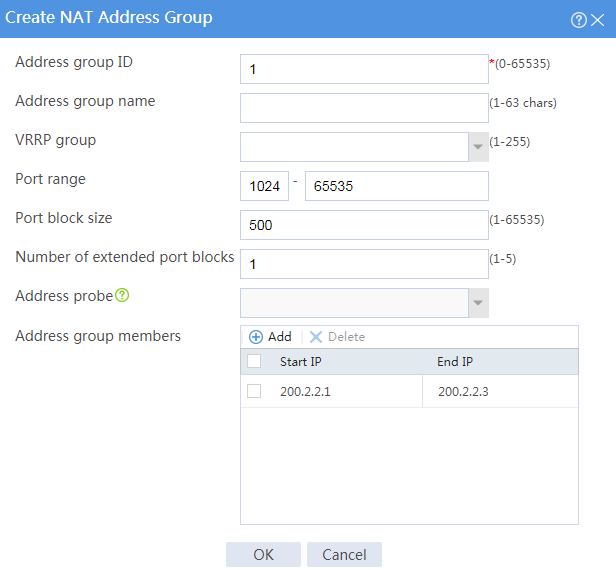
# Create a NAT address group, as shown in Figure 2.
Figure 2 Creating a NAT address group
# Click OK.
Configure an outbound dynamic NAT444 rule.
# On the top navigation bar, click Policies.
# From the navigation pane, select Interface NAT > IPv4.
# On the Out Dynamic NAT (Object Group-Based) tab, click Create.
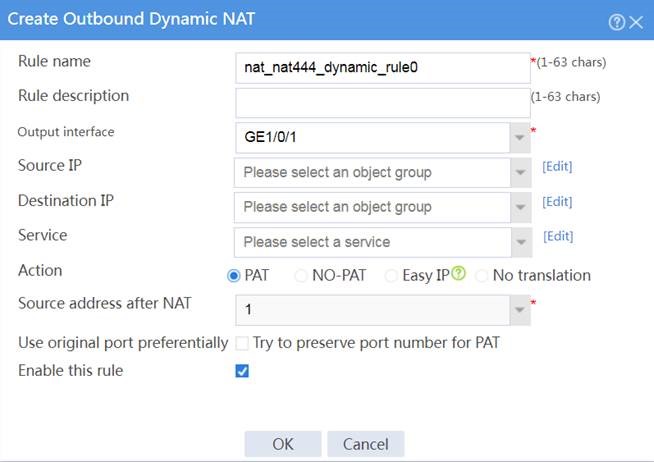
# Create an outbound dynamic NAT444 rule, as shown in Figure 3.
Figure 3 Configuring a dynamic NAT444 rule
# Click OK.
Verify that the host can successfully ping the server on the external network.
C:\Users\abc>ping 100.100.100.100
Pinging host.com [100.100.100.100] with 32 bytes of data:
Reply from 100.100.100.100: bytes=32 time<1ms TTL=253
Reply from 100.100.100.100: bytes=32 time<1ms TTL=253
Reply from 100.100.100.100: bytes=32 time<1ms TTL=253
Reply from 100.100.100.100: bytes=32 time<1ms TTL=253
Ping statistics for 100.100.100.100:
Packets: Sent = 4, Received = 4, Lost = 0 (0% loss),
Approximate round trip times in milli-seconds:
Minimum = 0ms, Maximum = 0ms, Average = 0ms
Verify that a NAT session is generated when the host accesses the server.
# On the top navigation bar, click Monitor.
# From the navigation pane, select Sessions.
Figure 4 Session list
