Install the migration client
|
|
To avoid installation failure, disable firewall and security policy settings for the source device. If the source device is a VM, make sure the port for migration tools has been enabled on the source device. Before you install the migration client, make sure the source VM is not installed with CDP software from a third-party vendor. |

This section describes installing the migration client on a Windows OS. For more information about installation on a Linux OS, see "Appendix B Install a migration client on a Linux OS."
To install the migration client:
Access the remote console of the source device.
Figure-1 Accessing the remote console of the source device
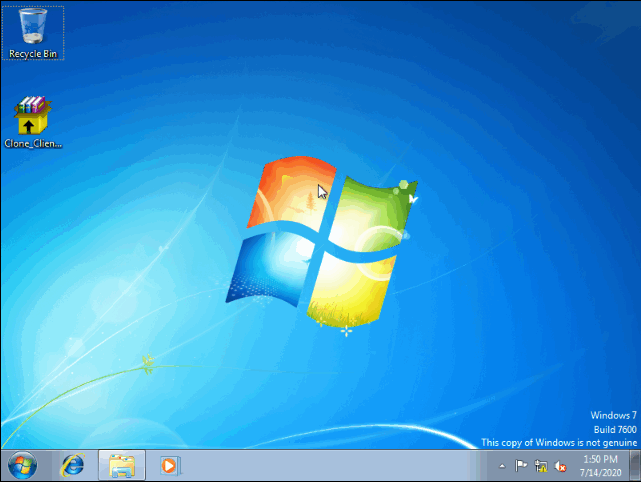
Double-click Clone_Client_Win.exe.
In the window that opens, select the installation language and then click OK.
Accept the installation agreement, select the installation directory, and start the installation process.
Click Y at the prompt to install the CDP driver program.
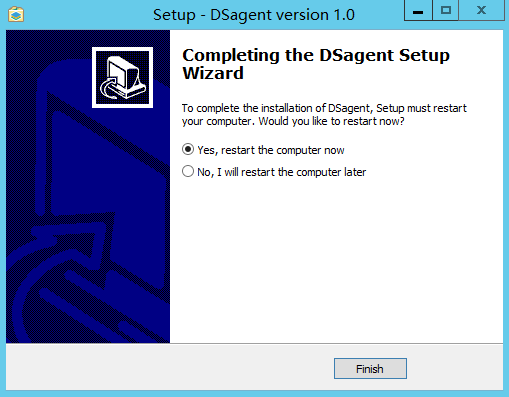
After the installation, restart the source device for the installed client to take effect.
|
|
The restart operation will interrupt services if the source device uses a Windows operating system. Restart the source device when it is not busy to minimize the impact. |

Figure-2 Restarting the source device
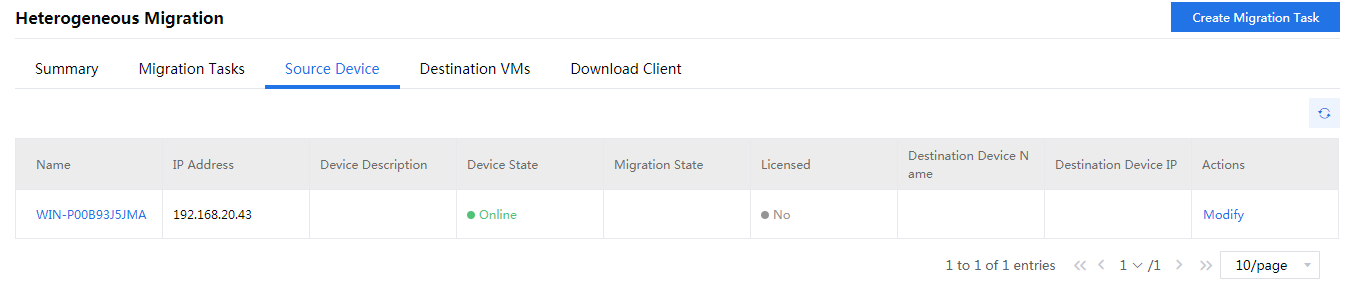
After the restart, you can access the Services > Heterogeneous Migration > Source Device page to verify that the source device has been added to the source list. By default, the system names source devices by their computer names in the operating system.
Figure-3 Source device list