Configure organizations
Organization configuration workflow
When you configure an organization as a cloud administrator, use the procedure shown in Figure-1. For a brief description of this procedure, see Table-1.
Figure-1 Organization configuration workflow

Table-1 Organization configuration workflow
|
Procedure |
Description |
Reference |
|
Create organizations |
Required. Typically, the cloud administrator creates the suborganizations of the root organization. Then, assign resource quotas to each organization. |
|
|
Assign quotas to organizations |
Required. Assign compute and storage AZs to each organization, and set resource quotas. Make sure sufficient resources are available when you assign resource quotas to organizations. The system provisions a cloud service for an organization only if that organization has sufficient idle resource quotas. |
|
|
Create administrator roles |
Optional. By default, the system has predefined the cloud administrator, organization administrator, common user, and auditor roles. You can add additional roles as needed for more granular user privilege control. For example, you can add a data administrator role. |
|
|
Create users |
Required. Create operations and management users, including organization administrator users, auditor users. The cloud administrator does not create common users. These users are created and managed by organization administrators. |
Create an organization
On the top navigation bar, click Cloud O&M, and then select Organization > Organizations from the navigation pane.
Figure-2 Organization management page
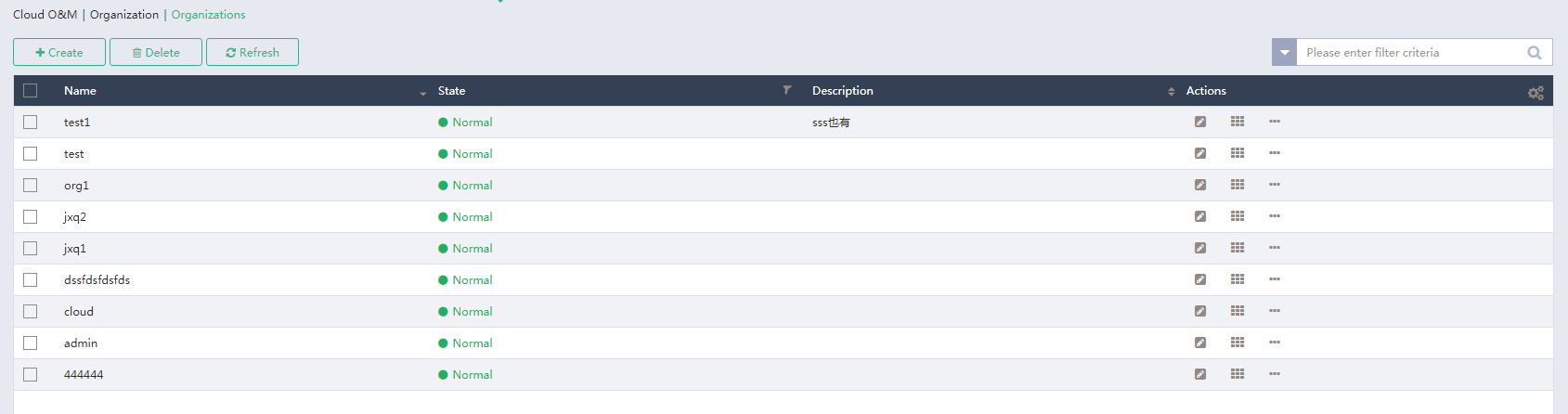
Click Create.
Figure-3 Adding an organization
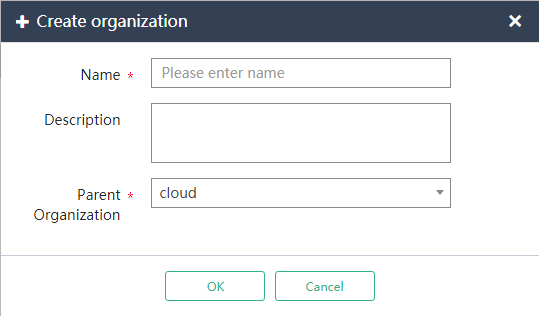
Configure parameters for creating a suborganization of the root organization.
Select the root organization of the private cloud as the parent organization.
Click OK.
Manage organization quotas
On the top navigation bar, click Cloud O&M, and then select Resource Quotas > Quota Management from the navigation pane.

Click the edit icon
 for the organization to be managed.
Assign compute and storage AZs to the organization.
Figure-5 Assigning AZs to an organization
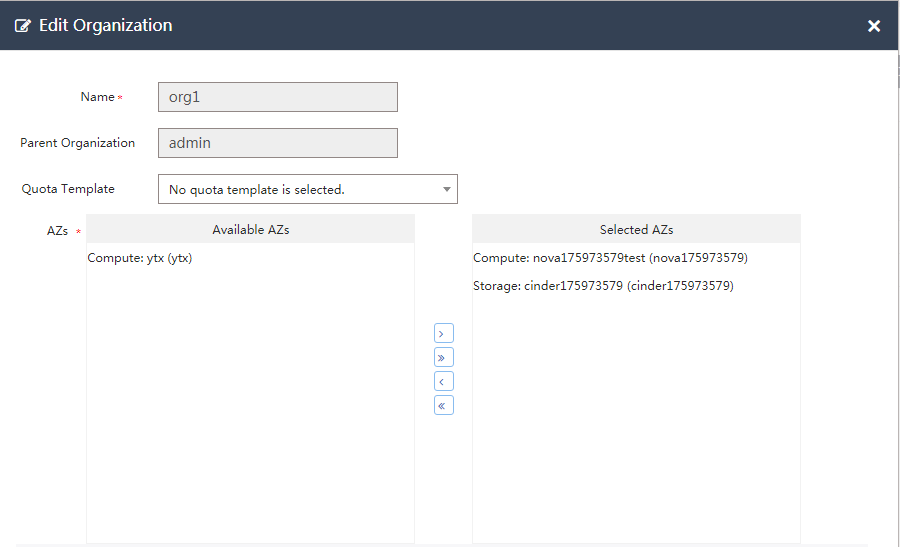
Assign resource quotas to the organization.
The sum of quotas assigned to its suborganizations cannot exceed the resource quotas assigned to it.
Figure-6 Assigning quotas to an organization
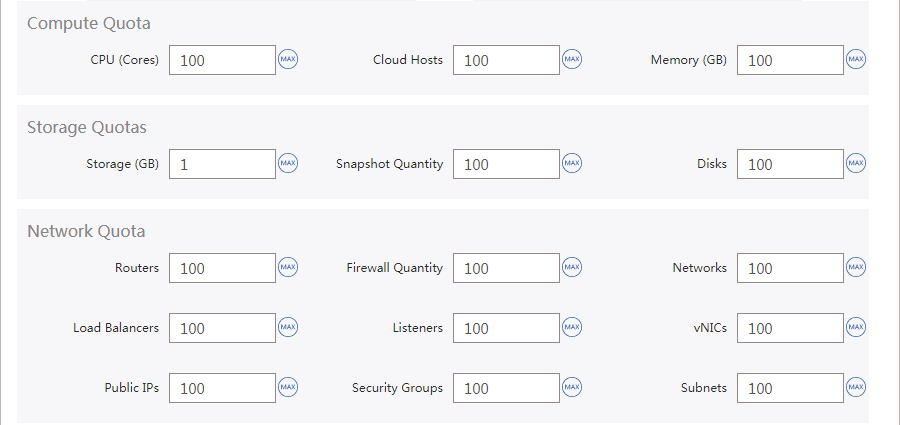
Assign IP address ranges to the organization, and then click OK.
Figure-7 Assigning IP address ranges to an organization
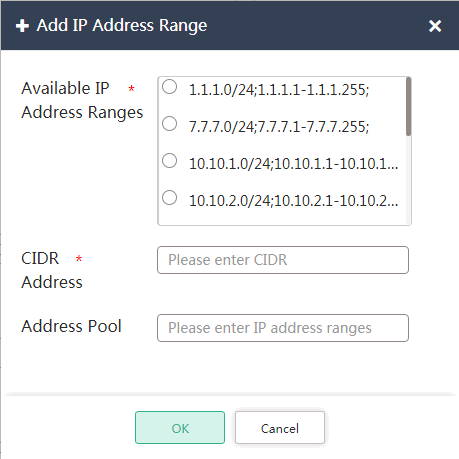
Click OK.
Create user roles
The cloud administrator can create user roles based on an existing default user role to define subsets of permissions assigned to that default user role. For example, create a user role for data management and assign it a subset of permissions assigned to the cloud administrator.
To create a user role:
On the top navigation bar, click Cloud O&M, and then select Organization > Roles from the navigation pane.

Click Create.

Select a subset of permissions for the new role:
From the View list, select an existing default user role to display its permissions.
Select a subset of permissions for the new role.
To find a permission node of interest, enter the permission keyword in the permission search box.
Click OK.
Create a user
As a cloud administrator, you must add organization administrator users for management of organizations. Optionally, you can add other types of users as needed.
To create a user:
On the top navigation bar, click Cloud O&M, and then select Organization > Users from the navigation pane.
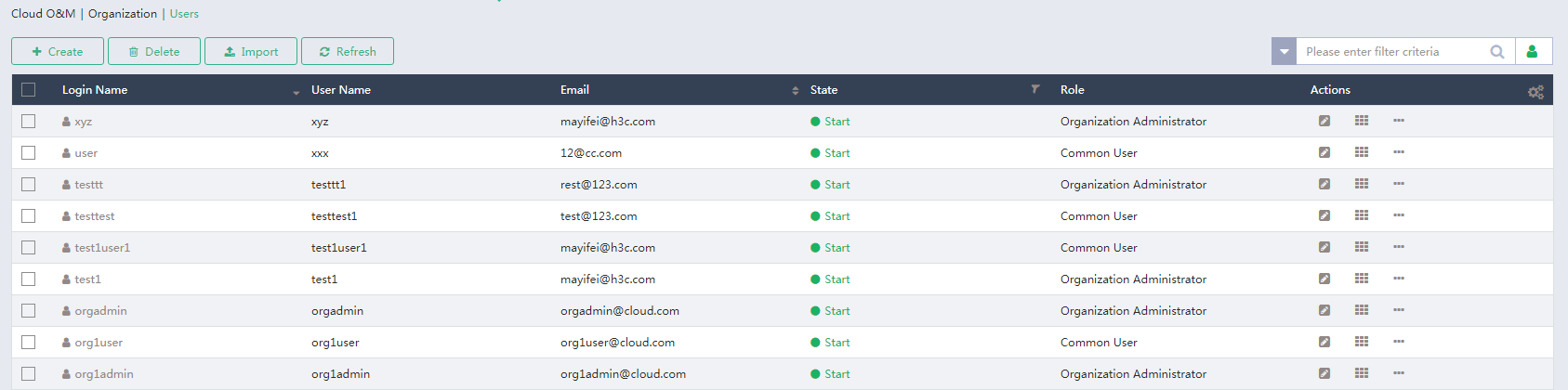
Click Create.
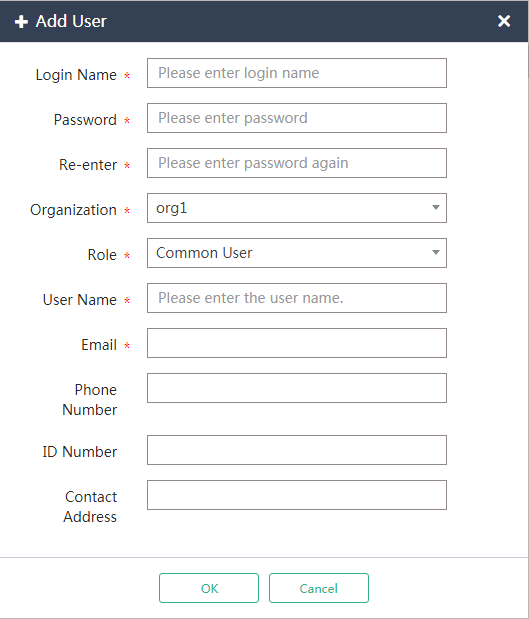
Configure the user account:
Specify a username for accessing the UIS Cloud platform.
Specify a password for accessing the UIS Cloud platform.
Assign the user to an organization. If you are creating a user for cloud-wide management and operations, select the root organization.
Select a role. Users in the root organization can only have the cloud administrator or auditor role, or a role created based on either of them.