Deploy a UIS Cloud cluster (HCI)
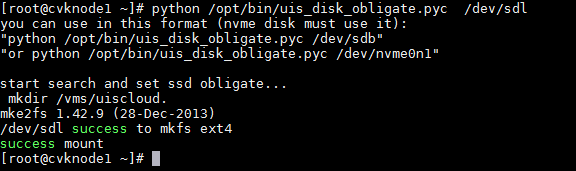
On each host for UIS Cloud deployment, run script python /opt/bin/uis_disk_obligate.pyc /dev/sdx to mount an SSD or NVMe disk to /vms/defaultPool_cloudos.
|
|
· The sdx drive letter is reserved for an SSD or NVMe disk of UIS Cloud. · You can mount an SSD disk only for UIS Manager Standard Edition E0716, UIS Cloud E0807, or later. To mount an SSD disk for a software version earlier than E0716 or E0807, see the documents for the software version. |

Log in to UIS Manager.
On the top navigation bar, click System.
From the left navigation pane, select Component Management > Components.
Click Deploy.
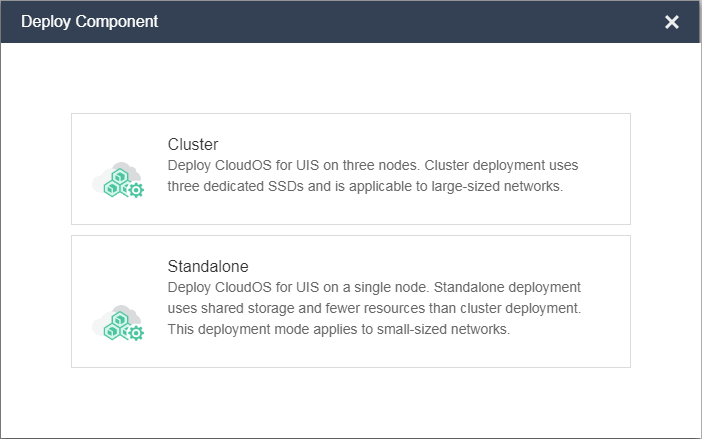
In the dialog box that opens, select cluster deployment.
Figure-1 Selecting cluster deployment
In the dialog box that opens, configure the deployment parameters as described in Table-1.
Figure-2 Configuring UIS Cloud cluster deployment parameters
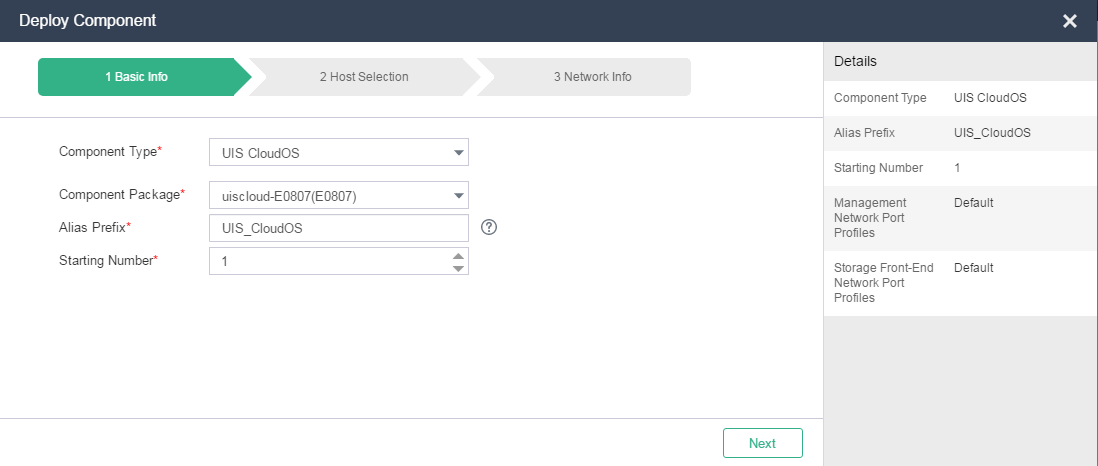
Table-1 UIS Cloud cluster deployment parameters
|
Parameter |
Description |
|
Component Type |
Select a component type. The component type is fixed at UIS_CLOUDOS. |
|
Component Package |
Select the UIS Cloud package you have uploaded to the component repository. |
|
Alias Prefix |
Specify the name prefix of the deployed UIS Cloud VMs. The name of each deployed UIS Cloud VM is made up of this prefix and an automatically assigned number. |
|
Starting Number |
Specify the starting number at which the system begins to number the deployed UIS Cloud VMs, in increments of 1. |
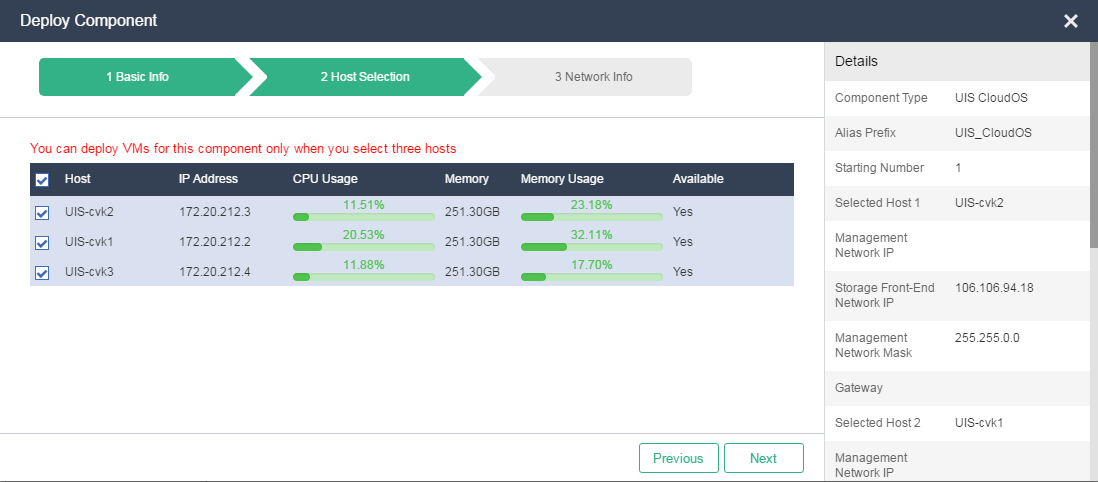
Click Next, and then select three hosts to deploy UIS Cloud VMs.
Figure-3 Selecting three hosts to deploy UIS Cloud VMs
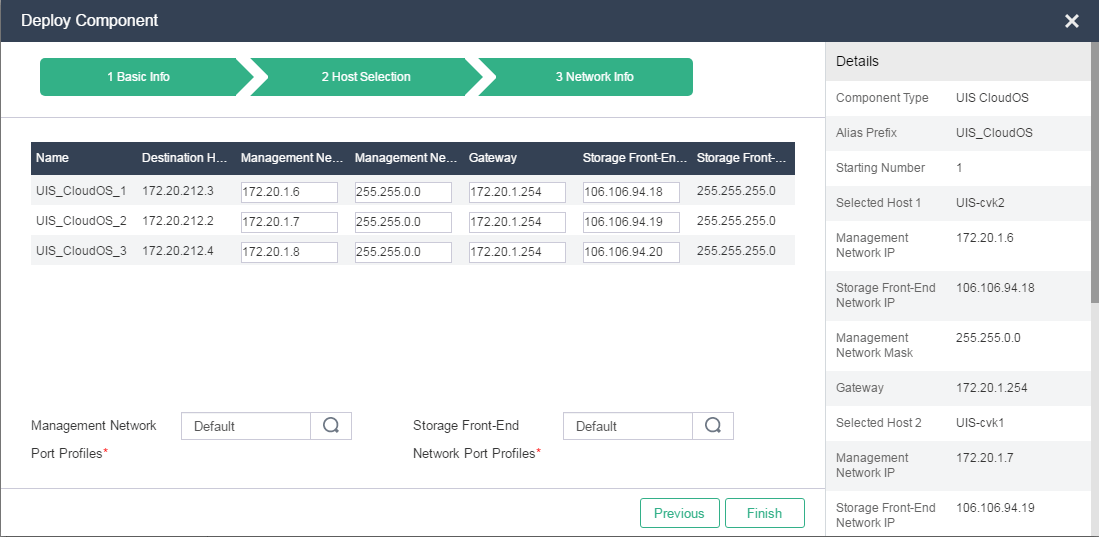
Click Next to configure network settings for the VMs, including IP addressing and port profiles.
IP address settings include their IP addresses on the management network, their management network gateways, and their IP addresses on the front-end storage network.
Port profiles include one profile for each of the management network and front-end storage network.
Figure-4 Assigning IP addresses to the UIS Cloud VMs
|
|
Assign a unique management IP address to each VM. When you use the H3C Matrix tool to initialize the UIS Cloud cluster made up of these VMs, you must use their management IP addresses. |

Click Finish.
UIS Manager starts to deploy the VMs.