Create a migration task
On the top navigation bar, click Services.
From the left navigation pane, select Heterogeneous Migration.
Click Create Migration Task.
Specify the source device and destination VM, and then click Next.
Figure-1 Specifying the source device and destination VM
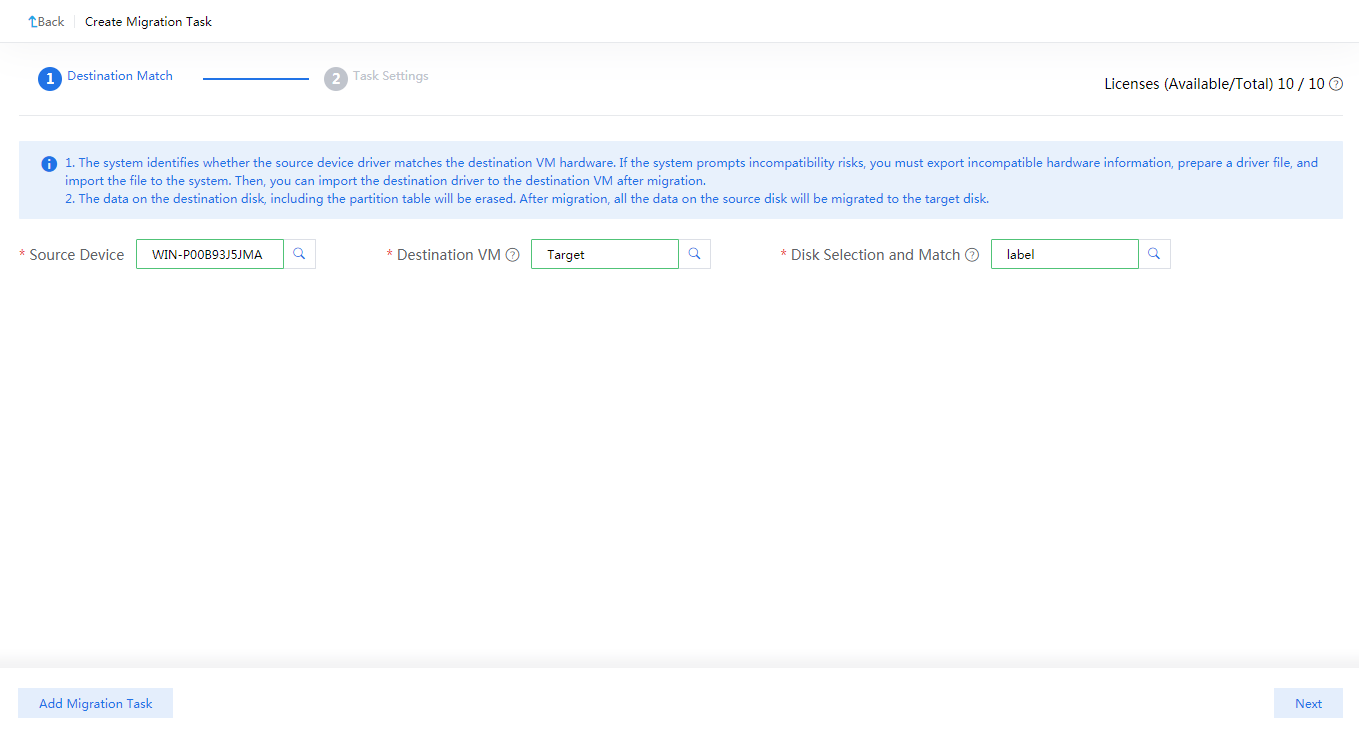
Select source and destination disks.
By default, the system maps each source device disk to a target device disk. If you manually map a source disk to a target disk, make sure the target disk has a same or larger size than the source disk. For dynamic source disks, the destination disks and source disks must have the same size.
|
|
|

Configure task parameters as needed.
Figure-2 Configuring task parameters
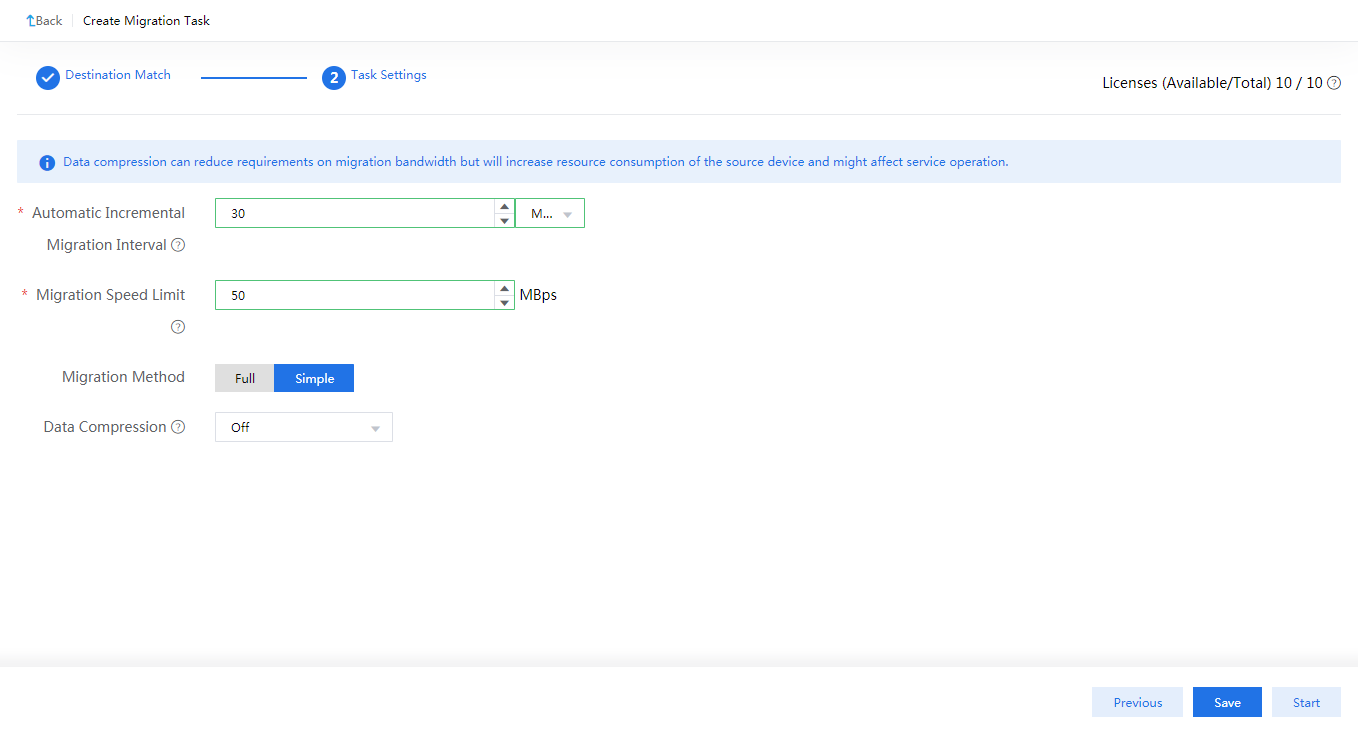
To start the migration task immediately, click Start. To save the migration task, click Save. You can access the migration task list later to start a saved task.
|
|
|

To view the migration task list, click the Migration Tasks tab. The system names migration tasks by source device names and updates the list every 30 seconds.
Figure-3 Migration task list
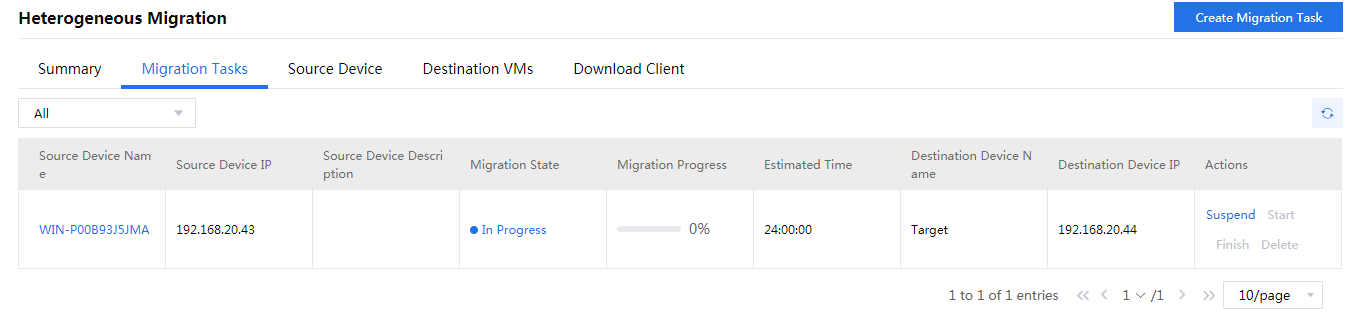
To view detailed information about a migration task, click the source device name. The detailed information page displays the migration process, device information, and logs.
|
|
The system calculates the execution progress of a migration task by periodically sampling data. The system might not refresh the execution progress in real time when migrating a large number of disks, which does not affect migration. You can check the migration progress for the migration state of each disk. |

Figure-4 Viewing detailed information about a migration task
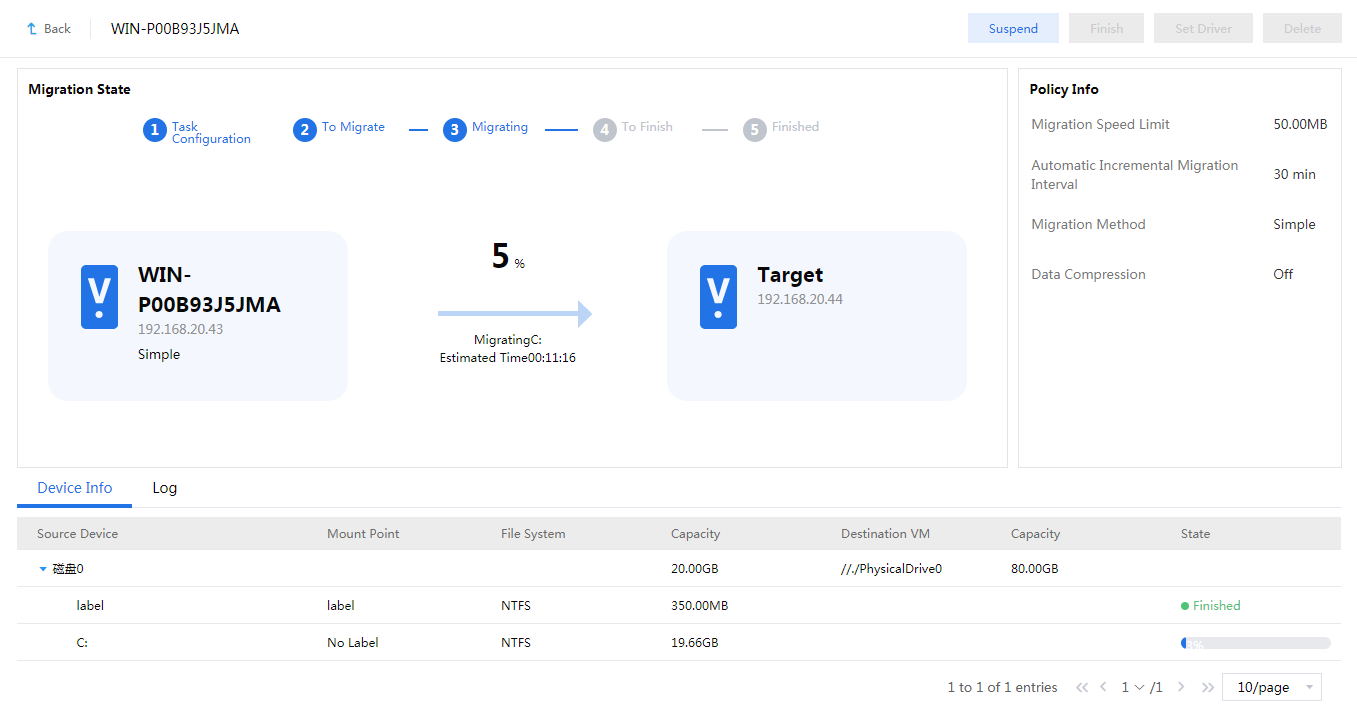
The system executes a migration task periodically at the incremental migration interval if you do not finish it manually. To manually finish a migration task, click Finish. The operation triggers an incremental migration.
Before manually finishing a task, you must stop the services on the source device to prevent the device from generating new data.
|
|
You can manually perform incremental data migration for a migration task that is not finished after its first execution. Incremental migration copies only the changed or new data since the previous migration. You can verify data integrity and restore data for a migration task that is not finished after its first execution. |